Table of Contents
How LinkedIn's Weekly Invitation Limit Works in 2026
When Does the LinkedIn Weekly Limit Reset?
What Day Does the LinkedIn Weekly Limit Reset?
5 Safe Ways to Bypass the LinkedIn Weekly Invitation Limit
What to Do If You've Already Hit the Limit or Got Restricted
How to Increase Your LinkedIn Weekly Limit Long-Term
A Note for Sales and Outreach Professionals — When the Limit Becomes a Bottleneck
Conclusion
Frequently Asked Questions
Modified On :
May 4, 2026
Key Takeaways
- LinkedIn's weekly invitation limit resets on a rolling 7-day cycle — not on a fixed day like Monday or Sunday — starting from when you sent your first connection request of the week.
- Most accounts are capped at approximately 100 connection requests per week, with Sales Navigator users on mature accounts reaching 150–250 depending on their SSI score.
- Withdrawing pending invitations does not restore your weekly sending quota — the limit is based on requests sent, not requests pending.
- Five platform-safe bypass methods exist: messaging Open Profiles, using LinkedIn Group DMs, leveraging InMail credits, improving your SSI score, and distributing your sending behavior naturally across the week.
- Hitting the limit once isn't a penalty — but triggering it repeatedly or pairing it with bot-like behavior can escalate into temporary account restrictions or permanent bans.
If you've ever been mid-campaign and seen "You've reached the weekly invitation limit" pop up, you know exactly what that feels like.
Your outreach stops cold. Replies dry up. And there's nothing to do but wait.
The frustrating part is that LinkedIn slashed its weekly connection request limit from 700 per week (pre-2021) to approximately 100 per week for most accounts — a change that hit SDRs, sales teams, founders, and recruiters the hardest.
LinkedIn typically allows 100–200 connection requests per week (about 15–30 per day), and it's safer to stay under 80 requests per week if you're not using LinkedIn Sales Navigator.
The good news: there are legitimate, platform-compliant ways to work around this limit and keep your outreach pipeline moving. Users with higher SSI scores (70+) may safely send up to 200 requests per week, and Sales Navigator users typically enjoy higher limits of 150–200 per week on mature accounts.
This guide covers how LinkedIn's weekly limit actually works, when it resets, what affects your personal cap, and 5 safe methods to bypass or extend it in 2026.
How LinkedIn's Weekly Invitation Limit Works in 2026
A lot of people assume there's one clean number: 100 invites, done. The reality is messier — and more important to understand.
LinkedIn does not publicly document the cap as a fixed number. It is dynamic and depends on account signals.
Based on extensive community testing and third-party research in 2026, the confirmed ranges are: Free accounts get approximately 100 connection requests per week (with only 5–10 personalized note invites per month), while high SSI score accounts can potentially reach up to 200 requests per week.
These are behavioral ceilings — not guaranteed quotas. LinkedIn's algorithm adjusts your personal limit based on acceptance rate, pending invites, account age, and reported spam signals.

New Accounts Face Tighter Rules
If your account is under three months old, expect lower thresholds. New accounts typically land in the 50–80 request range per week even with clean behavior.
High-performing accounts may reach 150–200 weekly, while flagged accounts drop to as low as 20–30.
The limit expands naturally as your account ages and builds a positive track record. Don't try to force it.
Withdrawing Invitations Does NOT Reset Your Limit
This is one of the most common misconceptions out there. Withdrawing invitations will not remove the restriction. All LinkedIn members (Basic and Premium) are subject to invitation limits, and LinkedIn can't remove the wait period.
The sending count is what triggers the limit — not what remains pending.
One more critical housekeeping note: keeping your pending invitation backlog below 500 is critical — a large backlog signals poor targeting and tightens your sending capacity over time.
🚀 Limits Exist. Pipeline Doesn’t Have To.
We scale LinkedIn outreach safely without risking your account. Done-for-you starting at just $397/mo.
When Does the LinkedIn Weekly Limit Reset?
LinkedIn operates on a rolling weekly limit. When you send your first connection request on Wednesday at 2:00 PM, your limit resets exactly seven days later — Wednesday at 2:00 PM.
It's personal to each user. It has nothing to do with the start of a calendar week.
Practical tip: Note the exact timestamp of your first connection request each week. Add 7 days. That's your reset window. You can plan your outreach sprint around it without any guesswork.
What Happens When You Hit the Limit
When you exceed your weekly connection request quota, LinkedIn displays the message: "You've reached the weekly invitation limit. You can send more invitations on [date]." At this point, LinkedIn's security systems are monitoring your account more closely.
Hitting it once is not a penalty. It simply pauses outreach until the reset. The danger zone is hitting it repeatedly or combining it with automation-like sending patterns — that's where temporary restrictions and shadowbanning begin.
What Day Does the LinkedIn Weekly Limit Reset?
Let's put this to rest: there's no Monday reset, no Sunday midnight rollover. The limit resets on a rolling seven-day period, not on a fixed day of the week. If you sent 20 invites on Monday, you'll get those 20 slots back the following Monday.
This is actually good news for LinkedIn outreach planning. If you hit your limit on a Thursday, you don't need to wait until the following Monday. Your reset could be as soon as the following Thursday.
How to Track Your Personal Reset
Head to your LinkedIn "Manage Invitations" page and look at the timestamp on your earliest sent invitation in the current cycle. Add exactly 7 days. That's your reset time.
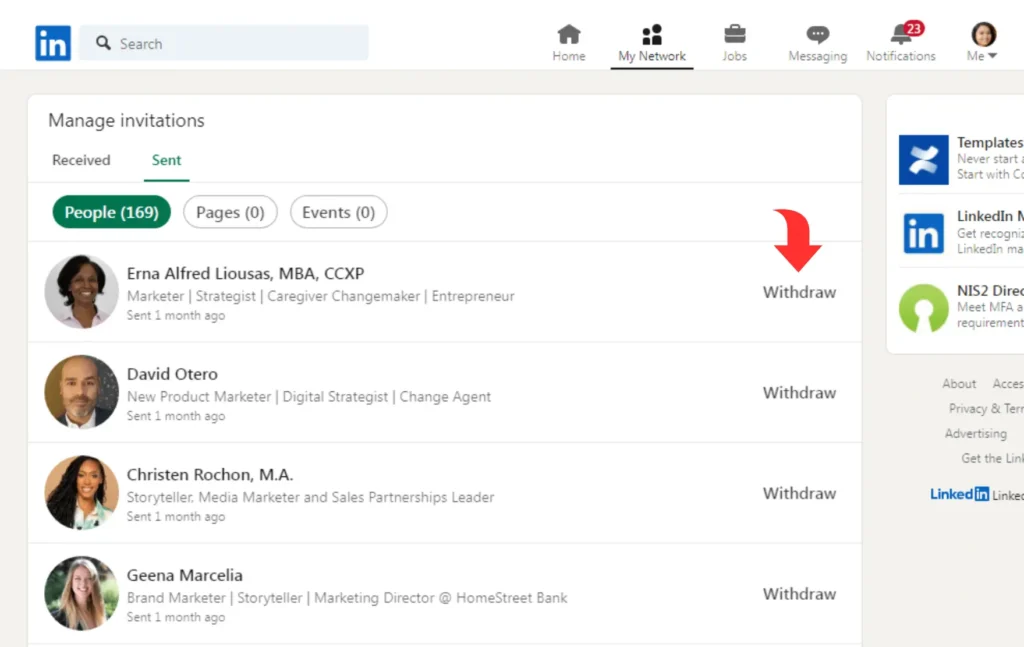
Build this into a simple weekly habit — it takes 30 seconds and completely eliminates the frustration of being caught off-guard mid-campaign.
💼 More Connections. More Conversations. More Deals.
10,000+ clients generated leads with Cleverly. We handle outreach, replies & booking—you close.
5 Safe Ways to Bypass the LinkedIn Weekly Invitation Limit
These are legitimate, platform-compliant strategies — not hacks that get accounts banned. Each method works within LinkedIn's guidelines and has real use cases depending on your ICP and outreach stage.
✅ 1) Message LinkedIn Open Profiles Directly (No Connection Request Needed)

Open Profile members have enabled a setting that lets anyone message them directly — no connection request required, and it does not count against your weekly invitation limit.
How to spot them: look for a "Free message" button instead of a "Connect" button on their profile. That's your signal they're Open Profile.
In Sales Navigator, you can filter prospects specifically by "Open Profile" — this lets you build targeted lists of decision-makers you can message immediately without burning a single invitation credit.
This is one of the most underused bypass methods available. No account risk, fully compliant, and ideal for reaching senior B2B buyers who are actively open to inbound conversations.
Best for: Premium LinkedIn users, decision-makers, and high-value accounts where a direct, warm message outperforms a cold connection request.
✅ 2) Leverage LinkedIn Groups to Message Members Directly

Members of the same LinkedIn Group can send direct messages to each other without needing to be connected first — and these messages don't touch your weekly invitation limit at all.
The play: join 3–5 active LinkedIn Groups where your ICP congregates. Then message relevant members directly from within the group rather than sending connection requests.
LinkedIn allows messaging up to around 20–30 group members per month this way — a solid supplementary channel when your invitation credits are exhausted mid-week.
There's another upside: group membership signals shared professional interest, which gives your outreach a built-in context hook. It's easier to personalize and easier to get a reply.
Best for: Niche industries and professional communities where group activity is high — think SaaS communities, HR networks, finance, and legal verticals.
✅ 3) Use LinkedIn InMail Credits Strategically
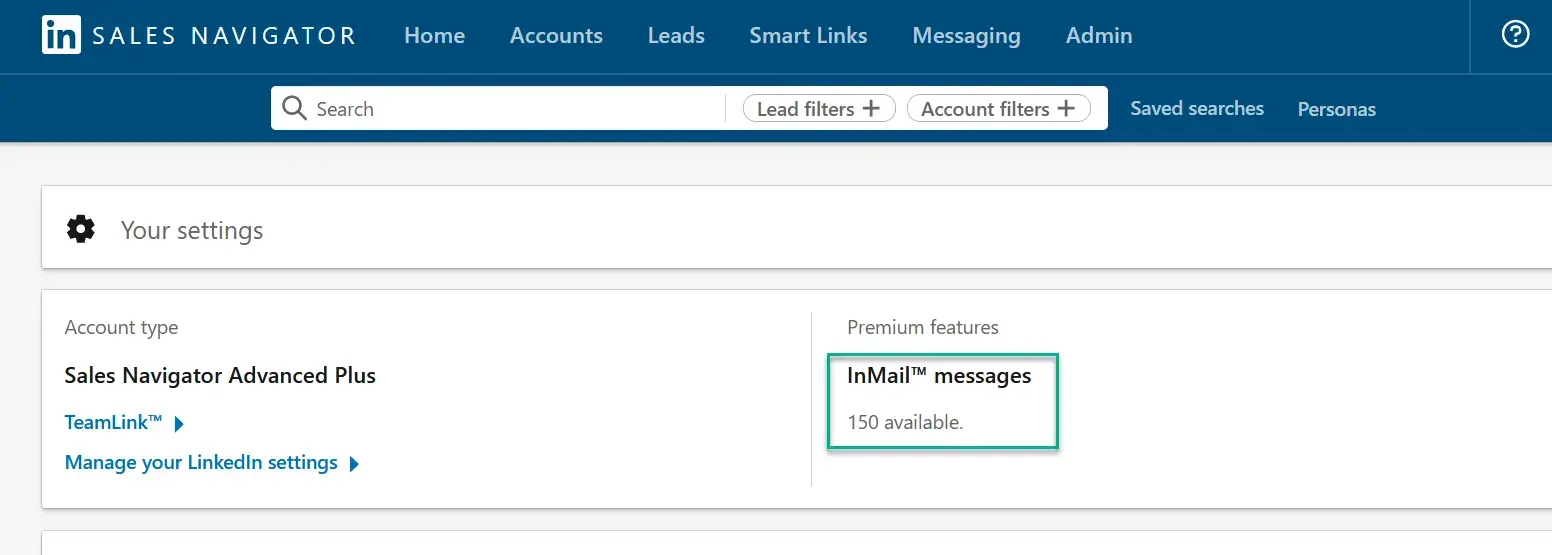
LinkedIn Premium and Sales Navigator users receive monthly InMail credits that allow direct messaging to any LinkedIn member — connected or not — without using connection request limits.
Sales Navigator accounts get up to 50 InMail credits per month. Premium accounts typically come with 5–15 InMail credits depending on the plan tier.
InMails land directly in the recipient's inbox without requiring a connection first. That makes them ideal for high-value prospects you can't afford to spend a connection request on — particularly senior decision-makers who rarely accept cold invites.
One important caveat: InMail quality directly affects your sending ability. Low response rates or negative feedback can restrict your InMail access, so personalization is non-negotiable here. Keep messaging relevant, specific, and short.
Best for: High-ticket prospects, C-suite contacts, and accounts where a direct, personalized message carries more weight than a standard connection request.
✅ 4) Improve Your Social Selling Index (SSI) Score to Increase Your Natural Limit
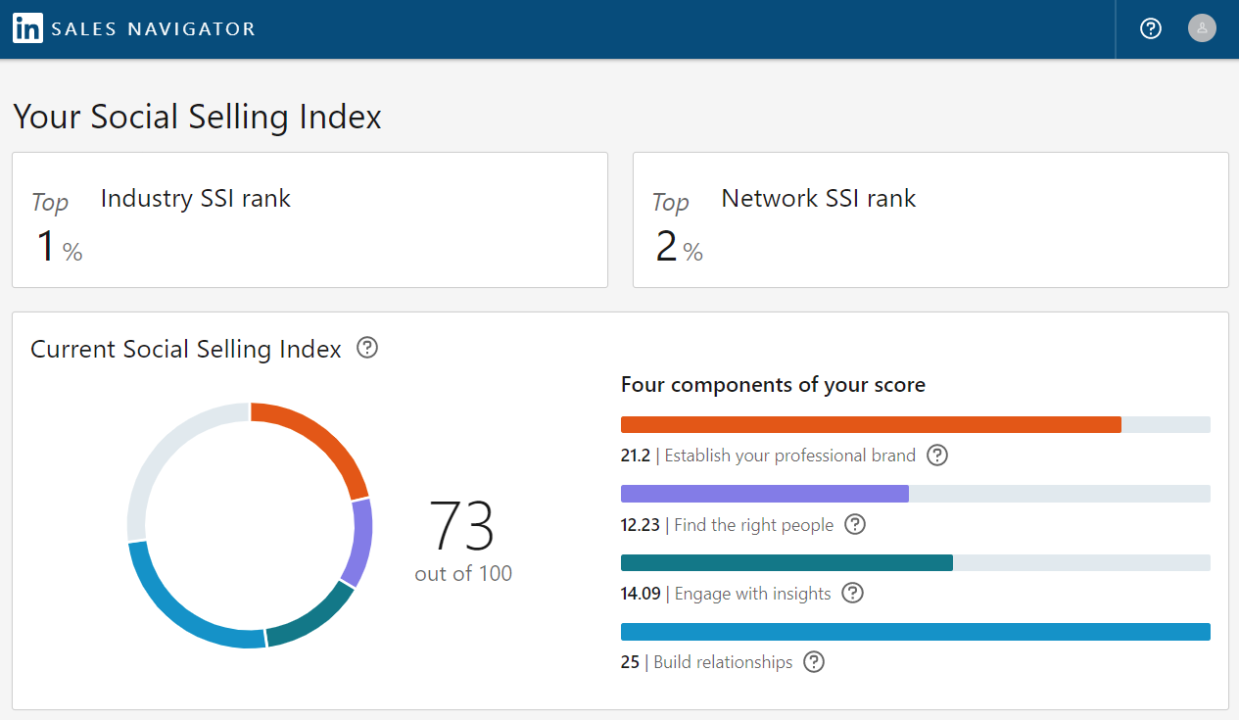
LinkedIn's Social Selling Index (SSI) is a 0–100 score that measures how effectively you use LinkedIn for professional networking and social selling. And it directly impacts how many connection requests you can send.
Users with higher SSI scores (70+) may safely send up to 200 requests per week versus the standard ~100 for accounts with lower scores. That's essentially doubling your weekly capacity without paying for an upgrade.
The SSI is built on four pillars — each contributing 25 points:
- Establish your professional brand — complete, optimized profile with a strong headline and photo
- Find the right people — consistent use of advanced search and Sales Navigator filters
- Engage with insights — comment, share, and react to relevant content regularly
- Build relationships — maintain active conversations with new and existing connections
You can check your SSI score at linkedin.com/sales/ssi — it's free for all users. Check it now. If you're below 70, that's your fastest path to a higher weekly sending ceiling.
Best for: Anyone running consistent, long-term LinkedIn outreach who wants to earn higher limits organically without relying on workarounds.
✅ 5) Distribute Sending Behavior Across Days and Times

Sending all 100 weekly invitations on Monday morning is one of the fastest ways to trigger LinkedIn's spam detection — even if you're technically within the numerical limit.
LinkedIn actively detects bot-like behavior: sending all 100 requests on Monday morning, identical send times each day, or unnatural activity spikes — even if you are within the numerical limit, sudden bulk activity triggers spam detection.
The fix is simple. Distribute requests evenly — 15–20 per day — to mimic natural human behavior and keep yourself under LinkedIn's radar.
For new accounts specifically: start at 10–15 requests per day and increase by 2–3 per day each week. This "warming up" period is essential before you scale outreach volume.
Additional tip: If your acceptance rate drops below 30%, the algorithm assumes your outreach is spam and will tighten your restrictions. Better targeting is the most reliable long-term lever for maintaining a higher sending threshold.
What to Do If You've Already Hit the Limit or Got Restricted
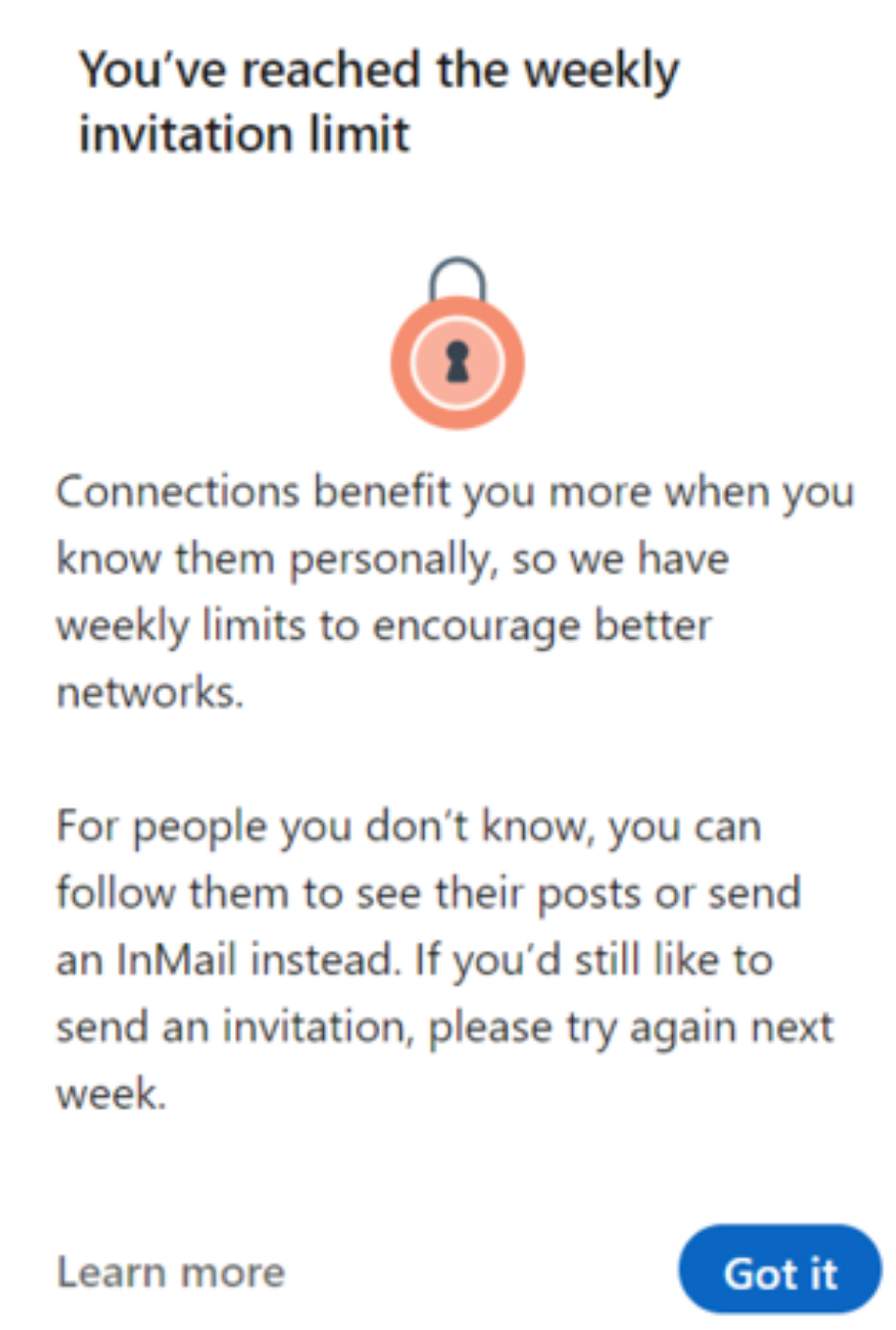
If You've Just Hit the Weekly Limit
Stop sending immediately. Use the downtime productively — engage with existing connections via comments, post reactions, and direct messages to warm prospects. This kind of activity actually builds your SSI score while you wait.
The reset is coming. Use the pause to audit your prospect list quality so your next cycle starts with better targeting.
If You've Received a Temporary Restriction
This is a few steps more serious. The recovery path:
- Pause all sending for at least 3 full days — no automation, no manual blasting
- Withdraw pending invitations down to below 500 total — keeping old unanswered requests is a red flag
- Restart slowly at 10–15 manual, highly targeted requests per day after the pause
Keep in mind: after withdrawing an invitation, you cannot resend a request to the same person for three weeks — factor that into your re-targeting decisions.
What Not to Do During a Restriction
Don't reach for automation tools. Don't blast InMails to compensate. Don't try to find workarounds that could turn a temporary restriction into a permanent account ban.
Stop sending connection requests immediately. Don't try to work around the limit or push through — this increases the risk of account restriction. Wait 5–7 days before resuming any connection activity.
The safest recovery path is patience, gradual ramp-up, and tighter targeting going forward. A LinkedIn account built over years is not worth risking for short-term volume.
How to Increase Your LinkedIn Weekly Limit Long-Term
The goal isn't to hack the limit. It's to earn a higher one organically. Here's what moves the needle:
Upgrade to Sales Navigator
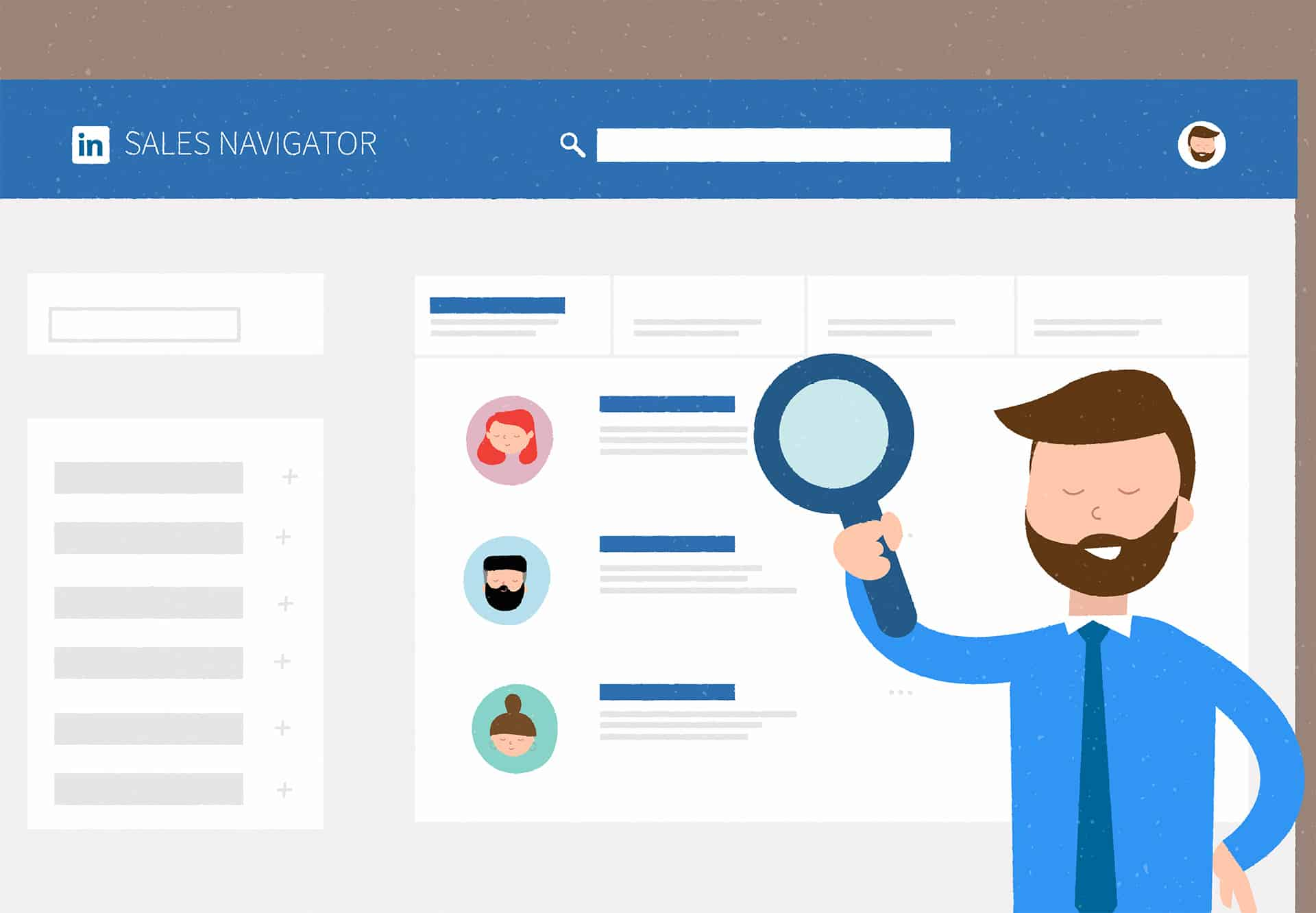
Sales Navigator's advantage is higher profile view limits and more InMail credits (50 monthly vs. 15). Mature, high-SSI Sales Navigator accounts regularly reach 200–250 connection requests per week.
Build your SSI above 70
This is the single most reliable organic lever. Users with 75+ SSI often reach 150–200 weekly requests versus the standard 100.

Improve your acceptance rate.
LinkedIn will reduce your connection limit if you have low acceptance rates or if other users report you with the "I don't know this person" button. Better targeting directly translates to a higher limit over time.
Keep your pending backlog below 500
Withdraw old unanswered requests regularly. A bloated backlog is a signal of poor targeting — LinkedIn's algorithm reads it that way.
Age your account
New accounts face tighter limits by design. Consistent, genuine activity over 6–12 months naturally unlocks higher thresholds.
Avoid TOS-violating automation tools
Even if they work in the short term, account bans are permanent. No amount of pipeline justifies losing a professional profile built over years of work.

A Note for Sales and Outreach Professionals — When the Limit Becomes a Bottleneck
For individual users managing their own outreach, the 100-request weekly limit is workable with the right strategies above. For sales teams, SDRs, and founders running active outbound campaigns, it's a different story.
Hitting the limit consistently is a signal: LinkedIn outreach needs to operate as a system, not a manual daily task. The most effective programs spread activity across multiple optimized profiles, use ICP-verified prospect lists, and pair connection requests with InMail and Open Profile messaging to maximize weekly reach.
Managing all of this in-house — profile optimization, targeting, messaging cadence, safety monitoring, and reply handling — is a serious operational commitment. Most teams underestimate what it actually takes to run this well at scale.
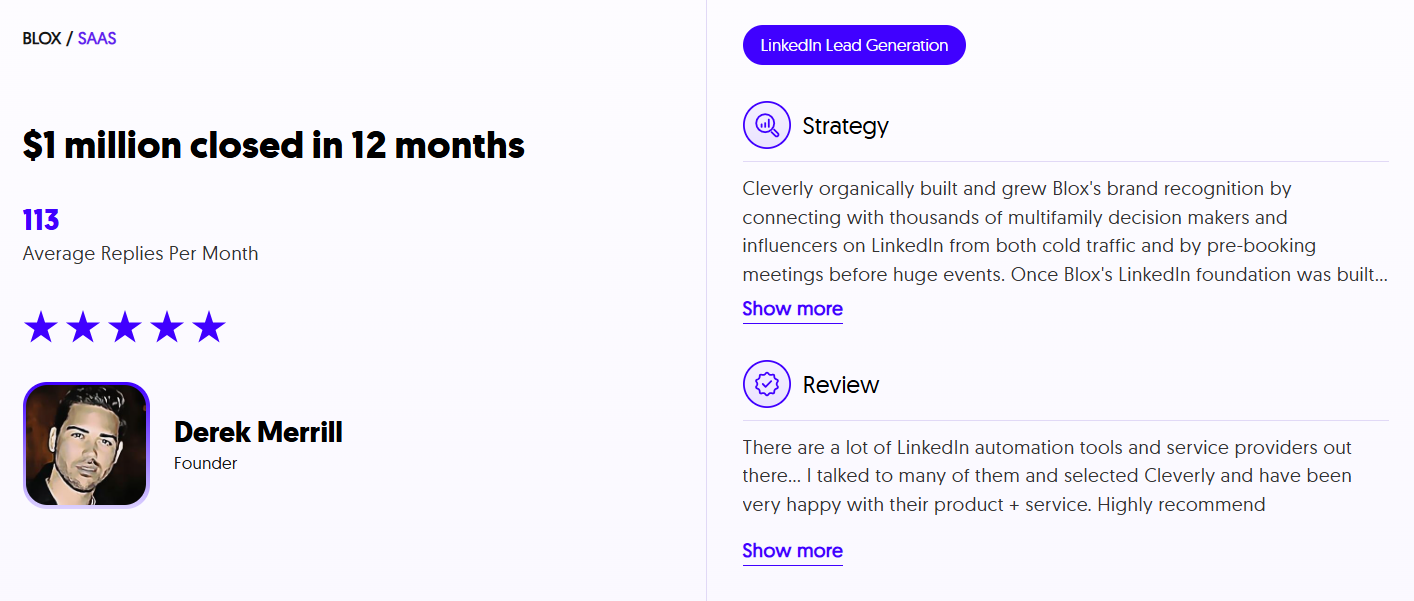
Our LinkedIn lead generation system is built around exactly these principles: multi-profile campaign management, ICP-aligned targeting, personalized messaging sequences, and safe sending practices that protect account health while maximizing outreach volume.
The result: consistent, qualified conversations landing in your inbox — without the operational overhead of manually managing limits, withdrawal schedules, and SSI scores week after week.
Over 10,000 B2B companies trust us to fill their calendars with qualified sales conversations. Plans start at $397/month.
See how it works →
Conclusion
LinkedIn's weekly invitation limit resets exactly 7 days after your first invitation of the current cycle — not on a fixed calendar day, not at midnight Sunday. That rolling window is personal to every user.
The limit itself is dynamic: roughly 100 requests per week for most accounts, up to 200–250 for Sales Navigator users with strong SSI scores and high acceptance rates.
The five safest ways to work around it — messaging Open Profiles, using LinkedIn Groups, leveraging InMail credits, building your SSI score, and distributing sending naturally — are all legitimate and platform-compliant.
The best long-term strategy isn't gaming the limit. It's earning a higher one by building the profile trust, targeting quality, and sending discipline that LinkedIn's algorithm rewards. Treat the limit as a forcing function toward better outreach — and it'll start working for you, not against you.
Frequently Asked Questions
Free Resource
How to Scale a Profitable Cold Call System
Get the complete guide — download it instantly now.
Free Ebook
Download the Free Guide
Enter your details to get instant access.
You're all set! 🎉
Your ebook is downloading now.
Click below if the download didn't start automatically.