Table of Contents
Can You Export Leads From LinkedIn Sales Navigator?
What Data Can You Export From Sales Navigator?
Method 1 — Export Leads Using LinkedIn's Native Data Export Tool
Method 2 — Export Leads Using a Third-Party Chrome Extension
Method 3 — Export Leads Directly to CRM via Native Integration
Best Tools to Export Leads From Sales Navigator in 2026
Export Limits and Safety Rules to Know Before You Start
What to Do With Your Exported Sales Navigator Leads
How Cleverly Uses Sales Navigator to Build ICP-Ready Lead Lists for LinkedIn Outreach
Conclusion
Frequently Asked Questions
Modified On :
May 4, 2026
Key Takeaways
- LinkedIn Sales Navigator does not have a native one-click CSV export button — but there are multiple legitimate methods to get your lead data out in 2026.
- LinkedIn's built-in data export tool gives you basic profile info at zero risk; third-party Chrome extensions give you outreach-ready lists with verified emails and company data.
- Sales Navigator search results are capped at 2,500 leads per search — for larger TAMs, you need to break exports into batches using additional filters.
- Between 10–40% of exported leads may not perfectly match your original Sales Navigator filters — validate every list before launching outreach.
- B2B data decays at roughly 2.1% per month, meaning a quarter of your exported contacts could be stale within a year — refresh lists every 60–90 days.
- Exporting leads is step one. What you do with the data after — cleaning, enrichment, ICP segmentation, and outreach — is where the real pipeline gets built.
LinkedIn Sales Navigator is one of the most powerful B2B prospecting tools ever built.
With access to over 1 billion professional profiles, 50+ advanced filters, and real-time buying signals, it's become the default starting point for SDR teams, founders, and revenue ops leads running B2B LinkedIn lead generation at scale.
But here's the thing that trips almost everyone up: LinkedIn Sales Navigator doesn't let you export leads natively. There's no download button. No CSV export. That's by design — LinkedIn protects its data as a core business asset.
The good news? There are real methods that work. LinkedIn Sales Navigator users identify 45% more prospects than those using standard LinkedIn search functionality — and getting that prospecting power into an actionable outreach list is absolutely doable in 2026.
Sales Navigator users generate 45% larger deals and 29% lift in sales opportunities, which is exactly why learning to export and work those lists is worth your time.
This guide breaks down every method for how to export leads from Sales Navigator — from LinkedIn's own data tool to Chrome extensions and CRM integrations — along with the tools, safety rules, and post-export workflow that actually converts a CSV into booked meetings.
Can You Export Leads From LinkedIn Sales Navigator?
Yes — but not the way most people expect.
LinkedIn Sales Navigator doesn't have a one-click "Export to Excel" function. In other words, you can't select your entire lead list and download it straight into a spreadsheet.
Instead, LinkedIn directs you to its general data export tool, which isn't built specifically for lead generation.
What LinkedIn does allow natively is downloading a general copy of your account data — including saved contacts — through your account settings. The file is limited in fields and not built for outreach.
What requires a third-party tool: exporting full lead lists with verified emails, phone numbers, company data, and enrichment details.
These tools sit in a gray area of LinkedIn's Terms of Service — but reputable ones mimic human browsing behavior and are widely used by B2B sales teams without issues.
The key distinction: LinkedIn's native export is fully compliant. Third-party Chrome extensions carry some ToS risk, but using reputable, account-safe tools dramatically reduces that exposure.
🚀 Lists Don’t Book Meetings. Outreach Does.
We turn Sales Navigator leads into real sales calls. Done-for-you LinkedIn, email & calling. Already done for 10,000+ businesses. You next?
What Data Can You Export From Sales Navigator?
Not all export methods give you the same data. Here's what you're actually working with:
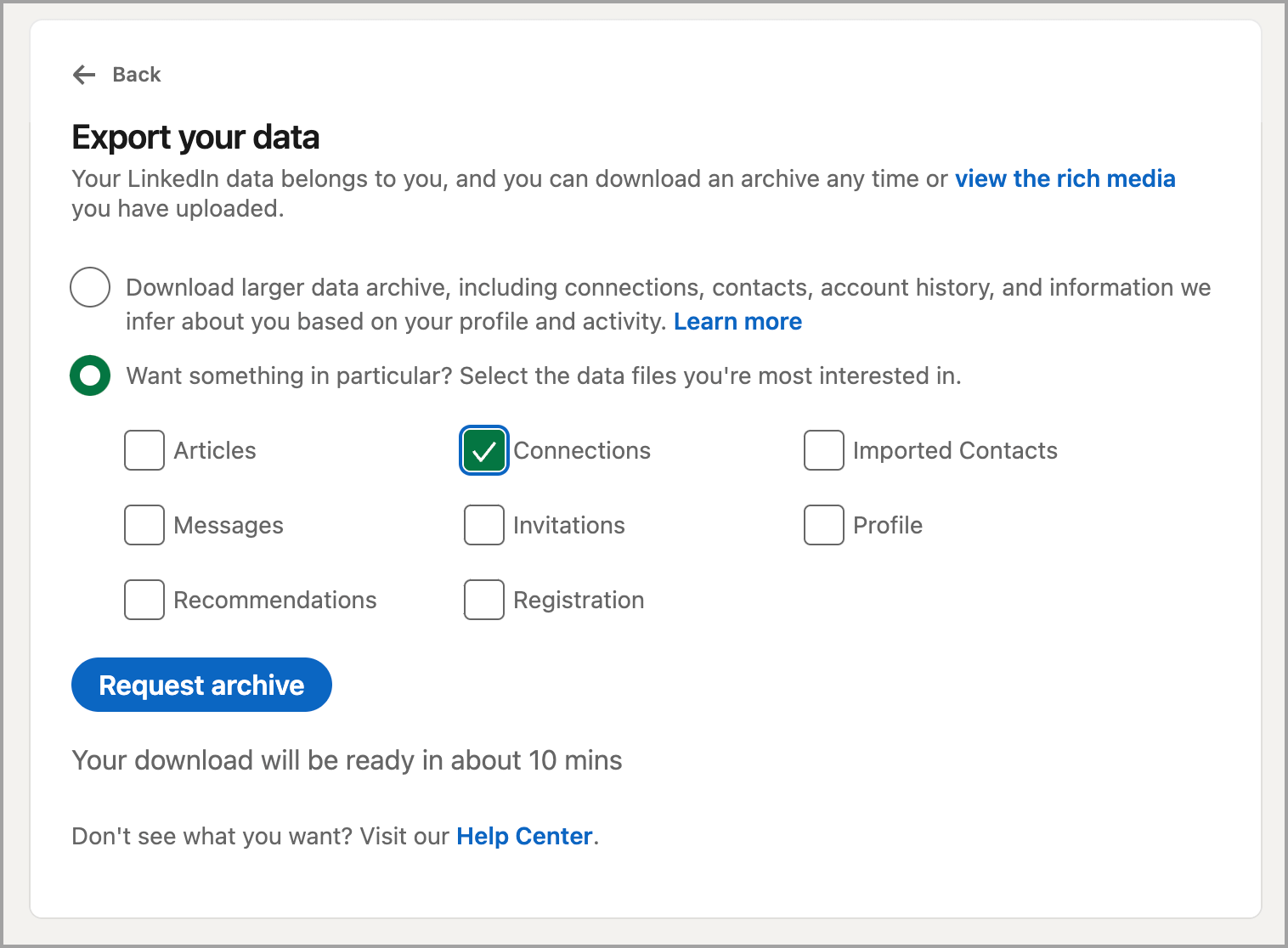
Via LinkedIn's native data export tool (limited):
- First and last name, LinkedIn profile URL, current job title
- Current company, location, connection degree
- Saved lead tags and notes
- ❌ No email addresses, no phone numbers, no company size or revenue data
Via third-party Chrome extension tools (comprehensive):
- Full contact data: name, LinkedIn URL, job title, seniority, department
- Company data: name, size, industry, revenue range, location, website
- Verified professional email addresses (via enrichment)
- Phone numbers (via additional enrichment — not always available)
- Technographic data on select tools: tech stack, tools in use
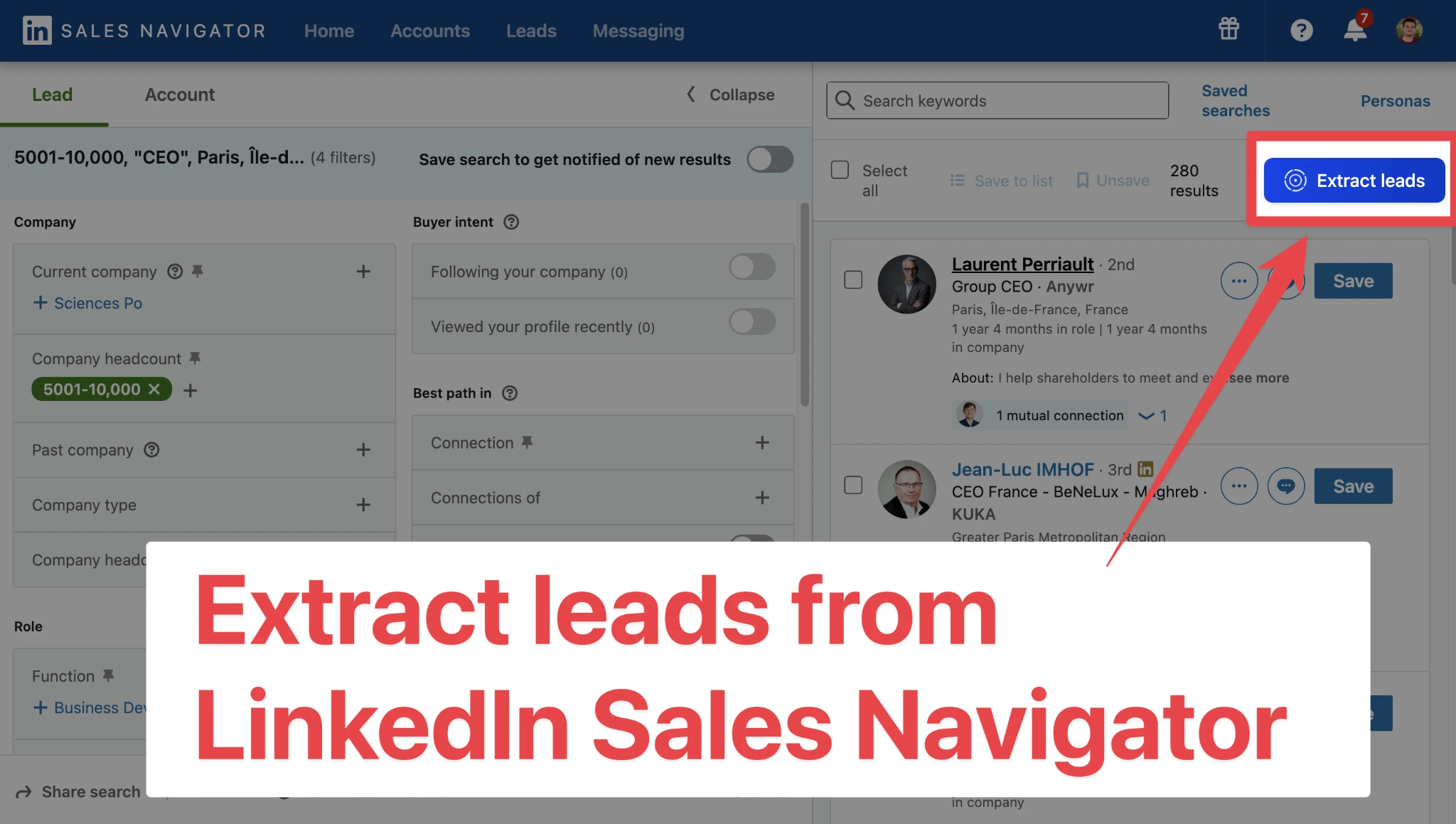
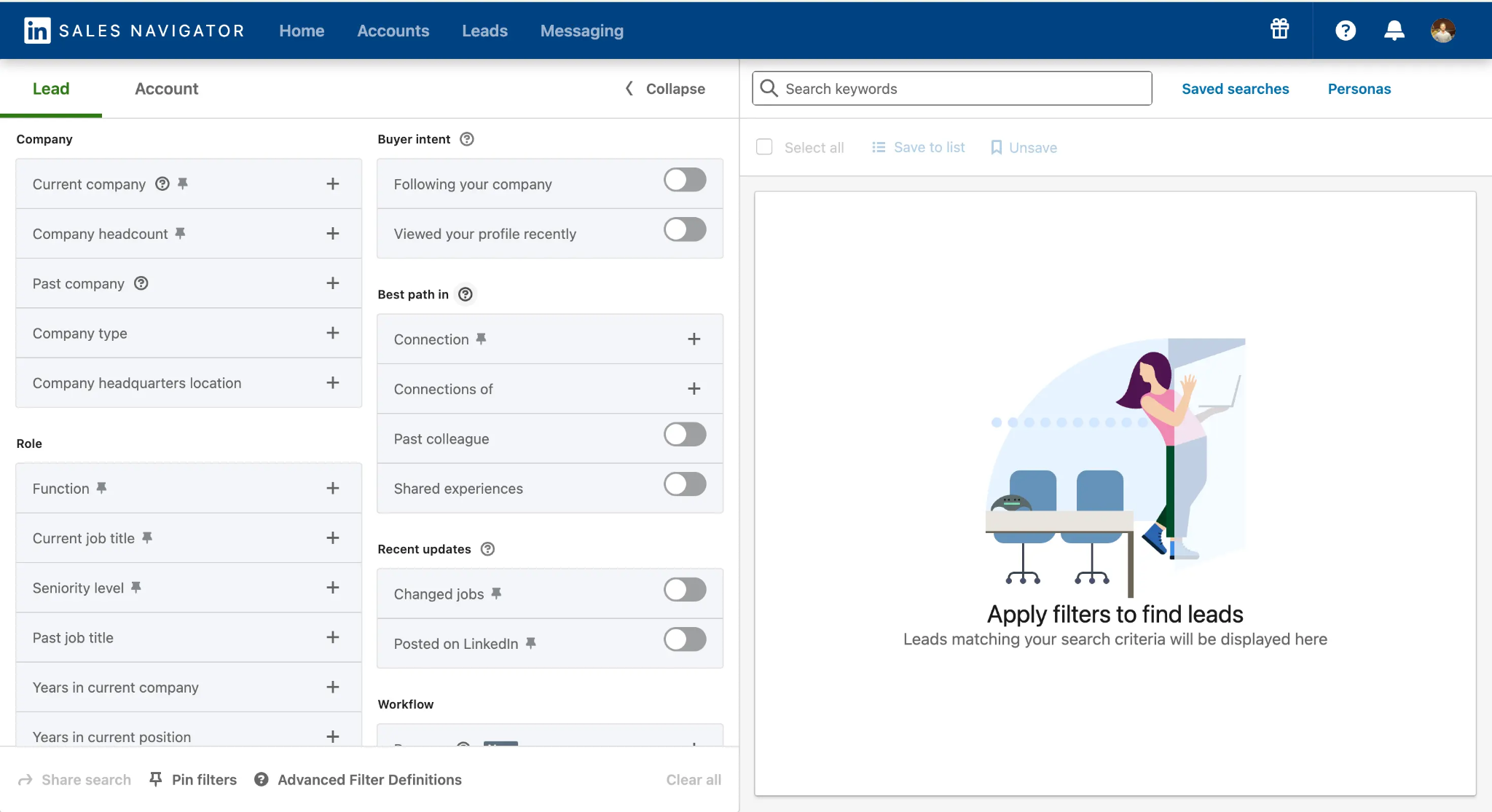
One important hard limit to know: LinkedIn Sales Navigator limits search results to 2,500 leads (100 pages of 25 leads) to improve the user experience and search accuracy.
For larger TAMs, you'll need to break your search into smaller batches using geography, seniority, industry, or company size filters — then combine the exports.
Method 1 — Export Leads Using LinkedIn's Native Data Export Tool
Best for: Small teams needing basic contact data with zero third-party tool cost or compliance risk.
Limitation: This isn't built specifically for Sales Navigator. It outputs a general data file — not an outreach-ready lead list with emails.
Step-by-Step Instructions
Step 1: Log into your regular LinkedIn account at linkedin.com (not Sales Navigator).
Step 2: Click the "Me" icon at the top right and select "Settings & Privacy."
Step 3: Click "Data Privacy" in the left-hand menu.
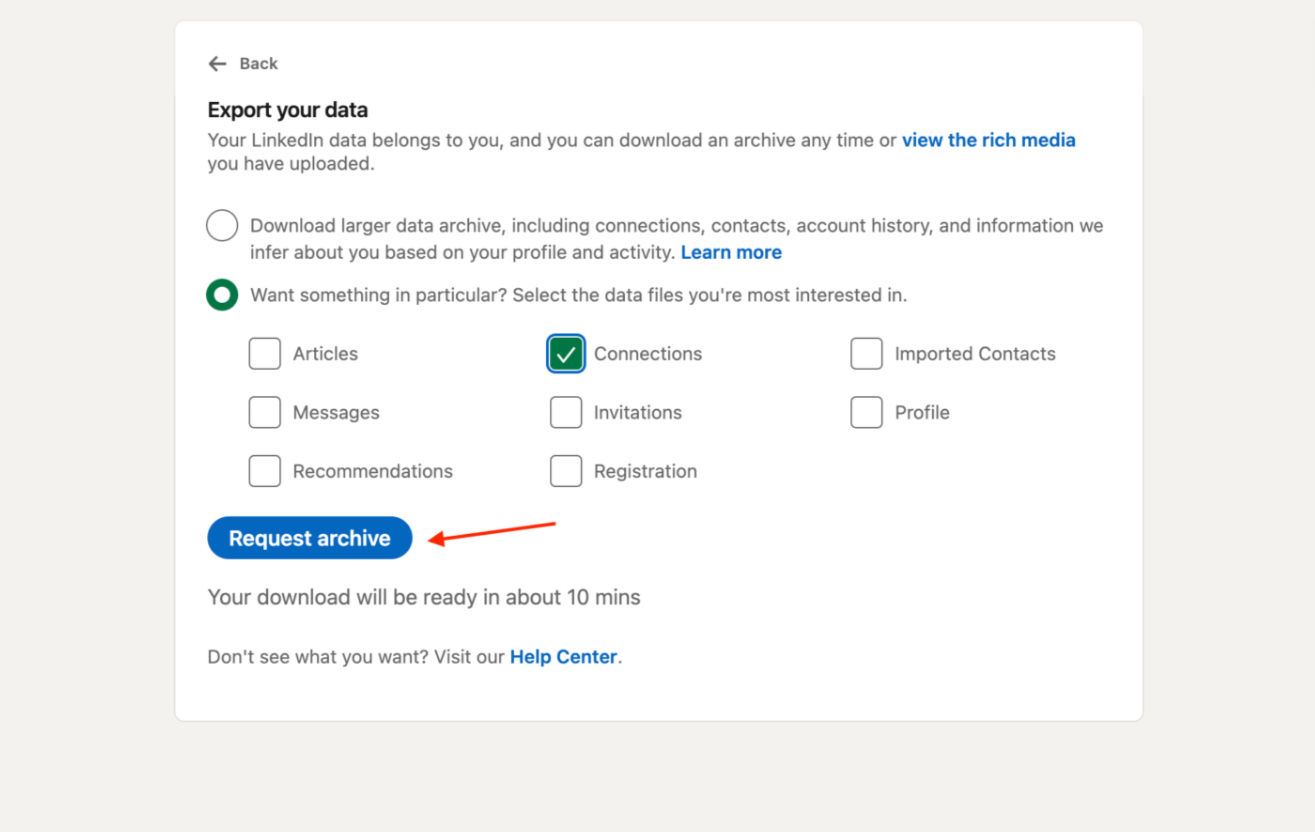
Step 4: Scroll to "Get a copy of your data" and select "Download larger data archive."
Step 5: Check the boxes for "Connections" and "Saved leads and notes" — then click "Request Archive."
Step 6: LinkedIn will email you a download link within a few minutes to several hours.
Step 7: Download the ZIP file and open the CSV files inside — your saved Sales Navigator contacts will be included.
What you get: Name, company, job title, LinkedIn URL, connection date, saved tags and notes.
What you don't get: Email addresses, phone numbers, or enriched company data.
This method is the safest route with zero account risk. It's useful for basic reference data or as a starting point before running enrichment through a third-party tool.
💼 Stop Exporting. Start Closing.
10,000+ clients generated pipeline with Cleverly. We handle targeting → outreach → booking—you close.
Method 2 — Export Leads Using a Third-Party Chrome Extension
Best for: SDRs and sales teams needing outreach-ready lead lists with verified emails at scale.
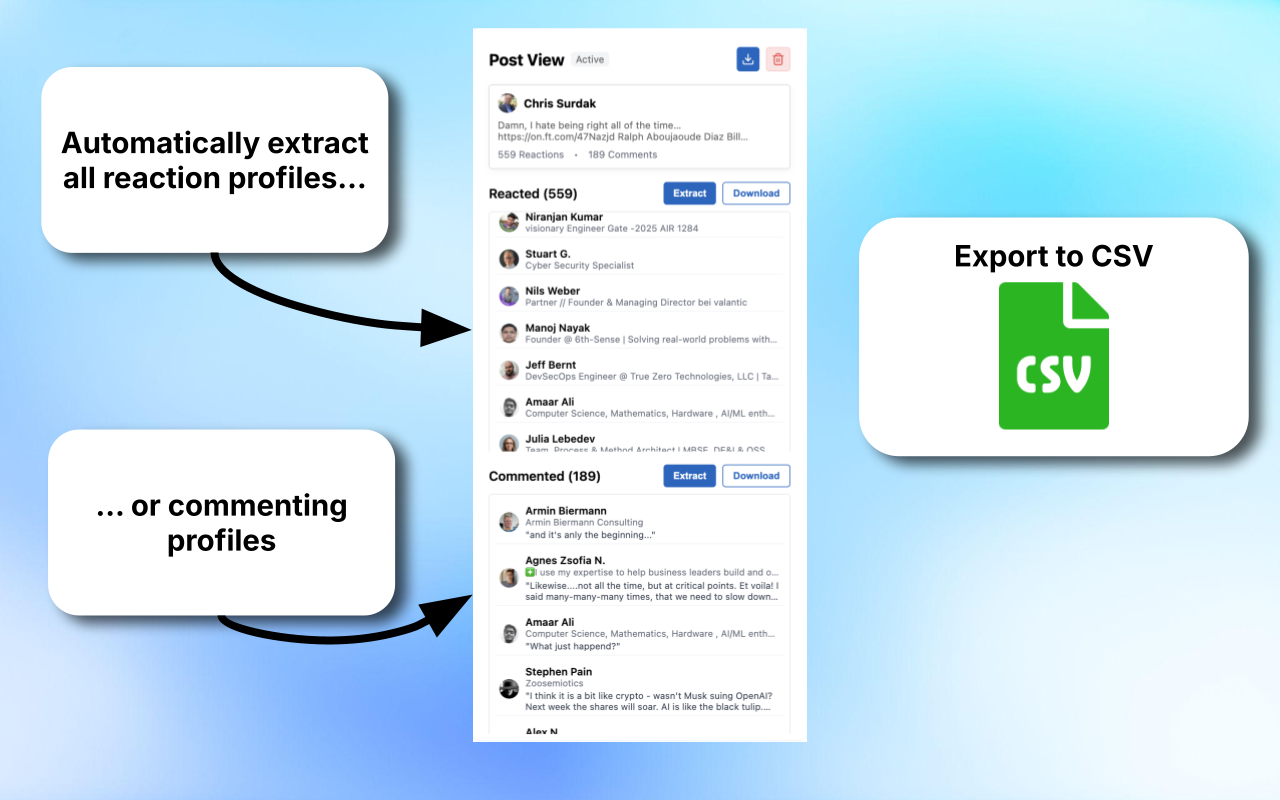
How it works: you install a Chrome extension that adds an "Export" or "Extract" button directly inside the Sales Navigator interface. The tool processes visible profile data page-by-page and enriches it with email and company data from external databases.
Step-by-Step Process (General Workflow Across Most Tools)
Step 1: Sign up for a reputable third-party export tool (see tool recommendations below) and install their Chrome extension from the Chrome Web Store.
Step 2: Log into LinkedIn Sales Navigator and build your lead search using filters — role, company size, industry, seniority, geography, and more.
Step 3: Once search results load, the Chrome extension will display an "Export" or "Extract" button on the page.
Step 4: Click the button, name your export, set the number of leads to extract, and select enrichment options (email finding, phone numbers).
Step 5: The tool processes leads one profile at a time to mimic human behavior. Processing time varies by list size — typically 10–30 minutes per 500 leads.
Step 6: Download your completed CSV file. It will include profile data plus enriched contact details based on your chosen options.
⚠️ Important Safety Guidelines During Export
✅ Never run multiple export tools simultaneously on the same LinkedIn account — this spikes activity signals fast.
✅ Stay within reasonable export volumes per session — extracting thousands of leads in one go raises red flags regardless of which tool you use.
✅ Use tools that explicitly prioritize account safety and mimic human-like browsing behavior.
✅ Avoid tools that require your LinkedIn password — reputable tools use session cookies only.
✅ Visiting more than 150–200 profiles per day triggers LinkedIn's velocity detection. Tools that auto-browse profiles in the background are the most common cause of restrictions.
Method 3 — Export Leads Directly to CRM via Native Integration
Best for: Enterprise sales teams already using Salesforce, HubSpot, or Microsoft Dynamics who want to eliminate the CSV step entirely.
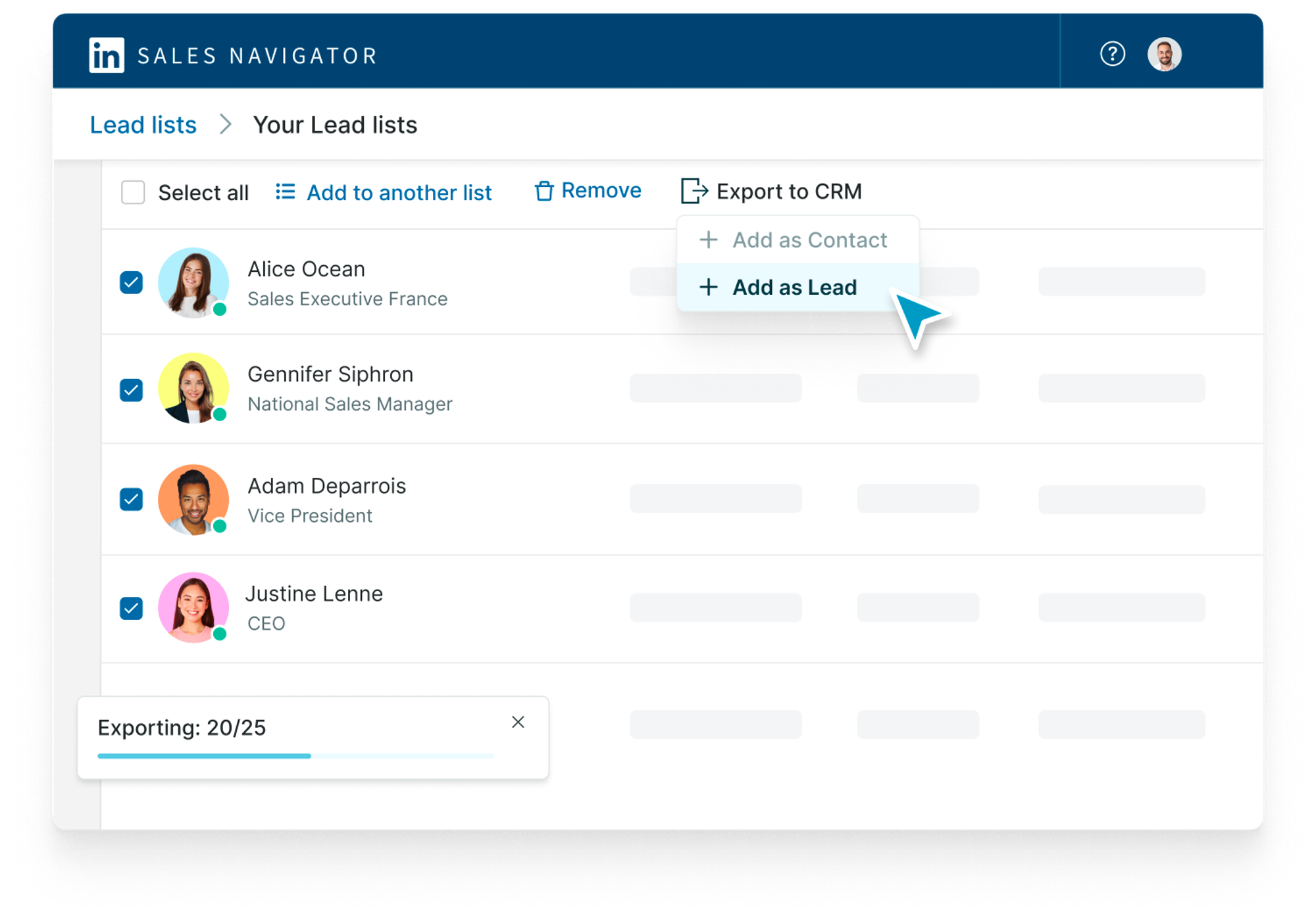
Sales Navigator Advanced Plus — the highest tier plan — includes direct CRM sync. It's the most seamless export method available and the only one where leads stay automatically updated as LinkedIn profiles change.
How to connect:
Go to Admin Settings → CRM Settings inside Sales Navigator, connect to your CRM, and saved leads will sync bidirectionally between the two platforms.
Supported CRMs natively: Salesforce, HubSpot, Microsoft Dynamics. For other CRMs, Zapier, Make, or Clay can bridge the gap.
What syncs: Lead name, title, company, LinkedIn URL, activity notes, and saved tags. Email enrichment still requires a separate step unless your CRM has built-in enrichment.
Key benefit: Eliminates data decay — contacts stay updated as LinkedIn profiles change, rather than sitting stale in a spreadsheet.
Limitation: The Advanced Plus plan is significantly more expensive than Core or Advanced. It makes sense for larger teams where CRM sync ROI justifies the upgrade — not for early-stage teams doing targeted outreach.
Best Tools to Export Leads From Sales Navigator in 2026
A quick-reference breakdown of the most-used tools for exporting leads from LinkedIn Sales Navigator in 2026 — not a deep review, just what you need to make a fast decision.
Evaboot
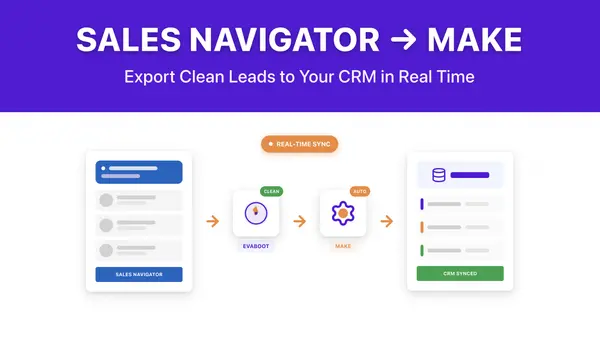
Best for: Clean, filter-validated exports with automatic data cleaning.
Between 10% and 40% of leads from a Sales Navigator search may not actually match your filters. Evaboot solves this with automatic filter validation — it checks every exported lead against your original Sales Navigator criteria and flags the ones that don't match your ICP. It also strips legal suffixes from company names and cleans formatting for outreach-ready output.
Pricing: Credit-based model. Free trial available.
Clay

Best for: Advanced multi-source enrichment workflows beyond basic export.
Clay doesn't just export — it pulls from 50+ enrichment sources simultaneously. You can combine Sales Navigator data with Apollo, Clearbit, Hunter, and more in a single workflow. It's the power user option for technical GTM teams building custom data pipelines. Higher learning curve and cost, but unmatched enrichment depth.
Pricing: Higher-tier — built for teams with dedicated RevOps resources.
PhantomBuster
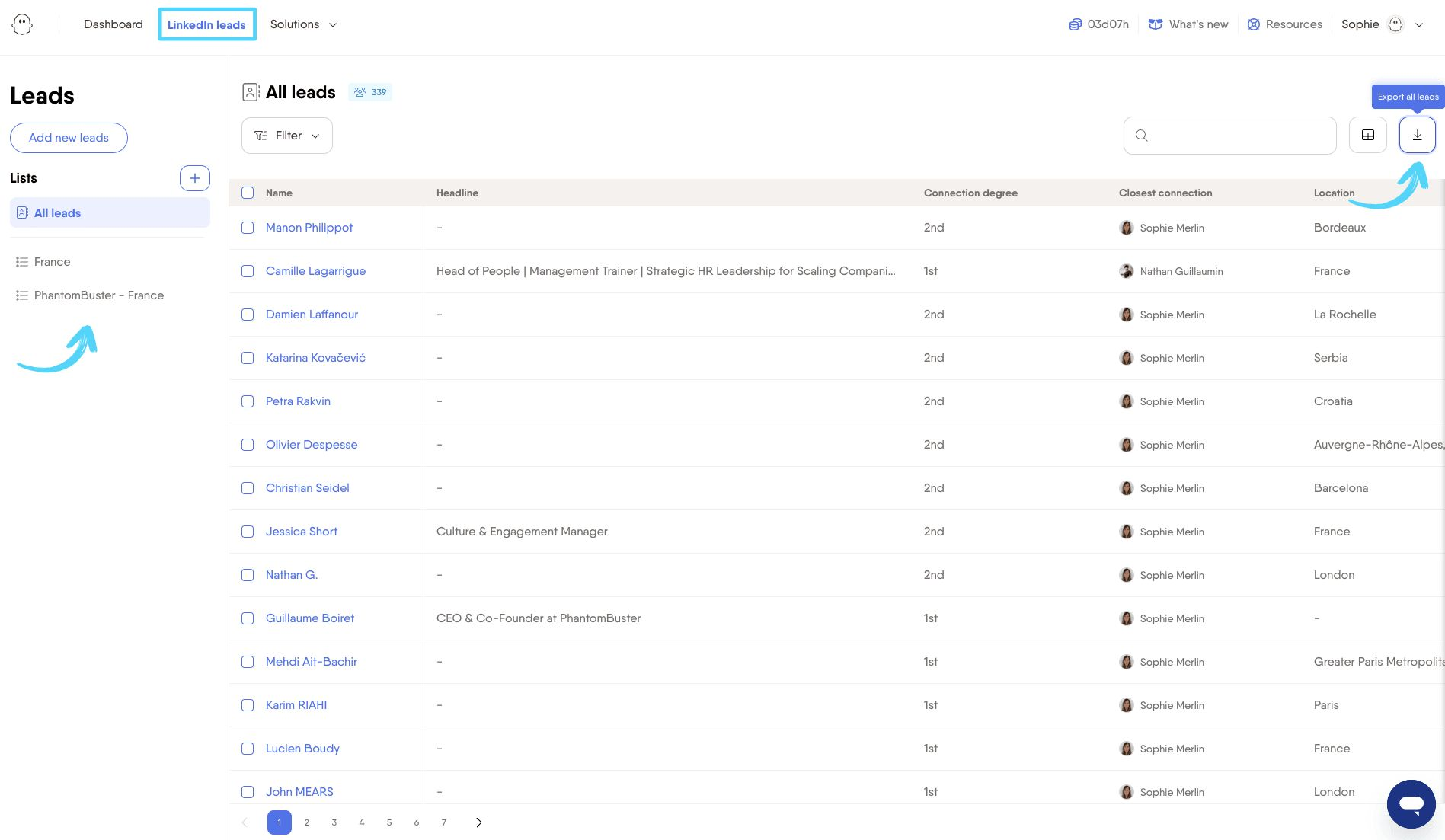
Best for: Teams already using PhantomBuster for broader LinkedIn automation
The Sales Navigator Search Export Phantom extracts leads in bulk with company and contact data. Execution hours are capped per plan, so large exports need higher-tier plans. Solid option if you're already in the PhantomBuster ecosystem.
Pricing: Starts at $69/month.
Skrapp.io
Best for: Simple, affordable exports with email finding for smaller teams.
The Chrome extension integrates directly with Sales Navigator search pages — one-click export with email enrichment included. A free tier is available with limited credits, making it a strong starting point for teams new to Sales Navigator exports.
Pricing: Free tier available; paid plans start under $50/month.
Direct CRM Integration (via Sales Navigator Advanced Plus)
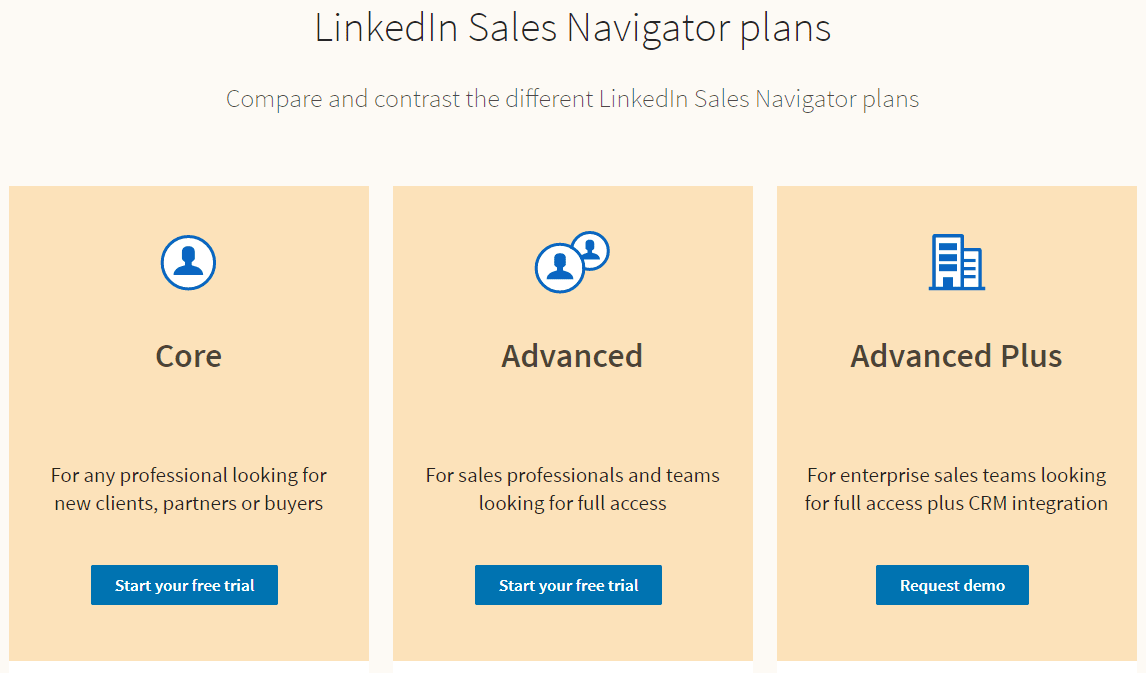
Best for: Enterprise teams using Salesforce or HubSpot who want real-time, seamless data sync.
No CSV required — leads sync directly and update automatically. Highest cost option. Justified only for large teams with active CRM workflows where manual list management creates real operational drag.
Export Limits and Safety Rules to Know Before You Start
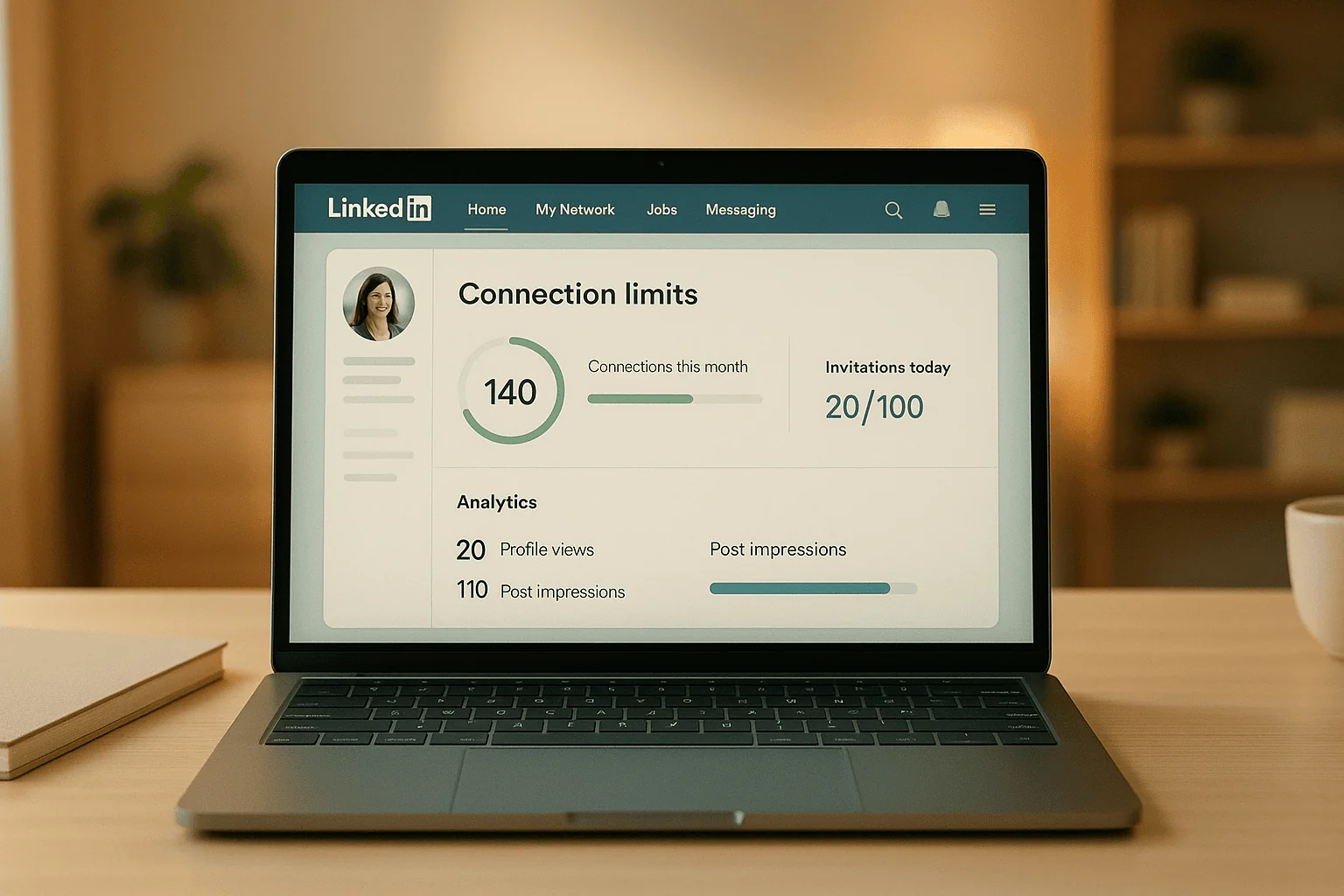
Before you fire up any export tool, these are the rules that protect your account and your data quality.
🔒 LinkedIn search cap
LinkedIn limits Sales Navigator search results to 2,500 profiles per search. To access and export more, you'll need to split your search into smaller segments using filters like Function, Seniority level, or Industry. Break large TAMs into batches, export each one separately, then combine.
🔒 Safe extraction speed
Space exports across multiple days and keep volumes consistent with normal human browsing behavior. Sudden spikes in profile view volume are a common trigger for temporary account restrictions.
🔒 Data accuracy reality check
Between 10% and 40% of leads don't actually match your filters — wrong job title, wrong location, wrong company size. Always validate exports before uploading to any outreach tool.
🔒 Data decay
B2B data decays by 2.1% per month, meaning 22.5% of your exported leads could be outdated within a year. Refresh high-volume lists every 60–90 days.
🔒 GDPR and data compliance
Exported personal data must be handled in compliance with applicable privacy laws. Use data only for legitimate B2B prospecting and ensure your outreach tools are GDPR-compliant.
🔒 Pending connection limit
LinkedIn flags accounts with more than 700 pending invitations. Keep export-driven outreach lists manageable and targeted — don't spray raw exports at connection request campaigns.
What to Do With Your Exported Sales Navigator Leads
Exporting a CSV is not the finish line. Here's the workflow that actually turns a raw export into pipeline.
Step 1 — Clean and validate: Remove duplicates, fix formatting issues, and validate emails before uploading to any outreach tool. Use tools like NeverBounce or ZeroBounce to catch bad emails before they hit your deliverability.
Step 2 — Enrich missing data: If your export is missing emails or phone numbers, run the list through an enrichment tool — Clay, Apollo, Hunter, or Clearbit — before launching outreach.
Step 3 — Segment by ICP fit: Tag leads by role, company size, industry, or seniority level. Segmented lists enable more personalized, higher-converting messaging. One size fits nobody in cold outreach.
Step 4 — Upload to CRM or outreach tool: Push the cleaned, enriched list into your CRM (Salesforce, HubSpot, Pipedrive) or outreach sequencing tool (Instantly, Lemlist, Smartlead) for campaign launch.
Step 5 — Launch outreach: Connection requests, cold email sequences, or cold calling campaigns — match the channel to how your ICP actually wants to be reached.
How Cleverly Uses Sales Navigator to Build ICP-Ready Lead Lists for LinkedIn Outreach
Exporting leads from Sales Navigator is step one. But the pipeline value of that list is almost entirely determined by what happens next.
At Cleverly, we've run LinkedIn lead generation campaigns for 10,000+ B2B companies — and the pattern is consistent: the teams that struggle aren't struggling because of bad outreach tools.
They're struggling because their lists aren't clean, their ICP targeting isn't tight enough, and there's no system managing the process after export.
Here's what we actually do differently:
- ICP-aligned Sales Navigator targeting — we define your ideal customer profile first, then build the search, not the other way around.
- Multi-source list verification — every list is cross-verified across data sources before a single message goes out.
- Personalized outreach sequences — copy written specifically for each audience segment, not a generic template.
- A/B testing and optimization — we continuously improve reply rates and meeting quality based on real campaign data.
- Full reply management — qualified responses handled and handed off directly to your calendar.
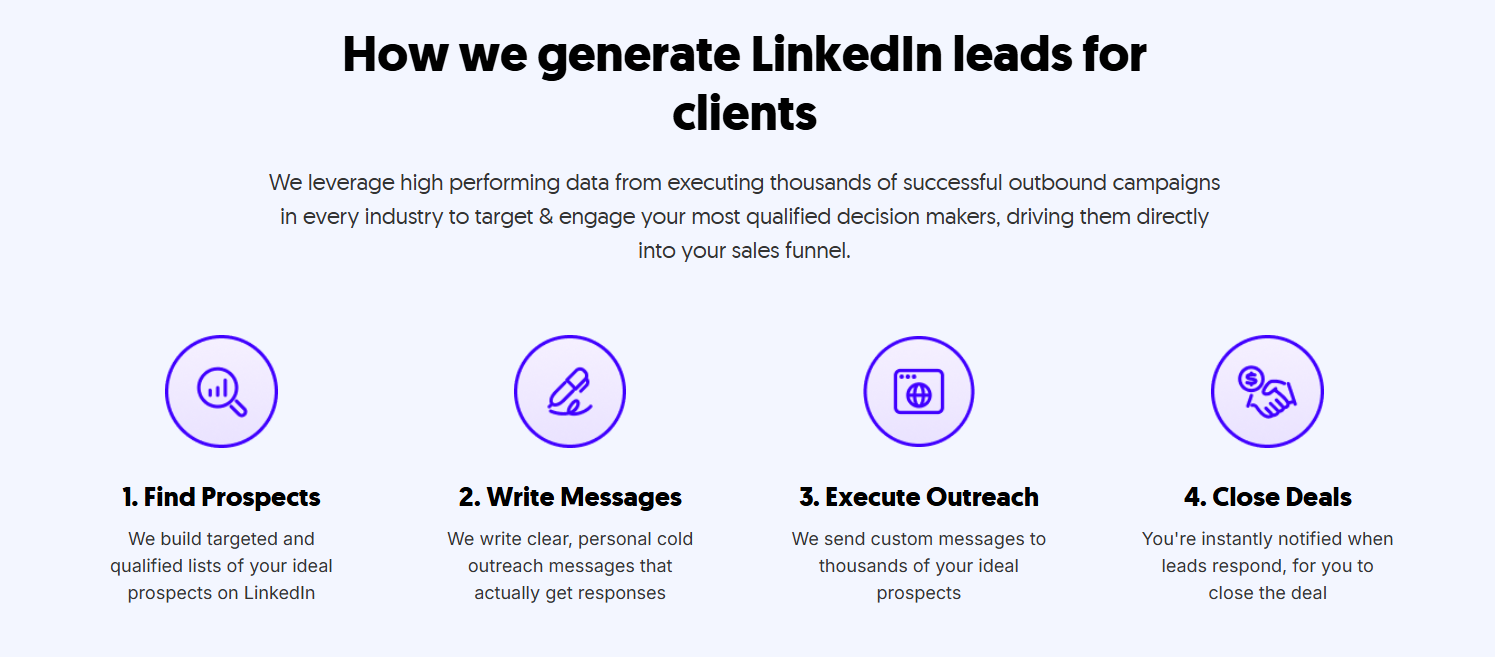
The result? Your team gets SDR-ready conversations delivered directly — not a raw CSV that still needs hours of cleanup.
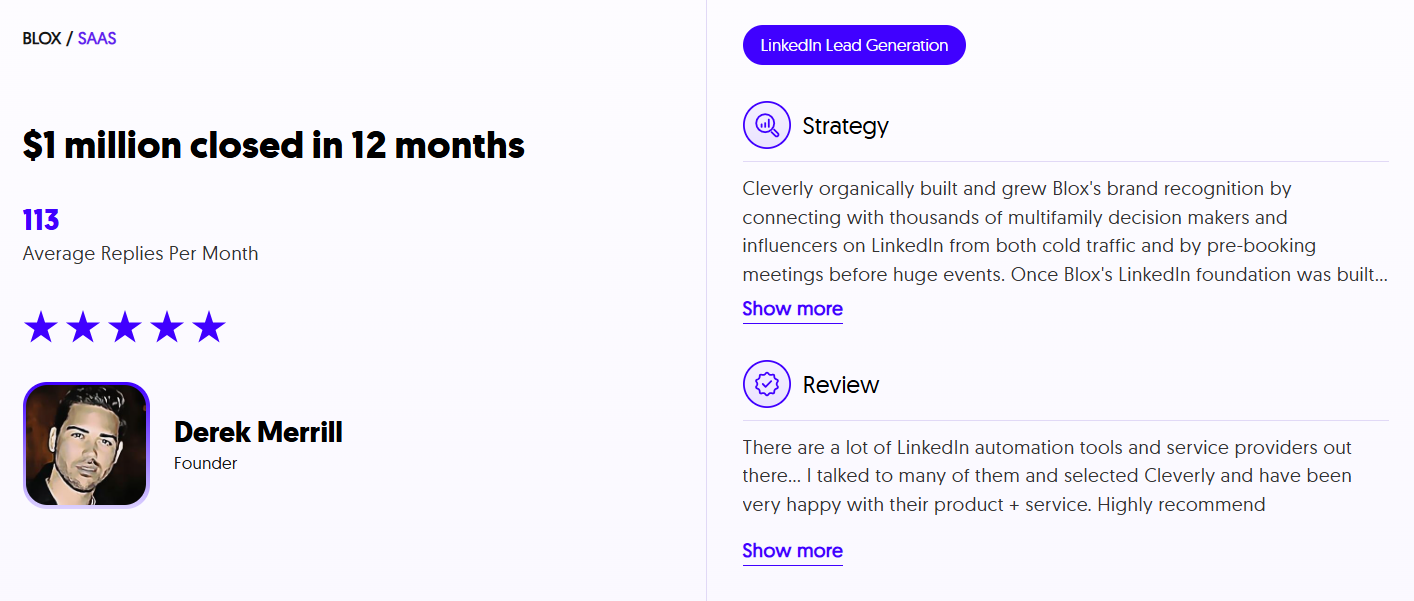
We've helped generate $312M in pipeline and set 53,000+ appointments for B2B companies across every major industry. LinkedIn outreach starts at just $397/month with no long-term contracts.
Want qualified leads from Sales Navigator delivered as booked meetings — not spreadsheets?
🔥 Book a strategy call with Cleverly →
Conclusion
LinkedIn Sales Navigator doesn't offer a native one-click export — but between LinkedIn's own data tool, reputable Chrome extensions, and direct CRM integrations, there are solid, proven options for every team size and budget.
Pick the right method for your situation: LinkedIn's native tool if you need basic data at zero risk, a Chrome extension like Evaboot or Skrapp for full-featured outreach-ready lists, or CRM integration for seamless enterprise workflows.
Always validate your data, stay within safe extraction volumes, and refresh your lists every 60–90 days.
The real ROI from Sales Navigator doesn't come from exporting leads. It comes from what your team does with those leads once they're in your hands.
Frequently Asked Questions
Free Resource
How to Scale a Profitable Cold Call System
Get the complete guide — download it instantly now.

Free Ebook
Download the Free Guide
Enter your details to get instant access.
You're all set! 🎉
Your ebook is downloading now.
Click below if the download didn't start automatically.