Table of Contents
Why People Want to Hide Their LinkedIn Profile
Understanding LinkedIn's Visibility Layers Before You Change Anything
Can I Hide My LinkedIn Profile Without Deleting It?
How to Hide Your LinkedIn Profile From Public View (Step-by-Step)
How to Hide Your LinkedIn Profile From Other LinkedIn Members
How to Hide Your LinkedIn Activity
How to Hide Specific Profile Sections (Granular Visibility Controls)
LinkedIn Profile Hibernation — When Hiding Isn't Enough
Common Mistakes to Avoid When Hiding Your LinkedIn Profile
A Note for Sales and Outreach Professionals — Visibility Still Matters
How Cleverly Helps B2B Teams Use LinkedIn as a Revenue Channel
Conclusion
Frequently Asked Questions
Modified On :
April 30, 2026
Key Takeaways
- LinkedIn is fully public by default — your profile can be found on Google, Bing, and by any logged-in LinkedIn member unless you actively change your settings.
- You can hide your LinkedIn profile without deleting it — LinkedIn offers layered, granular privacy controls that let you stay selectively visible.
- There are two separate visibility systems on LinkedIn: your public profile (visible to search engines) and your member-facing profile (visible to logged-in users) — changing one does not affect the other.
- Private browsing mode lets you research competitors and prospects anonymously, but it removes your ability to see who viewed your profile unless you have Premium.
- Account hibernation is a separate option from hiding — it pauses your entire presence while preserving your data and connections.
- For sales and outreach professionals, complete invisibility works against you — the goal is selective visibility, not disappearing from the platform entirely.
You set up your LinkedIn profile once and never touch the privacy settings again. That's a problem — because LinkedIn is fully public by default.
LinkedIn reached 1.3 billion registered users in December 2025, with over 310 million people actively using the platform every month. That's a massive audience with access to your professional history, headline, connections, and activity — unless you do something about it.
And more people are thinking about this than ever. According to LinkedIn data, more than 220 million users currently have some form of "Open to Work" status active — a 35% increase in just two years — with most choosing the private "Recruiters only" setting specifically to avoid tipping off their current employer.
The good news? You don't have to choose between visibility and privacy. LinkedIn's settings give you precise, section-level control over what you share and who can see it.
This guide walks through every “how to hide LinkedIn profile” setting available in 2026 — step-by-step on both desktop and mobile — so you can protect what matters while staying discoverable to the people worth finding.
Why People Want to Hide Their LinkedIn Profile
There's no single reason someone searches for "hide LinkedIn profile" — and LinkedIn's privacy settings were built to handle all of them.
What's typically driving the decision:
- Confidential job search — looking while employed and not ready to let your current company find out
- Competitor research — browsing rival profiles, target accounts, or prospects without leaving a digital footprint
- Inbox overload — cutting off the flood of cold outreach and recruiter messages
- Career transition — stepping into a new direction and not ready to broadcast the move yet
- Personal privacy — limiting how much professional data is publicly accessible and indexable online
- Career break — temporarily stepping back from the platform without losing your network or data
- Sensitive business relationships — keeping your connection list away from competitors who might poach clients or contacts
None of these reasons require you to delete your account. LinkedIn gives you the controls to handle all of them — you just need to know where to look.
🎯 Stay Private. Prospect Smarter.
We run compliant LinkedIn outreach that books meetings. Done-for-you starting at just $397/mo.
Understanding LinkedIn's Visibility Layers Before You Change Anything
Before touching a single setting, this is the most important thing to understand: LinkedIn has two completely separate visibility systems, and most people don't know this.
System 1: Your Public Profile
This is what anyone on the internet can see — no LinkedIn account required. It's indexed by Google, Bing, and other search engines. When someone Googles your name, this is what comes up.
System 2: Your LinkedIn Profile

This is what logged-in LinkedIn members see when they search for you or visit your profile within the platform. Completely separate from the public version.
Changing your public visibility settings does not automatically hide you from other LinkedIn members. You have to adjust both independently.
Beyond those two systems, there are three core dimensions to understand:
- Who can find you — your discoverability inside and outside LinkedIn
- What they can see — which profile sections are visible and to whom
- What you broadcast — the activity signals you send while using the platform (likes, job changes, profile updates)
One more thing worth knowing: a fully hidden profile makes you harder to discover by the people you actually want to reach. The goal for most people isn't total invisibility — it's selective visibility.
Keep reading, and that's exactly what you'll get
Can I Hide My LinkedIn Profile Without Deleting It?
Yes — and this surprises a lot of people. You can hide your LinkedIn profile in multiple ways without deactivating or deleting your account.
Here's what stays fully functional even when your profile is restricted:
- Browsing other profiles (in private mode)
- Sending and receiving direct messages
- Posting content and engaging with your feed
- Accepting or sending connection requests
If you're actively job-hunting while employed, the "Recruiters Only" setting on "Open to Work" combined with a restricted public profile gives you meaningful privacy without vanishing from the platform entirely.
The main trade-off to know upfront: if you switch to private browsing mode, you lose access to "Who Viewed Your Profile" data — unless you have LinkedIn Premium. That's LinkedIn's way of keeping the exchange balanced.
And nothing here is permanent. Every setting can be reversed at any time. LinkedIn does not notify your connections when you adjust visibility settings — changes happen silently.
💼 Invisible Profile. Visible Pipeline.
10,000+ clients generated leads with Cleverly. We handle outreach, replies & booking—you close.
How to Hide Your LinkedIn Profile From Public View (Step-by-Step)
This is the setting that removes your profile from Google and Bing search results and prevents non-LinkedIn users from finding you.
On Desktop

Step 1: Click the "Me" icon at the top of your LinkedIn homepage.
Step 2: Select "Settings & Privacy" from the dropdown.
Step 3: Click the "Visibility" tab in the left sidebar.
Step 4: Under "Visibility of your profile & network," click "Edit your public profile."
Step 5: In the Edit Visibility panel on the right side, find the toggle at the top labeled "Your profile's public visibility" and switch it Off.
Step 6: Scroll down to individually control which sections appear publicly — photo, headline, summary, experience, education, skills, and more. You can keep some visible while hiding others.
On Mobile (App)
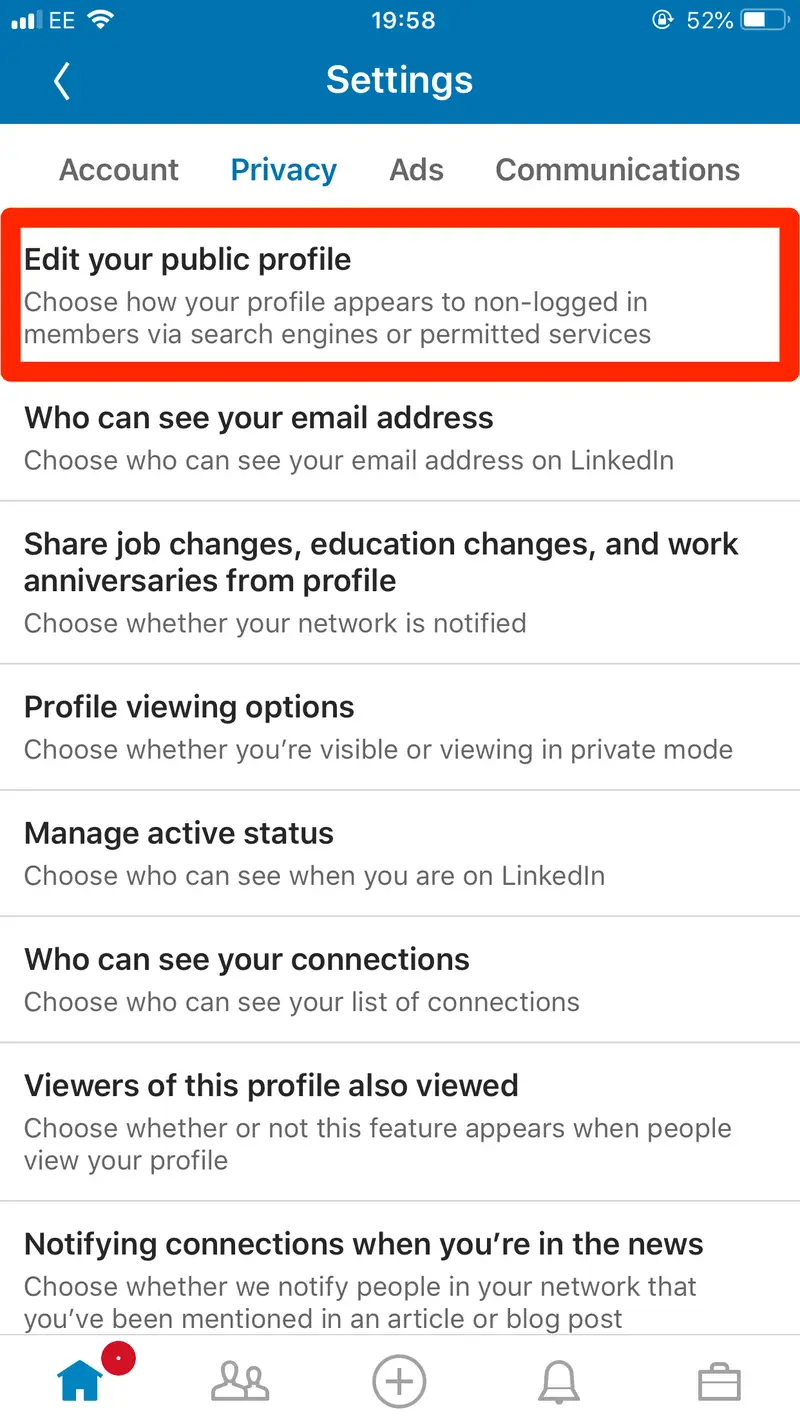
Step 1: Tap your profile photo in the top-left corner.
Step 2: Tap "Settings" at the bottom of the screen.
Step 3: Tap "Visibility."
Step 4: Tap "Edit your public profile."
Step 5: Toggle off "Your profile's public visibility" at the top — or use the individual section toggles below to hide only what you want.
⏳ Important Note on Search Engine Delays
LinkedIn stops sending your data to search engines the moment you make this change. But Google and Bing work on cached versions of pages — your profile could still appear in search results for days or even a few weeks after you've hidden it.
If you need it gone urgently, use Google's URL Removal Tool to submit a manual removal request. It typically speeds the process up significantly.
How to Hide Your LinkedIn Profile From Other LinkedIn Members
Hiding from search engines is step one. This section covers hiding from people who are already inside LinkedIn.
Enable Private Browsing Mode

Navigate to Settings & Privacy → Visibility → Profile viewing options. Select "Private profile characteristics" (shows only your industry and job title) or "Private mode" (fully anonymous).
In full Private mode, your name, headline, and company are hidden whenever you view other profiles. You become completely anonymous inside the platform.
The trade-off: you lose the ability to see who viewed your profile, unless you're on LinkedIn Premium.
Control Who Can See Your Connections
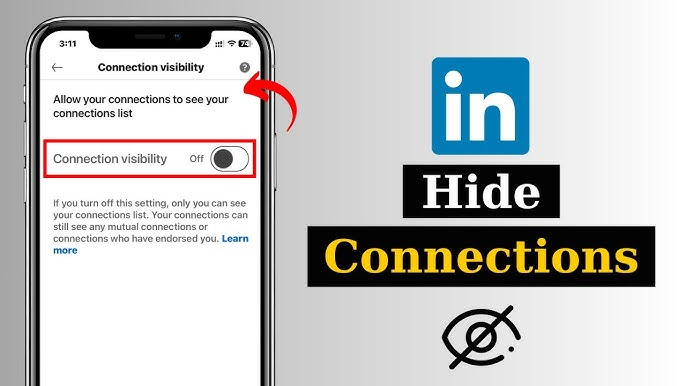
Go to Settings & Privacy → Visibility → "Who can see your connections."
Toggle this off and your connection list becomes invisible to anyone viewing your profile. This is particularly useful for protecting sensitive business relationships — clients, partners, or prospects you don't want competitors to identify.
Limit Profile Discoverability Inside LinkedIn
Under the same Visibility tab, you can adjust:
- Who can find you by email address — limit this to connections or remove it entirely
- Who can find you by phone number — same options
- Whether your profile appears in LinkedIn search results — you can restrict this to connections or second-degree connections only
These settings don't hide your profile entirely — but they dramatically reduce how easily someone without a direct connection can find and view you.
How to Hide Your LinkedIn Activity

Your profile isn't the only thing broadcasting information about you on LinkedIn. Your activity is too — and most people completely miss this.
What to control:
Go to Settings & Privacy → Visibility → "Visibility of your LinkedIn activity."
From there, you can:
- Turn off "Share profile updates with your network" — stops notifying connections when you update your job title, add a new role, or edit your education. This is critical if you're job searching while employed.
- Disable active status — prevents connections from seeing the green dot that shows you're currently online.
- Control who sees your activity feed — restrict likes, comments, and reactions from appearing in others' feeds.
- Manage mentions and tags — if you want your engagement history to stay private, you can turn off the ability for others to tag you in posts and comments.
In November 2025, LinkedIn quietly expanded its use of member data to train generative AI models — globally — and the setting was switched on by default.
While you're in your privacy settings, it's worth heading to Data Privacy → Data for Generative AI Improvement and toggling off "Use my data for training content creation AI models" if that's a concern.
How to Hide Specific Profile Sections (Granular Visibility Controls)
One of the most underused features on LinkedIn is section-level visibility control. You don't have to hide everything or nothing — you can be surgical about it.
You can selectively hide or display different sections of your profile, such as your photo, headline, summary, experience, education, and more.
Here's a smart selective visibility strategy most professionals should use:
Keep public:
- Name, headline, and a brief summary — these are the signals that help the right people find you
Restrict to connections only:
- Full work history, contact details, and your connections list
Hide entirely:
- Phone number, personal email, activity feed, and specific employment details you're not ready to share
To access these toggles: Edit Public Profile → Edit Visibility panel → scroll through the individual section toggles.
Keeping your LinkedIn headline and summary visible helps recruiters and potential clients find you while hiding the details you'd rather keep private.
This middle-ground approach is almost always better than going fully dark — because complete invisibility has its own costs, especially for anyone in sales or business development.
LinkedIn Profile Hibernation — When Hiding Isn't Enough

Sometimes, adjusting visibility settings isn't enough. If you need a complete break from the platform — inbox overload, career break, mental reset — LinkedIn has a formal option for this called account hibernation.
What hibernation does:
- Makes your profile temporarily inaccessible to other users
- Pauses all notifications and activity
- Preserves all your data, connections, content, and messages
How to hibernate your account:
Go to Settings & Privacy → Account preferences → "Hibernating your LinkedIn account."
LinkedIn walks you through a short confirmation flow before hiding your account. Nothing is deleted.
Difference between hibernation and deletion:
Hibernation is fully reversible — log back in anytime and your account picks up exactly where it left off. Deletion is permanent and cannot be undone. Your connections, endorsements, recommendations, and content are all gone for good.
If you're taking a temporary step back, hibernation is always the right call over deletion.
Common Mistakes to Avoid When Hiding Your LinkedIn Profile
People make these errors constantly. Here's what to watch for:
❌ Assuming public visibility changes also hide you from logged-in members.
They don't. The two systems are completely separate. You have to adjust both.
❌ Forgetting to turn off activity broadcasts.
You can hide your profile completely and still have your profile updates, job changes, and endorsements show up in your connections' feeds. Go to Visibility → LinkedIn activity and turn these off separately.
❌ Going fully hidden when selective visibility would work better.
A completely hidden profile can't be found by the people worth finding — recruiters, clients, collaborators. Granular controls almost always serve you better than a full blackout.
❌ Not using private browsing mode when researching competitors or prospects.
If you're checking out a rival's company page or a prospect's profile, every visit leaves a record — unless you've enabled private mode first.
❌ Expecting your profile to disappear from Google immediately.
Google's cached version of your profile can persist for days or weeks after you've changed your settings. Use Google's URL removal tool if speed matters.
❌ Blocking individuals instead of adjusting broad visibility settings.
Blocks are noticeable and can create awkward professional situations. In most cases, adjusting your overall visibility achieves the same goal without the friction.
A Note for Sales and Outreach Professionals — Visibility Still Matters
If you work in sales, business development, or B2B lead generation, complete profile invisibility can actively work against you.
Here's why: every time you send a LinkedIn connection request or outreach message, the first thing a prospect does is check your profile. A sparse, hidden, or incomplete profile drops your credibility instantly — and your reply rate with it.
The right approach for outreach professionals is strategic visibility, not disappearance:
- Keep your headline, summary, and key experience public
- Restrict your personal contact details and connection list
- Make your social proof (recommendations, endorsements) visible to build trust fast
LinkedIn profiles with strong headlines receive 30% more profile views — and more views mean more inbound interest from the right people before you even send a message.
A strong, optimized LinkedIn profile is one of the highest-leverage assets in any outbound LinkedIn outreach strategy. The goal isn't to hide — it's to be visible to the right people, with the right message, at the right time.
How Cleverly Helps B2B Teams Use LinkedIn as a Revenue Channel
Knowing how to hide your LinkedIn profile is one side of the equation. The other side — and the one that actually drives pipeline — is knowing how to make your LinkedIn presence work for you.
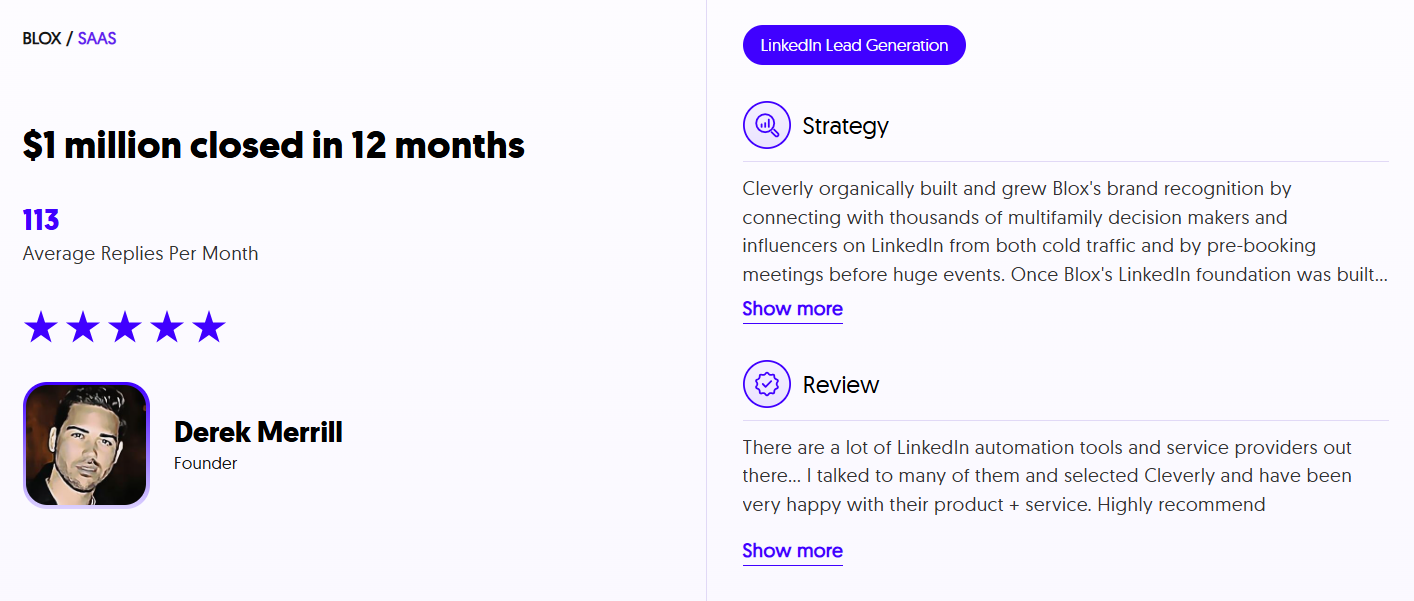
At Cleverly, we've run LinkedIn outreach for 10,000+ B2B clients, including teams at Amazon, Google, Uber, and Slack. What we've seen consistently: profiles that are optimized, credible, and visible to the right audience convert at a dramatically higher rate than anonymous or low-visibility approaches.
Our done-for-you LinkedIn lead gen service handles everything — ICP targeting, prospect list building, personalized messaging sequences, A/B testing, and reply management. You don't have to figure out the settings, the copy, or the strategy. We've already built the system.
The result? $312M in pipeline generated across thousands of campaigns, with LinkedIn plans starting at $397/month.
If your LinkedIn is currently set to private because outreach isn't working — there's a good chance the issue isn't your visibility settings. It's your targeting and messaging.
That's exactly what we fix.
🔥 Book a free strategy call with Cleverly and we'll show you how we'd approach your LinkedIn pipeline.
Conclusion
Hiding your LinkedIn profile in 2026 is straightforward once you understand the two separate systems at play. The right approach depends entirely on why you want privacy and how much visibility you can afford to give up given your professional goals.
Use granular controls to protect what matters — your activity feed, personal contact details, and connection list — while keeping enough of your profile visible to stay discoverable by the people worth reaching.
Review your settings regularly, because LinkedIn updates its platform frequently and default settings can shift without warning. Privacy and professional presence aren't mutually exclusive — the right configuration gives you both.
Frequently Asked Questions
Free Resource
How to Scale a Profitable Cold Call System
Get the complete guide — download it instantly now.
Free Ebook
Download the Free Guide
Enter your details to get instant access.
You're all set! 🎉
Your ebook is downloading now.
Click below if the download didn't start automatically.