Table of Contents
Difference Between Deleting and Deactivating a LinkedIn Account
What to Do Before You Delete Your LinkedIn Account
How to Delete Your LinkedIn Account on Desktop (Step-by-Step)
How to Delete Your LinkedIn Account on Mobile (Step-by-Step)
How Long Does It Take to Delete a LinkedIn Account?
Common Issues When Deleting a LinkedIn Account (And How to Fix Them)
Alternatives to Deleting Your LinkedIn Account
Before You Leave LinkedIn — How Cleverly Helps Businesses Generate Leads on LinkedIn
Conclusion
Frequently Asked Questions
Modified On :
August 6, 2026
Key Takeaways
- Deleting your LinkedIn account is permanent. After the 14-day grace period, your data is gone for good.
- Hibernation is the safer alternative if you just need a break without losing your connections and history.
- Always download your data archive before submitting a deletion request.
- Cancel LinkedIn Premium manually. Account deletion does not cancel it automatically.
- You have 14 days to reactivate your account after deletion before it becomes irreversible.
- Your profile may still appear in Google cache for a few weeks even after your account is fully deleted.
So you've decided to close your LinkedIn account. Maybe you're done with the platform, switching to a new profile, or just doing a digital cleanup.
Whatever the reason, the process is pretty straightforward once you know the right steps.
But before you hit that final button, there are a few things worth knowing: the difference between deleting and deactivating, what happens to your data, and what to do before you wipe everything out.
This guide covers it all, updated for 2026.
Difference Between Deleting and Deactivating a LinkedIn Account
Before you do anything, it's important to know that how to delete a LinkedIn account and how to deactivate one are two very different things.
Deactivating (Hibernating):
- Your LinkedIn profile is hidden from search results and your network's feed.
- All your data — connections, messages, posts — is preserved.
- You can reactivate anytime by simply logging back in.
- No timeline pressure.
Deleting (Closing Your Account):
- Your profile is permanently removed from LinkedIn.
- All connections, messages, endorsements, and recommendations are gone.
- You get a 14-day grace period to change your mind.
- After 14 days, the data is permanently deleted and cannot be recovered.
Which one is right for you?
LinkedIn's data retention policy means that even after you submit a deletion request, some data may be retained for legal or compliance reasons.
However, your public profile and personal information will be fully removed once the grace period ends.
⚠️ Wait… Before You Hit Delete
LinkedIn could be your #1 source of B2B leads. Cleverly helps companies turn LinkedIn into a predictable meeting pipeline. Plans start at just $397/mo.
What to Do Before You Delete Your LinkedIn Account
Don't rush into this. Here's what we always recommend doing before you figure out how to delete my LinkedIn account for real:
- Download your LinkedIn data archive — go to Settings & Privacy → Data Privacy → Get a copy of your data. LinkedIn typically takes up to 24 hours to prepare the file. It includes your connections, messages, posts, and activity history.
- Export your contact list — your connections export includes names and email addresses, which is gold if you want to stay in touch off-platform.
- Notify key connections — let important contacts know where to reach you before you disappear.
- Disconnect third-party apps — go to Settings & Privacy → Sign-in & Security → Third-party applications and remove any connected tools.
- Cancel LinkedIn Premium manually — deleting your account does not automatically cancel your Premium subscription. Cancel it separately first to avoid being billed after deletion.
- Screenshot recommendations and endorsements — these are permanently deleted with your account and cannot be recovered, even if you reactivate within 14 days.
How to Delete Your LinkedIn Account on Desktop (Step-by-Step)
The exact path to delete your LinkedIn account permanently on a desktop browser:
Step 1: Log in to your LinkedIn account at linkedin.com.
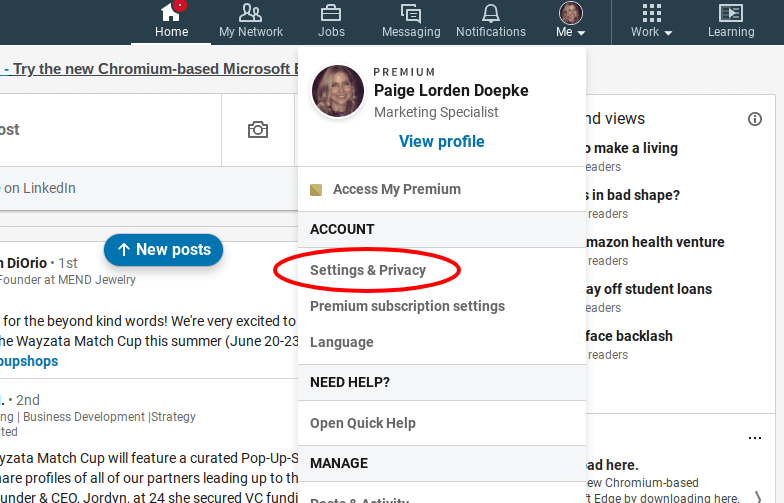
Step 2: Click on your profile photo (Me icon) in the top-right corner → select Settings & Privacy from the dropdown.
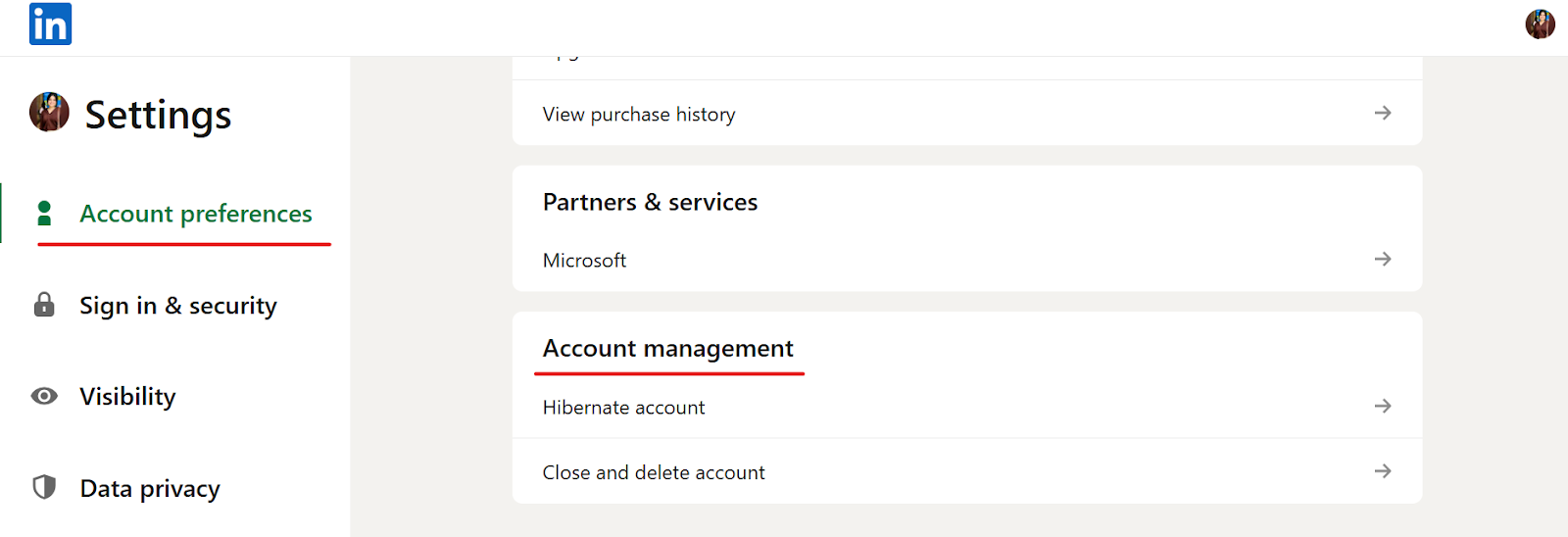
Step 3: In the left sidebar, click on Account Preferences.
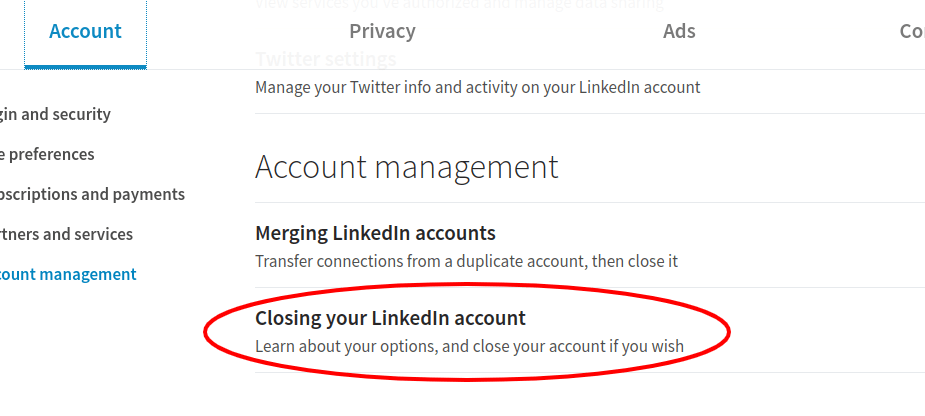
Step 4: Scroll down to the Account Management section → click Close Account.
Step 5: LinkedIn will show you what you'll lose. Click Continue.
Step 6: Select a reason for closing your account from the list (or choose "Other") → click Next.
Step 7: Enter your password to confirm → click Done.
What happens next: Your account is immediately deactivated. You'll receive a confirmation email. You have 14 days to log back in and reactivate if you change your mind. After that window closes, the deletion is permanent.
💡 Pro tip: If you're having trouble finding the Close Account option, try using a different browser or clear your cache first.
🚀 Turn LinkedIn Into Your Sales Engine
Cleverly has helped 10,000+ companies generate leads from buyers at Amazon, Google, Uber & more. Over $312M in pipeline generated through LinkedIn outreach.
How to Delete Your LinkedIn Account on Mobile (Step-by-Step)
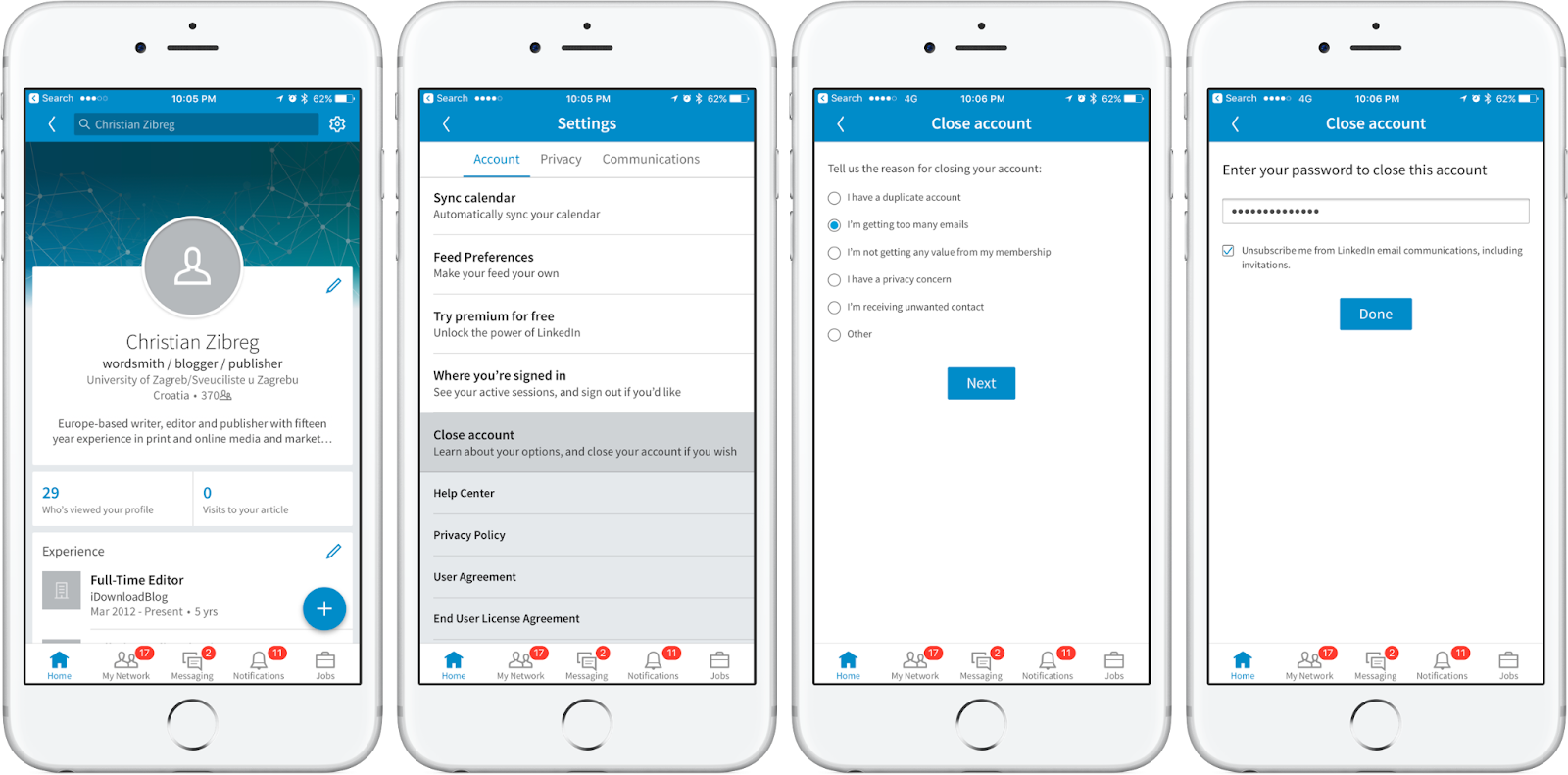
Prefer doing it from your phone? Here's how to delete your account on LinkedIn via the app (works on both iOS and Android):
Step 1: Open the LinkedIn app and log in.
Step 2: Tap your profile photo in the top-left corner to open the sidebar.
Step 3: Tap Settings (bottom-left on iOS, gear icon on Android).
Step 4: Go to Account Preferences → scroll down to Account Management → tap Close Account.
Step 5: Tap Continue on the warning screen.
Step 6: Select your reason for leaving → tap Next.
Step 7: Enter your password → tap Done.
You'll get a confirmation notification in the app and a confirmation email shortly after. The same 14-day reactivation window applies here.
👀 iOS vs. Android note: The navigation is nearly identical on both platforms. The main difference is where the Settings icon appears — bottom-left on iOS, top-right gear icon on Android.
How Long Does It Take to Delete a LinkedIn Account?
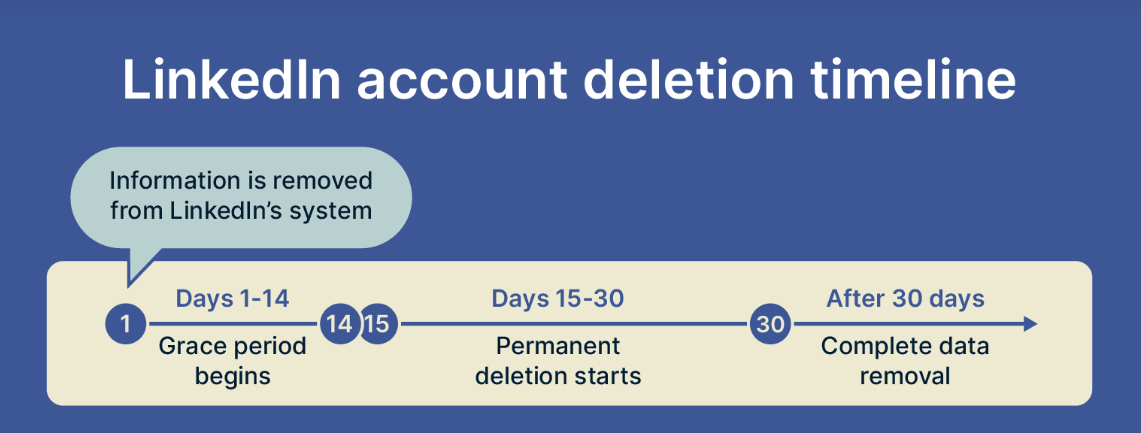
Here's the timeline breakdown so there are no surprises:
- Immediately after submission: Your account is deactivated. Your profile is no longer visible to others.
- Within 14 days: You can still log back in and reactivate your account. Note that some data — like group memberships, endorsements, recommendations, and unread messages — will already be gone even if you reactivate.
- After 14 days: LinkedIn permanently deletes your account and all associated data from their servers. This cannot be undone.
- Google cache: Your profile may still appear in Google search results for a short period after deletion. This typically clears up within a few weeks as Google re-crawls the page.
- Third-party sites: Websites or tools that scraped your LinkedIn data may still show your info. You'd need to contact those platforms separately to have it removed. If you'd rather not track that down manually, comparing lifelock alternatives can help you monitor for exposed personal data automatically instead.
To cancel a deletion request, simply log back into LinkedIn within the 14-day window and click "Reactivate."
Common Issues When Deleting a LinkedIn Account (And How to Fix Them)
Running into a wall? Some of the most common problems people face when trying to delete my LinkedIn account and how to work through them:
📢 Can't find the Close Account option
Try clearing your browser cache, switching to a different browser, or using the desktop version instead of mobile. Sometimes the option doesn't load correctly on older browsers.
📢 Forgot your password
Click "Forgot Password" on the login page to reset via your email. Once you reset and log in, follow the deletion steps as normal.
📢 LinkedIn Premium not canceling
Cancel Premium separately before initiating account closure. Go to Settings & Privacy → Subscriptions → Cancel Premium. Don't rely on the account closure flow to do this automatically.
📢 Account linked to a Company Page
If you're the sole admin of a LinkedIn Company Page, you need to either assign a new admin or close the page before you can delete your personal account. LinkedIn won't let you leave a company page with no admin.
📢 SSO or third-party login (Google/Apple)
If you signed up through Google or Apple, you'll still need to set a LinkedIn password before deleting. Go to Settings & Privacy → Sign-in & Security → Change Password to set one, then proceed with deletion.
Alternatives to Deleting Your LinkedIn Account
Deletion is permanent. Before you go through with it, here are some options worth considering:
- Hibernate your account — this temporarily hides your profile, pauses all notifications, and keeps your data intact. It's the best option if you just need a break. Find it under Settings & Privacy → Account Preferences → Account Management → Hibernate Account.
- Make your profile private — you can turn off your public profile visibility so you don't show up in Google searches or LinkedIn search results, without deleting anything.
- Clean up and go quiet — remove content you don't want public, update your privacy settings, and simply stop posting. Your profile stays, but you're basically invisible.
- Start fresh with a new account — if the issue is your current profile, you can delete it and create a new one. Just know that LinkedIn only allows one account per person.
One thing worth mentioning: A lot of professionals who delete their LinkedIn accounts end up regretting it, especially when they need to job hunt or reach out to old contacts. If you're not 100% sure, hibernation is always the safer first step.
Before You Leave LinkedIn — How Cleverly Helps Businesses Generate Leads on LinkedIn
Something worth considering: if you're thinking about deleting LinkedIn because it hasn't delivered results for your business, that's almost always a strategy problem, not a platform problem.
LinkedIn is still the #1 channel for B2B lead generation when it's used the right way. The issue is most people approach it without a clear ICP, use generic messaging, and give up before the outreach gains traction.
That's exactly what we solve at Cleverly.
We're a done-for-you LinkedIn lead generation agency that uses data from thousands of outbound B2B campaigns to send proven, personalized messages to your ideal clients on LinkedIn — and get positive replies straight to your inbox.
Here's how we help B2B companies turn LinkedIn into a consistent pipeline source:
- LinkedIn Lead Generation — we build your targeting list, write your outreach sequences, and run your campaigns end-to-end so you're not spending hours in your inbox.
- LinkedIn Appointment Setting — our dedicated response handlers manage your inbox, nurture leads, and book meetings directly on your calendar.
- LinkedIn Content & Ghostwriting — we build out your content strategy and write posts that position you as the go-to in your space.
- LinkedIn Profile Optimization — we turn your profile from a resume into a lead-converting landing page.
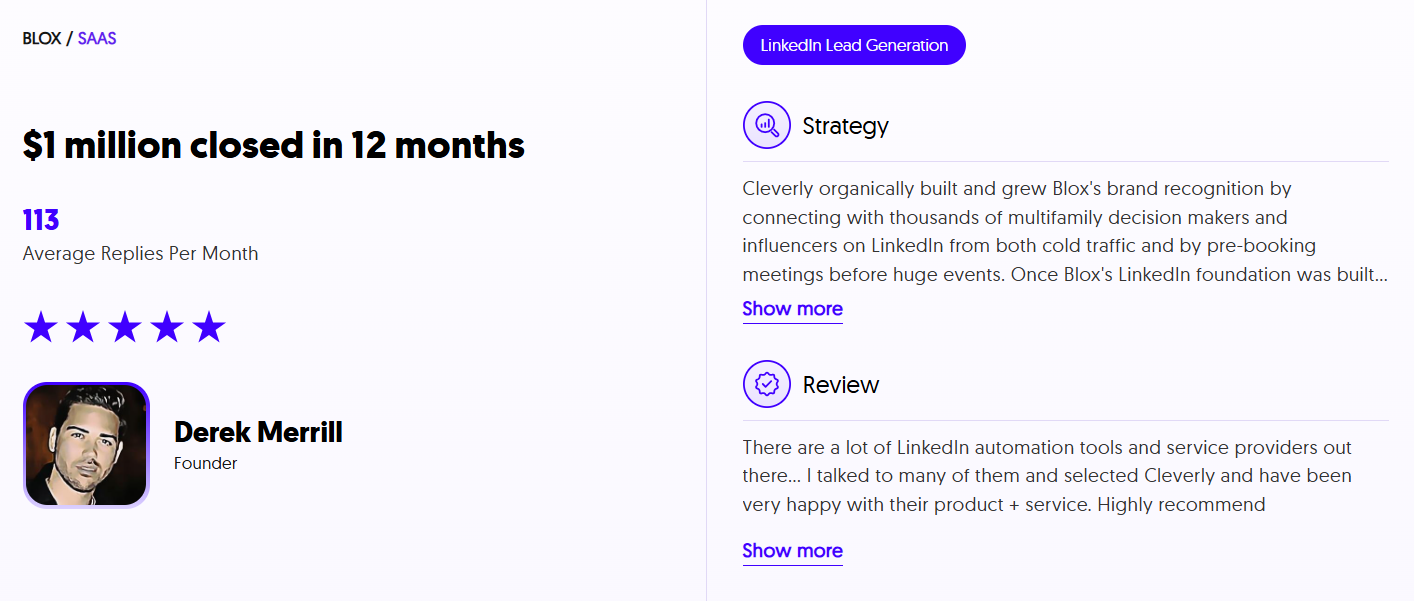
We've helped 10,000+ clients generate leads with companies like Amazon, Google, Uber, PayPal, Slack, and Spotify. That's resulted in $312 million in pipeline revenue and $51.2 million in closed revenue through LinkedIn outreach alone.
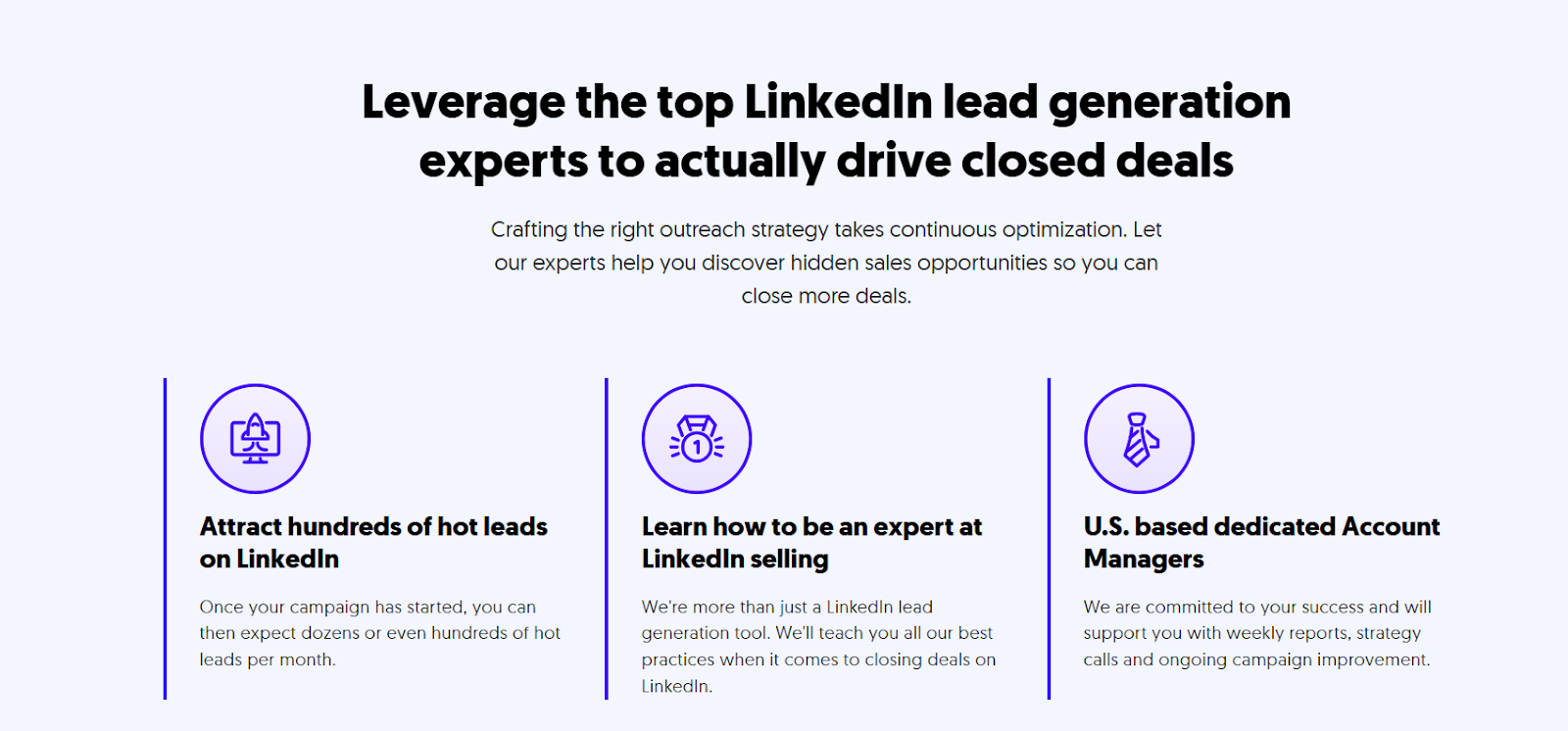
LinkedIn lead generation services start at just $397/month.
Before you close that account — see what LinkedIn can actually do when it's run the right way. Book a free strategy call with Cleverly.
Conclusion
Deleting your LinkedIn account is a straightforward process once you know the steps. The key things to remember:
- Download your data and cancel LinkedIn Premium before you submit the deletion request.
- You have a 14-day window to reactivate — after that, it's permanent.
- Hibernation is always the safer first move if you're not completely sure.
If LinkedIn hasn't been working for your business, it's worth exploring a smarter approach before walking away from the platform entirely.
Frequently Asked Questions
Free Resource
How to Scale a Profitable Cold Call System
Get the complete guide — download it instantly now.
Free Ebook
Download the Free Guide
Enter your details to get instant access.
You're all set! 🎉
Your ebook is downloading now.
Click below if the download didn't start automatically.