Table of Contents
What LinkedIn Actually Allows (And What It Doesn't)
LinkedIn Connection Limits You Need to Respect
Types of Automation Tools, Ranked by Risk
What to Check Before Choosing a Tool
How to Set Up Connection Automation Safely
Warning Signs You're About to Get Restricted
When Automation Isn't the Answer
How Cleverly Runs LinkedIn Outreach at Scale
Conclusion
Frequently Asked Questions
Modified On :
September 21, 2026
Key Takeaways
- LinkedIn's User Agreement bans third-party automation outright, so no tool is technically "compliant." The real variable is how much detectable signal your method leaves behind.
- Acceptance rate, not tool choice, is what actually governs your limits. LinkedIn tightens or loosens your ceiling based on how people respond to you, not which software you bought.
- Cloud-based tools carry meaningfully less risk than browser extensions, but "lower risk" is not the same as "safe." Both operate outside the terms.
- Warm-up and pacing prevent more restrictions than any other single factor. Most bans happen in month one, to accounts that skipped this step entirely.
- Even a perfectly run automation setup caps out around 100 requests a week per account. Real scale comes from better targeting and messaging, not more volume.
Here's the math nobody wants to run: a few hundred targeted prospects, sent manually at LinkedIn's normal pace, takes weeks. Meanwhile the platform is watching harder than it ever has.
LinkedIn's enforcement systems now catch the overwhelming majority of fake and automated activity before a single human ever reports it, and 2026 enforcement has gotten noticeably more aggressive, with LinkedIn moving from warnings straight to suspensions for first-time violations in some cases.
That's the tension behind “automate LinkedIn connections” as a search term. You want volume. LinkedIn wants every action to look like a person clicked it. And the stakes aren't abstract. A permanent restriction doesn't just pause your outreach. It erases a network you may have spent a decade building, along with every ounce of social proof that came with it.
In this guide we'll cover what LinkedIn actually allows, the real numbers behind the limits, which tool types carry which risk, how to set things up safely, the warning signs that precede a ban, and what to do if you get restricted anyway.
This is written for SDRs, founders, and agencies scaling LinkedIn outreach who'd rather understand the mechanics than gamble on them.
What LinkedIn Actually Allows (And What It Doesn't)
Let's clear up the confusion first, because most of the automation debate gets framed wrong.
LinkedIn's User Agreement is specific about this. It prohibits developing, supporting, or using software, scripts, bots, or any other automated process to interact with the platform, add contacts, send messages, or scrape data. There's no carve-out for tools that "just help you go faster."
The agreement prohibits any automated method that accesses, scrapes, or mimics human actions on the platform without authorization, and LinkedIn's separate Prohibited Software policy specifically calls out browser extensions and third-party tools that automate activity.
So here's the uncomfortable truth: every third-party automation tool operates against LinkedIn's terms, no matter how the vendor markets it. "Cloud-based," "human-like pacing," "undetectable" are marketing phrases, not legal exemptions. The contract you agreed to when you signed up doesn't have a clause for any of them.
What's actually safe by comparison is anything native to LinkedIn itself. Sales Navigator's saved searches, lead alerts, and bulk list building don't automate the outreach action, they just remove the research grunt work. That's the one category that sits fully inside the rules.
Enforcement, though, isn't a simple on/off switch. It's based on behavior patterns, not on which tool's name shows up in a database somewhere. LinkedIn's detection systems flag activity when a session doesn't behave like a normal human session, which means two people running the same tool can get very different outcomes depending on how they configured it.
Restrictions typically escalate in stages:
- Stage 1: Temporary feature limits (can't search, can't send invites for a few days)
- Stage 2: Longer suspensions, sometimes weeks
- Stage 3: Permanent account termination
LinkedIn deployed updated detection systems across all regions in early 2026, and suspicious sessions now get flagged within roughly 48 hours instead of weeks, with some first-time violations resulting in full suspension rather than a warning.
The margin for error has gotten smaller. Treat this as risk management you actively run, not a checkbox you tick once and forget.
🔗 Scale LinkedIn Without the Risk
Cleverly’s done-for-you LinkedIn outreach helps B2B teams connect with qualified prospects without managing campaigns themselves.
LinkedIn Connection Limits You Need to Respect
The numbers here aren't officially published by LinkedIn, but enough accounts have tested the edges in 2026 that the pattern is well established.
LinkedIn caps connection requests at roughly 100 invitations per rolling seven-day window, and that ceiling applies across free, Premium, and Sales Navigator tiers alike. Paying more for the platform doesn't buy you more invites. There's no official daily cap sitting on top of that, but sending your entire weekly allowance in one sitting is one of the clearest bot signals you can send.
A safer daily pace sits in the mid-teens to low twenties, with cloud-based tools that respect roughly a 20-invite-per-day ceiling reporting healthy acceptance and reply rates without restrictions.
A few things make these limits move:
- Acceptance rate. This is the real governor. If too many people ignore your requests or click "I don't know this person," your ceiling drops, regardless of what settings you've configured.
- Account age. Newer profiles, generally under three months old, often get capped closer to 50 requests a week until they build a track record.
- Pending backlog. LinkedIn may block new invites once your pending count climbs past roughly 1,500, so withdrawing stale, unanswered invitations on a schedule actually matters, not just for tidiness but for staying under new caps.
- Account type. Sales Navigator and Premium accounts with strong Social Selling Index scores tend to carry more headroom than free accounts, sometimes reaching 150 to 200 a week, though the base 100 figure is the one to plan around.
Pro tip: don't chase the ceiling. If your acceptance rate is healthy at 30 requests a week, staying there and improving your targeting will do more for you long term than maxing out at 100 and watching acceptance fall.
Types of Automation Tools, Ranked by Risk
This isn't a tool review. It's a risk comparison, because the architecture behind a tool matters far more than its brand name or price tag.
Browser Extensions (Highest Risk)
These run inside your live browser session, which means every action happens at machine speed while your session is technically "you," logged in and active. Two problems come from this:
- Many require the browser to stay open around the clock, which creates activity patterns no real person keeps.
- Extensions inject scripts directly into LinkedIn's pages, leaving detectable fingerprints inside your authenticated session.
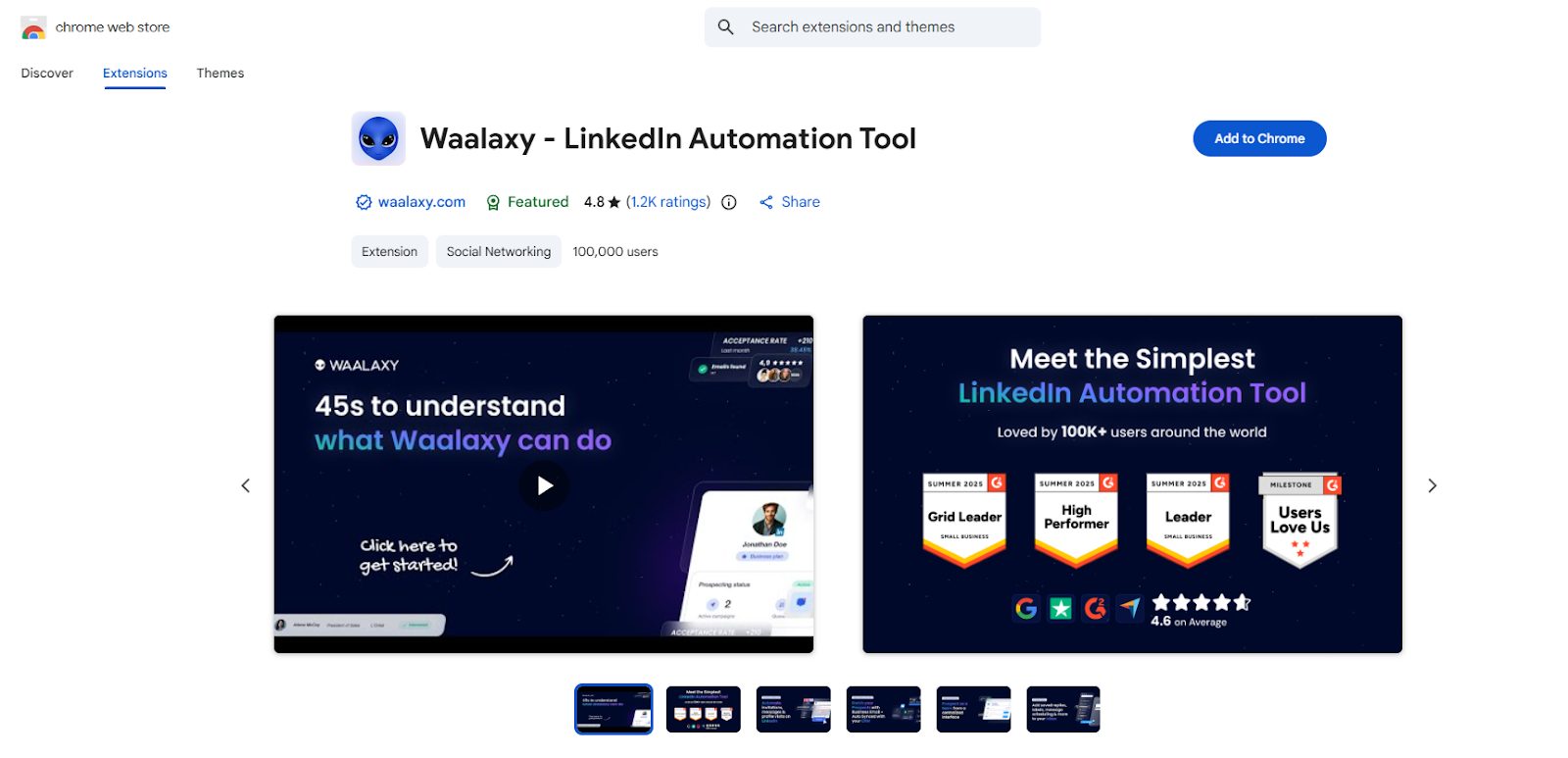
Tools in this category include Dux-Soup, Octopus CRM, Linked Helper, and Waalaxy on its cheaper tiers (its paid plans shift toward cloud execution). All of them tie automation to your device and your IP, which is exactly the pattern LinkedIn's Trust and Safety systems are tuned to catch in 2026.
Cloud-Based Tools (Lower Risk, Not Zero)
Cloud-based tools run on a remote server with a dedicated IP rather than inside your browser. That gives them two real advantages:
- Better randomization of timing, so requests don't fire at identical intervals.
- A fixed IP that, when matched to your normal location, looks less alarming than a rotating proxy.
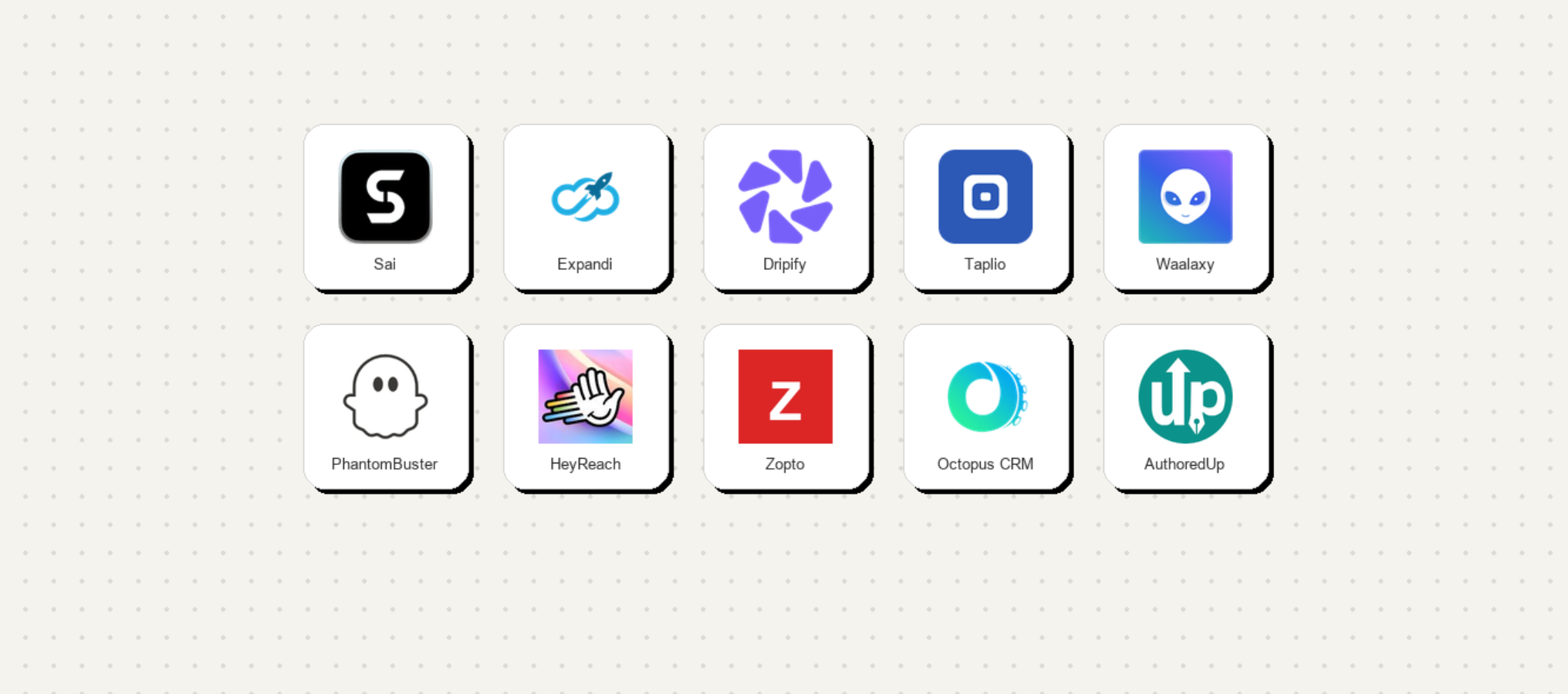
Tools built this way include Expandi, Dripify, Skylead, Zopto, and We-Connect. Even so, a Q1 2026 industry analysis estimated that close to 40% of accounts running non-compliant cloud tools received some form of restriction, so treat "lower risk" as exactly that and nothing more. Architecture helps. It doesn't make the activity compliant, and it doesn't cap how aggressively someone can configure the send volume.
Native LinkedIn Features (No Risk)
Sales Navigator's saved searches, lead alerts, and bulk profile viewing don't automate the request itself. They just cut down the time you spend finding people. This is the only category that's fully compliant, because nothing is acting on your behalf without a click from you.
🚀 Turn Connections Into Leads
Starting at $397/month, Cleverly helps 10,000+ businesses generate qualified B2B leads through targeted LinkedIn outreach.
What to Check Before Choosing a Tool
If you're evaluating options anyway, look at:
How to Set Up Connection Automation Safely
Most restrictions trace back to skipping a step in this sequence, not to bad luck. Treat this as an order of operations, not a menu you pick from.
Step 1: Build a Tight Target List First
Broad, keyword-based searches produce low acceptance rates, and low acceptance rates are what actually gets accounts flagged. Use Sales Navigator's filters, industry, company size, seniority, geography, to narrow down to a real ICP before you send a single request.
- Aim for a list where you could explain, in one sentence, why every single person on it is a fit.
- Pull no more than a few hundred prospects per campaign at a time; a list of thousands almost always means the targeting is too loose.
- Re-check the list after your first 50 sends. If acceptance is weak, the fix is usually the list, not the messaging.
Fewer, better-matched targets beat a wide net every time, and this step does more for your safety than any setting in the tool itself.
Step 2: Warm Up the Account
Start at a handful of requests a day and increase gradually over several weeks. This is the step almost everyone skips, and it's the most common cause of restrictions inside the first month.
A rough ramp that works for most accounts:
- Weeks 1 to 2: 5 to 10 requests a day, no automation tool yet, just to establish a baseline of normal activity.
- Weeks 3 to 4: Introduce the tool at 10 to 15 requests a day, watching acceptance closely.
- Week 5 onward: Scale toward 20 to 25 a day only if acceptance is holding above roughly 30%.
A brand-new pattern of sudden, high-volume activity, especially right after installing a new tool, is exactly the signal LinkedIn's systems are built to catch. Older accounts with real history aren't exempt either. Reusing a dormant account or reactivating one after months of inactivity should get the same slow ramp as a brand-new profile.
Step 3: Configure Human-Like Pacing
Randomize send intervals, keep activity inside normal working hours for your target's time zone, and set daily caps well below your weekly ceiling. A few specifics worth setting deliberately:
- Space requests by several minutes at minimum, never send in tight bursts.
- Cap daily sends around 20 to 25 even once you're fully warmed up, since staying meaningfully under the weekly ceiling gives you room to absorb a bad week without hitting a wall.
- Mix in profile views and post engagement between requests instead of sending invites back to back, so your activity log doesn't read as one repetitive action.
- Avoid running automation at the exact same time every day. Vary the start time within a window.
A real person doesn't send 20 requests in three minutes, and doesn't log in at 9:00 AM sharp every single day either.
Step 4: Decide on Connection Notes
Test both approaches, since results vary by audience and industry. When you do include a note, keep it short, specific, and tied to something real about the person, a shared connection, their recent post, their role.
- A generic, copy-pasted note lowers acceptance and raises the odds of an "I don't know this person" report, which is one of the fastest ways to shrink your weekly cap.
- If you're automating at any real volume, personalization has to be templated but variable, pulling in a real detail per prospect rather than one static sentence for everyone.
- Track acceptance rate separately for noted versus no-note sends for at least a few hundred requests before deciding which works better for your audience.
Step 5: Monitor Acceptance and Withdraw Stale Invites
Check acceptance rate weekly, not monthly. Waiting a full month to notice a decline means you've already sent hundreds of requests into a pattern that's hurting you.
- If acceptance drops, pull back volume immediately rather than waiting for a restriction to force the issue.
- Withdraw pending invitations that have sat unanswered for two to three weeks, both to stay under any pending-invite ceiling and to keep your outreach looking active rather than stagnant.
- Keep a simple weekly log: requests sent, accepted, and withdrawn. Patterns show up in that log well before LinkedIn shows you a restriction notice.
Step 6: Plan the Follow-Up Sequence
Automation gets you the connection. It doesn't get you the meeting. Have your post-acceptance message written and ready before you send a single request, because a connection that sits unmessaged for days looks exactly as cold as a stranger.
- Send the first follow-up within 24 to 48 hours of acceptance, while the request is still fresh in their memory.
- Reference the connection note if you sent one, so the sequence feels continuous rather than like two unrelated messages.
- Build at least two or three follow-up touches before writing someone off, most replies on LinkedIn come after the first message, not on it.
Warning Signs You're About to Get Restricted
Catch these early and you can usually walk it back before LinkedIn does it for you. None of these on their own is a guaranteed ban, but stacking two or more is a real signal to act immediately.
- Acceptance rate falling below roughly a third of requests sent. This is the earliest and most reliable warning sign, since it's the metric LinkedIn's own systems weigh most heavily.
- Pending invitations piling up without being withdrawn. A backlog signals either poor targeting or inactivity, both of which look bad to LinkedIn's algorithm.
- Unusual login or security prompts appearing more often. Extra verification steps, "was this you?" emails, or repeated CAPTCHAs are LinkedIn's systems telling you your session already looks suspicious.
- Search results or profile views getting throttled. If searches suddenly return fewer results or profile views stop loading normally, that's often a precursor restriction before invites are affected.
- A sudden drop in profile visibility or connection suggestions. This one's subtle. If your "who's viewed your profile" numbers or suggested connections drop off sharply, your account may already be quietly deprioritized.
- Messages or InMails going unread at an unusually high rate. This can indicate your messages are being filtered or deprioritized in recipients' inboxes, a sign LinkedIn's spam systems have started scoring your account.
- Any temporary feature restriction, even a minor one. A pause on search, a delay sending messages, or a "you're doing this too much" popup.
Treat that last point as the most important one on this list. A lot of accounts get one small restriction, wait it out, and go straight back to their previous volume, and that's usually when the second, permanent restriction happens. If you see any combination of these signs, the response should always be the same:
- Pause all automation immediately, don't wait to see if it resolves on its own.
- Withdraw old pending invites that have been sitting unanswered.
- Reduce your daily activity to a small fraction of normal, closer to how a mildly active human would use the platform.
- Wait several days to a week before resuming, and resume at a noticeably lower cap than before, not your previous volume.
Going right back to your previous pace, even after things seem to have calmed down, is how a warning turns into a suspension.
When Automation Isn't the Answer
Automation isn't the right call for every situation, even when it's run well. Knowing when to skip it entirely saves you more risk than any pacing setting ever will.
- Small, high-value TAMs. If your total addressable market is a few hundred accounts, every one of them deserves manual research, not a templated sequence. Automation is built for volume, and volume isn't the constraint when your entire market fits on one spreadsheet tab.
- Personal brand accounts. If the LinkedIn profile in question is also a founder's public audience and reputation, the downside of losing it outweighs almost any time saved. A restricted personal account doesn't just cost pipeline, it costs years of content, relationships, and credibility that can't be rebuilt on a new profile.
- Already-low acceptance rates. Automation doesn't fix a weak offer or bad targeting. It just amplifies the problem faster, and it burns through your weekly cap on people who were never going to say yes.
- Regulated or highly relationship-driven industries. In fields like healthcare, legal, or enterprise finance, buyers often expect and reward manual, clearly human outreach. A visibly automated sequence can actively damage trust before a conversation even starts.
- Teams without the bandwidth to monitor it. Automation isn't "set and forget." It needs weekly acceptance checks, warm-up discipline, and someone watching for warning signs. If nobody on the team has time for that, an unmonitored tool is a liability, not a shortcut.
- The volume ceiling itself. Even a flawlessly run setup tops out around a hundred requests a week per account. That's the hard constraint most teams eventually hit, and no tool, cloud-based or otherwise, can raise it.
This is usually where teams realize the real bottleneck isn't automation software at all. It's that scaling LinkedIn outreach means managing more accounts, more warm-up cycles, and more monitoring, not squeezing more actions out of one account.
At that point, you're choosing between building that operation in-house, hiring and training someone to run it properly, or having it managed for you.
How Cleverly Runs LinkedIn Outreach at Scale
The hard part of scaling LinkedIn outreach was never sending the connection request. It's running consistent volume across multiple accounts without any of them tripping a restriction, week after week, month after month.
That's an operational problem, not a tooling problem, and it's the piece most teams underestimate until an account they've built for years gets flagged.
At Cleverly, we run LinkedIn lead generation end to end: ICP and Sales Navigator targeting, verified list building, connection and messaging sequences, and reply handling all the way through to a booked meeting.
Volume stays inside safe limits with proper warm-up pacing built in, because account health is the constraint that governs everything else. It doesn't matter how good your messaging is if the account sending it gets restricted in week three.
The messaging itself comes from frameworks tested across thousands of real conversations, which is what actually moves acceptance and reply rates, not the tool doing the sending. We're not optimizing for connection counts.
We're optimizing for qualified conversations with the right decision-makers, the kind that turn into pipeline. If you've read our breakdown on why LinkedIn automation tools get accounts banned, you already know the pattern. This is how we avoid it.
Want LinkedIn outreach that scales without risking your account? Book a free consultation with Cleverly.
Conclusion
Automation can work on LinkedIn, but only inside strict limits, with real warm-up, and with tight targeting behind it. The single variable that actually keeps an account healthy is acceptance rate, not which tool you bought or how much you paid for it.
Cloud-based tools carry less risk than browser extensions, but neither one is risk-free, and no vendor can promise otherwise.
Before you add any tool to your stack, audit what you're already doing. Check your current acceptance rate and weekly volume first. In most cases, the fix isn't more automation. It's narrower targeting and better messaging, sent at a pace that looks like a person is actually behind it.
Frequently Asked Questions
Free Resource
How to Scale a Profitable Cold Call System
Get the complete guide — download it instantly now.
Free Ebook
Download the Free Guide
Enter your details to get instant access.
You're all set! 🎉
Your ebook is downloading now.
Click below if the download didn't start automatically.