Table of Contents
What Is a LinkedIn Portfolio and Why Does It Matter in 2026?
Where to Add a Portfolio on LinkedIn (All the Right Places)
Top 6 Methods to Add a Portfolio to LinkedIn That Actually Work
How to Optimize Your LinkedIn Portfolio for Maximum Visibility
Common Mistakes to Avoid When Adding a Portfolio to LinkedIn
How Cleverly Uses LinkedIn Profile Optimization to Drive Qualified B2B Leads
Conclusion
Frequently Asked Questions
Modified On :
May 11, 2026
Key Takeaways
- A text-only LinkedIn profile no longer converts — proof-driven profiles with portfolio items in the Featured section receive up to 2x more profile views than those without.
- The Featured section is prime real estate: it sits directly below your About section, making it the first visual element prospects and recruiters see before scrolling anywhere else.
- There are 6 distinct places to add portfolio work on LinkedIn — most professionals use only one or none of them.
- Portfolio titles and descriptions are indexed by LinkedIn's search algorithm — keyword-optimizing them directly improves your discoverability.
- With 1.2 billion+ members on the platform, a proof-driven profile is the difference between a profile that converts and one that gets skipped.
Your LinkedIn profile might describe everything you've done. But if it doesn't show it, most people won't stick around long enough to care.
LinkedIn's own 2025 Talent Trends report says recruiters spend an average of 6 seconds on a profile before deciding whether to reach out. And it's not just recruiters — B2B buyers, prospective clients, and decision-makers do the same thing. They don't read. They scan for proof.
That's the gap most professionals miss.
They write detailed summaries and keyword-rich experience sections, but skip the one thing that actually closes the credibility gap: visible, clickable work samples.
LinkedIn profiles with portfolio items in LinkedIn's Featured section receive up to 2x more profile views than those without, according to LinkedIn's own optimization data. And with 1.2 billion members on the platform, including 65 million decision-makers and 180 million senior-level influencers, the competition for attention has never been steeper.
This guide covers exactly how to add a portfolio to LinkedIn across 6 working methods — where to place it, how to set it up step-by-step, and how to optimize each placement for maximum visibility.
What Is a LinkedIn Portfolio and Why Does It Matter in 2026?
A LinkedIn portfolio is a curated collection of work samples, case studies, links, PDFs, and media displayed directly on your profile.
It's the difference between a resume-style profile — where you describe what you've done — and a proof-driven profile where visitors can see it for themselves. One requires trust. The other builds it instantly.
Unlike experience descriptions that require scrolling, the Featured section on LinkedIn allows you to spotlight exactly what you want people to see first — your portfolio, media mentions, lead magnets, case studies, or high-performing posts.
The commercial case for this is straightforward.
Buyers and hiring managers make faster decisions when work is visible. A case study embedded in your profile eliminates the "can you send me examples?" back-and-forth. A results-backed deck attached to your Experience entry adds weight that a bullet point never can.
Complete LinkedIn profiles receive 30% more weekly views than incomplete ones — and a well-placed portfolio is one of the fastest ways to tip your profile from incomplete to compelling.
👀 Views Are Nice. Pipeline Is Better.
We turn LinkedIn profiles into meeting-booking machines. Done-for-you outreach starting at just $397/mo. Let’s get you some qualified leads!
Where to Add a Portfolio on LinkedIn (All the Right Places)
Before diving into the how, it's worth understanding the where — because placement affects visibility more than most people realize.
Here are all the sections where portfolio content can live on LinkedIn:
✅ Featured section — sits directly below your About section; highest-visibility real estate on the profile.
✅ Experience entries — attach media or links to individual job roles for role-specific proof
✅ About / Summary section — embed a typed-out URL as a backup CTA for engaged visitors
✅ Contact Info (Website field) — a dedicated external portfolio URL visible to anyone who clicks your contact info
✅ Education section — attach academic work, certifications, or course projects to relevant entries
The Featured section is where most of your portfolio energy should go.
This section appears directly below your About section and is the most visible portfolio space on your profile — visitors who never scroll down to your full experience history will still see it.
The recommended priority order: start with Featured, layer in Experience media attachments, add a URL to your Contact Info field, and use the About section link as a final fallback for visitors who read all the way through.
Top 6 Methods to Add a Portfolio to LinkedIn That Actually Work
Here's a practical, step-by-step breakdown — not theory. Each method works independently, and the best profiles use several of them together.
Method 1 — Add Portfolio to the LinkedIn Featured Section
This is the highest-impact placement on your entire profile. If you only do one thing on this list, make it this one.
Step-by-step:
- Go to your LinkedIn profile
- Click "Add profile section" → select "Recommended" → click "Featured"
- Hit the + icon to add an item
- Choose from: a link, PDF, image, video, existing LinkedIn post, or published article
- Add an outcome-driven title and a context-rich description before saving
- Drag items to reorder them — strongest proof goes first
Supported content types: external links (Notion, Behance, personal site, Canva), PDFs, images, videos, LinkedIn posts, and articles.
Best practice on quantity: 3–5 items is the sweet spot. Most visitors only see the first 2-3 items, so put your highest-converting asset first. More than 5 items starts to feel cluttered and dilutes the impact of your best work.
Pro tip: Don't title items "Portfolio" or "My Work." Write titles that answer a commercial question — "How We Generated 147 SQLs in 90 Days — Case Study" tells a visitor exactly what they're clicking on before they click.

Method 2 — Add a Portfolio Link via Contact Info / Website Field
This method puts your external portfolio URL in the Contact Info section — visible to anyone who clicks the contact tab on your profile.
Step-by-step:
- Click the pencil icon on your profile to edit
- Scroll to Contact Info → click the edit icon
- Under Website, paste your portfolio URL
- In the label dropdown, select "Other" and type a clear label: "View My Portfolio" or "Case Studies + Work Samples"
- Save
This works best for professionals with a dedicated portfolio website — whether that's a personal site, a Notion hub, a Behance page, or a curated Linktree-style page.
One important note for 2026: this placement is still available to all users regardless of any LinkedIn plan or Creator Mode eligibility. It's one of the most overlooked free placements on the platform.
Method 3 — Add Portfolio Links or Media to Individual Experience Entries
This method ties proof directly to the role where the work actually happened — which makes it more credible than generic portfolio links floating in isolation.
Step-by-step:
- Go to your profile → click the pencil icon on any Experience entry
- Scroll down to the Media section within that entry
- Click "Add media" → paste an external link or upload a file (PDF, image, document)
- Add a title and description
- Save
The reason this method carries weight: a case study attached to a specific job title, with a date range and company context around it, feels real in a way that a standalone link doesn't.
Best for: campaign performance reports, project decks, published work, outcome-driven case studies, or client results tied to a specific role.

Method 4 — Add a Portfolio Link in the About / Summary Section
The About section is where engaged visitors go deeper. If someone reads all the way through your summary, they're already warmer than 90% of profile visitors.
Adding a portfolio link here captures that intent.
How to do it:
- Edit your About section
- At the very end, add a clean CTA line: "See my recent work: www.yourportfolio.com"
- Save
One important limitation: LinkedIn does not hyperlink text URLs in the About section. The link won't be clickable — visitors have to copy and paste it. This is why this method works best as a backup, not a primary placement.
It still earns its place. Visitors who read to the end of your About section are the ones most likely to take the next step — and a visible URL gives them a clear path forward.

Method 5 — Use the Profile Header Custom Link (LinkedIn Premium / Eligible Users)
In 2026, LinkedIn removed the Creator Mode toggle that previously unlocked a custom header CTA button for all users.
Who is eligible now:
- Active LinkedIn Premium subscribers
- Users who previously had Creator Mode enabled before the toggle was removed (some retained the feature)
Step-by-step for eligible users:
- Go to your profile → click Edit
- Look for the "Add a custom button" or "Add link" option near the header/banner section
- Paste your portfolio URL and add a label
- Save
Why this placement matters: the custom header link appears before a visitor scrolls anywhere on your profile. It's the first interactive element they see.
For Premium users, this is the single most visible portfolio placement on the platform — and almost no one is using it effectively.
If you're on LinkedIn Premium and not using this, you're leaving high-intent clicks on the table.

Method 6 — Showcase Portfolio Work via LinkedIn Articles and Posts (Pinned to Featured)
This method is underused, and it's one of the most powerful for consultants, B2B professionals, and anyone whose work involves strategy, writing, or thought leadership.
How it works:
- Publish a LinkedIn article or post that showcases a specific project, case study, client result, or work sample.
- Once published, go to your Featured section → click the + icon → select "Posts" or "Articles".
- Find the published piece and pin it to Featured for permanent visibility.
Why this works: it combines content engagement (the post gets seen in the feed) with portfolio proof (it lives permanently on your profile).
According to LinkedIn's 2025 analytics updates, profiles with interactive embeds and content-based featured items had 3.2x higher profile visit duration and 47% more connection requests than static links
For B2B professionals, this is especially powerful. A post that breaks down a client result or a strategic framework you used positions you as a practitioner — not just someone who lists skills.
💼 Just A Strong Profile Doesn’t Mean More Leads
How do you generate more leads? Well, 10,000+ clients already generated pipeline with Cleverly. We send qualified leads, you just close.
How to Optimize Your LinkedIn Portfolio for Maximum Visibility
Adding portfolio items is step one. Optimizing them is what makes the difference between a profile that generates views and one that generates conversations.
✅ Write titles that answer a commercial question
Weak: "Portfolio" or "My Work"
Strong: "How I Helped a SaaS Startup Book 62 Sales Calls in 60 Days"
The title is the first thing a visitor reads. Make it outcome-driven and specific to your ICP.
✅ Use this description formula
Asset type + business problem + your contribution + result.
Example: "Case study — a B2B software company struggling with cold outreach reply rates. I rebuilt their targeting and messaging. Reply rates went from 1.2% to 6.8% in 6 weeks."
✅ Keyword-optimize titles and descriptions
Portfolio titles, descriptions, and document text contribute to LinkedIn's search index. Including relevant keywords improves your chances of appearing in search results for those terms. Think about what your ideal client or hiring manager would search for — and use those phrases naturally in your portfolio item copy.
✅ Keep the portfolio fresh
Remove items older than 12–18 months that no longer represent your best work. Add new wins quarterly. A stale portfolio signals that you haven't done anything worth showcasing recently — which is almost never true.
✅ Track performance
LinkedIn's analytics show which profile sections are generating the most views and clicks. Check them monthly. If a portfolio item isn't driving engagement, swap it out for something stronger.
Common Mistakes to Avoid When Adding a Portfolio to LinkedIn
Even professionals who know LinkedIn well make these errors. Here's what to watch for:
❌ Using vague titles like "My Work" or "Portfolio"
No context means no clicks. Every item needs a title that tells the visitor exactly what they're looking at and why it matters.
❌ Overloading the Featured section with 10+ items
More is not better here. A crowded Featured section overwhelms visitors and buries your strongest proof under a pile of filler. Keep it to 3–5 high-quality items.
❌ Linking to broken URLs or outdated work
Audit your portfolio links every quarter. A dead link is worse than no link — it signals carelessness.
❌ Skipping descriptions entirely
The title gets the click. The description closes the deal. Without a description, you're missing the chance to add context, keywords, and a mini case study around every portfolio item.
❌ Following outdated Creator Mode tutorials
LinkedIn's platform has changed significantly — tutorials from 2023 or 2024 referencing Creator Mode toggles or old profile layouts no longer apply. Stick to 2026-specific guidance.
❌ Adding portfolio items with no clear CTA or next step
Every portfolio item should leave the visitor knowing what to do next. Add a CTA in your description: "Want to see how we approached this? Send me a message."
How Cleverly Uses LinkedIn Profile Optimization to Drive Qualified B2B Leads
Your LinkedIn outreach fails not because the message is bad — but because the profile it's coming from doesn't hold up under scrutiny.
When a prospect receives a connection request, the first thing they do is click through to the sender's profile. They're evaluating trust in 6 seconds or less. A profile without proof — no portfolio, no case studies, no visible results — is a profile that loses that trust before the conversation even starts.
At Cleverly, profile credibility is built into our LinkedIn lead generation system from day one. We optimize sender profiles as part of every campaign — headlines, About sections, Featured portfolio items, and messaging that aligns your profile with your ICP's pain points before a single outreach message goes out.
The connection is direct: a proof-driven LinkedIn profile converts more connection requests into replies, and more replies into booked meetings. Prospects who can see your results before you pitch them are already warmer by the time they respond.
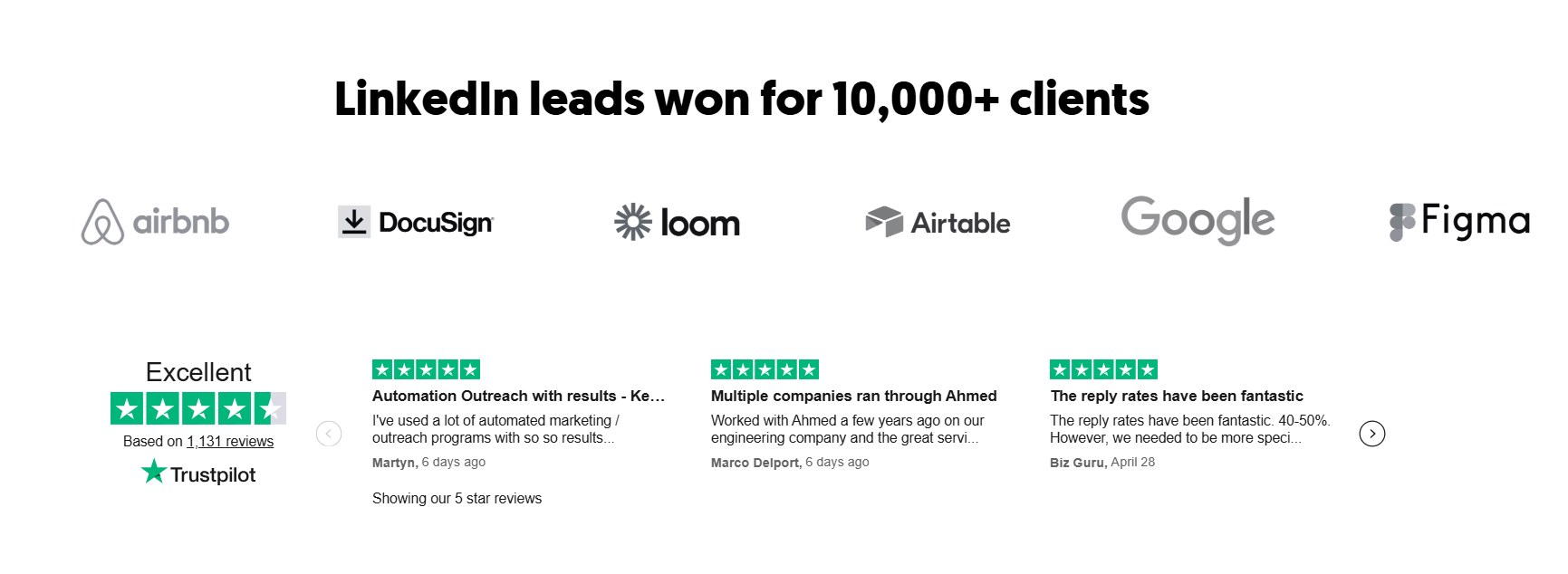
We've done this for 10,000+ B2B companies — including teams at Amazon, Google, Uber, and PayPal — generating $312M in pipeline and $51.2M in closed revenue.
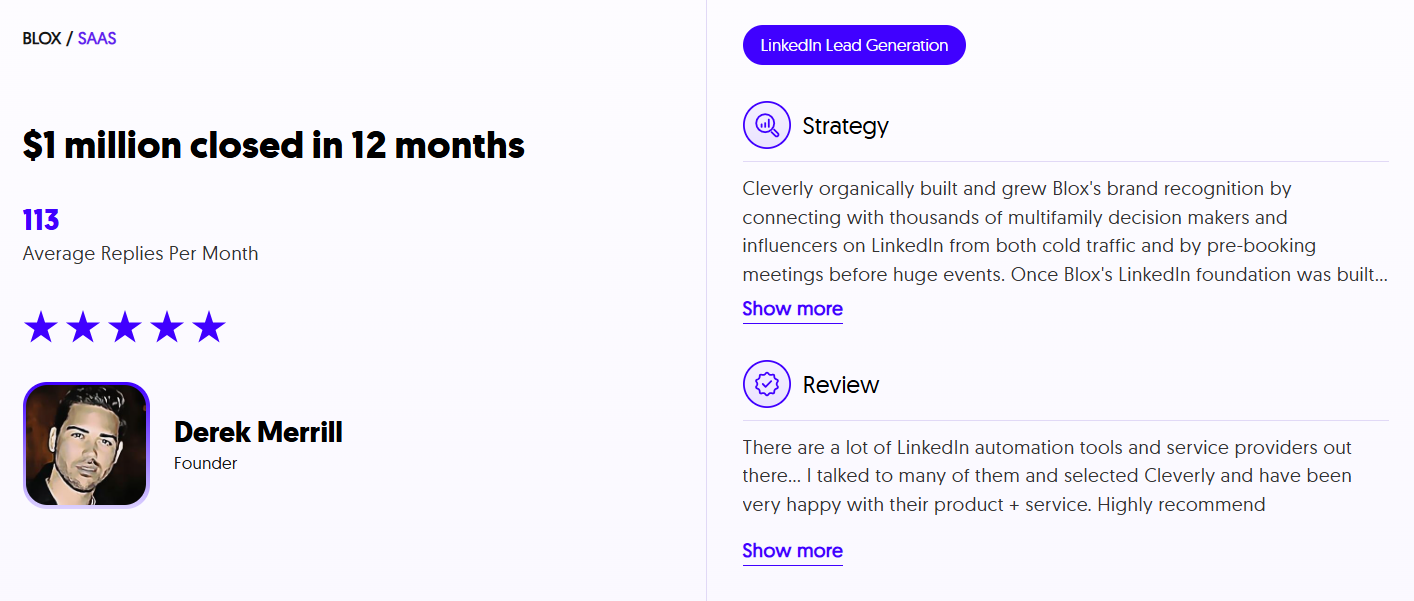
Our LinkedIn service starts at $397/month, fully managed, with ICP-based targeting, personalized outreach sequences, and reply management handled for you.
📈 Want your LinkedIn profile to work as hard as your outreach?
Book a strategy call with Cleverly and see what a fully optimized outbound system looks like!
Conclusion
Adding a portfolio to LinkedIn isn't a one-time setup — it's an ongoing asset that should evolve alongside your best work.
Start with the Featured section, layer in Experience media attachments and a Contact Info URL, and use the About section link as a final CTA for your most engaged visitors.
Use all six methods and you've built a profile that doesn't just describe what you do — it demonstrates it. That's what turns profile views into real conversations.
Frequently Asked Questions
Free Resource
How to Scale a Profitable Cold Call System
Get the complete guide — download it instantly now.
Free Ebook
Download the Free Guide
Enter your details to get instant access.
You're all set! 🎉
Your ebook is downloading now.
Click below if the download didn't start automatically.