Table of Contents
Why Send an Email to Multiple Recipients Individually
Methods to How to Send Email to Multiple Recipients
How to Send Emails Individually in Gmail
How to Send Emails Individually in Outlook
Tools to Send an Email to Multiple Recipients Individually
Best Practices for Sending Emails Individually at Scale
Common Mistakes to Avoid
How Cleverly Scales Personalized Cold Outreach Campaigns
Conclusion
Frequently Asked Questions
Modified On :
March 20, 2026
Key Takeaways
- Learning how to send an email to multiple recipients individually helps improve engagement and protects recipient privacy.
- Sending separate emails improves deliverability compared to bulk emails sent with large CC or BCC lists.
- Tools like mail merge, Gmail extensions, and outreach platforms make it easier to scale personalized emails.
- Personalization in subject lines and opening lines significantly improves reply rates.
- Segmenting your audience helps you send more relevant emails to different groups.
- Structured email sequences perform much better than sending one bulk email to everyone.
If you have ever asked yourself how do I send an email to multiple recipients without exposing the entire list, you are not alone.
Sales teams, founders, and marketers all want a way to send the same email to multiple recipients separately while still keeping things personal.
But the problem is - When you send one bulk email, everyone can see the same message. It feels generic and it often hurts reply rates.
That is why many teams look for how to send an email to multiple recipients individually so each person receives the message as if it was written just for them.
In this guide, we will show you:
- How to send email to multiple recipients using simple manual methods
- Tools that help you send an email to multiple recipients individually at scale
- Step by step instructions for common email platforms
- Best practices to keep emails personal and improve reply rates
We will also share how teams that rely on cold outreach automate this process to book consistent meetings without sending spammy bulk emails.
Why Send an Email to Multiple Recipients Individually
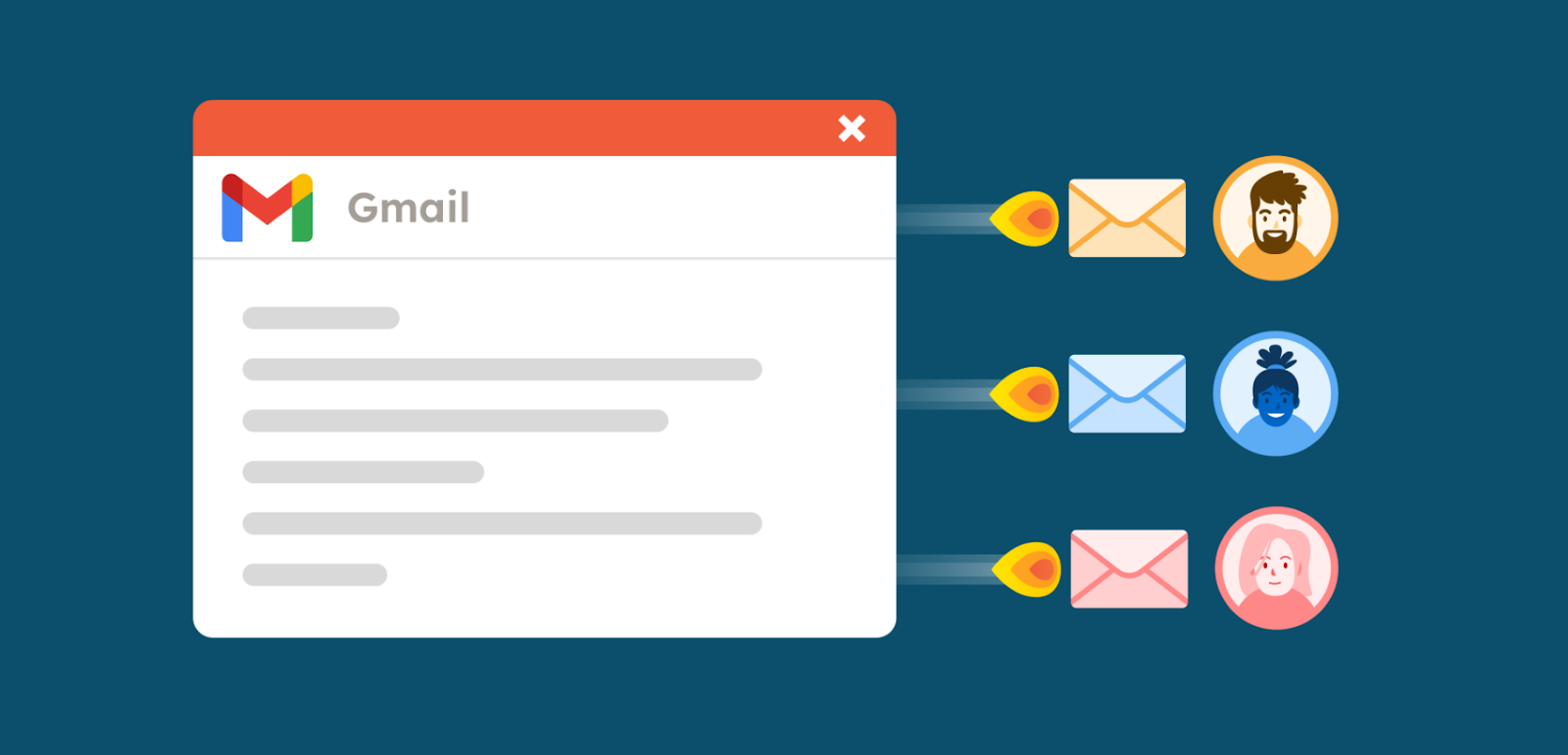
When you send an email to multiple recipients individually, each person receives a separate message in their inbox. It looks like a one-to-one email instead of a mass broadcast.
This small change makes a big difference for privacy, deliverability, and engagement.
Here is why many sales and marketing teams prefer this approach.
1. Protects Recipient Privacy
When you send an email to multiple recipients separately, your recipients cannot see each other’s email addresses.
This is important for:
- Cold outreach
- Client communications
- Partner updates
- Prospecting campaigns
It keeps your contact list private and makes the email feel more professional.
2. Improves Deliverability
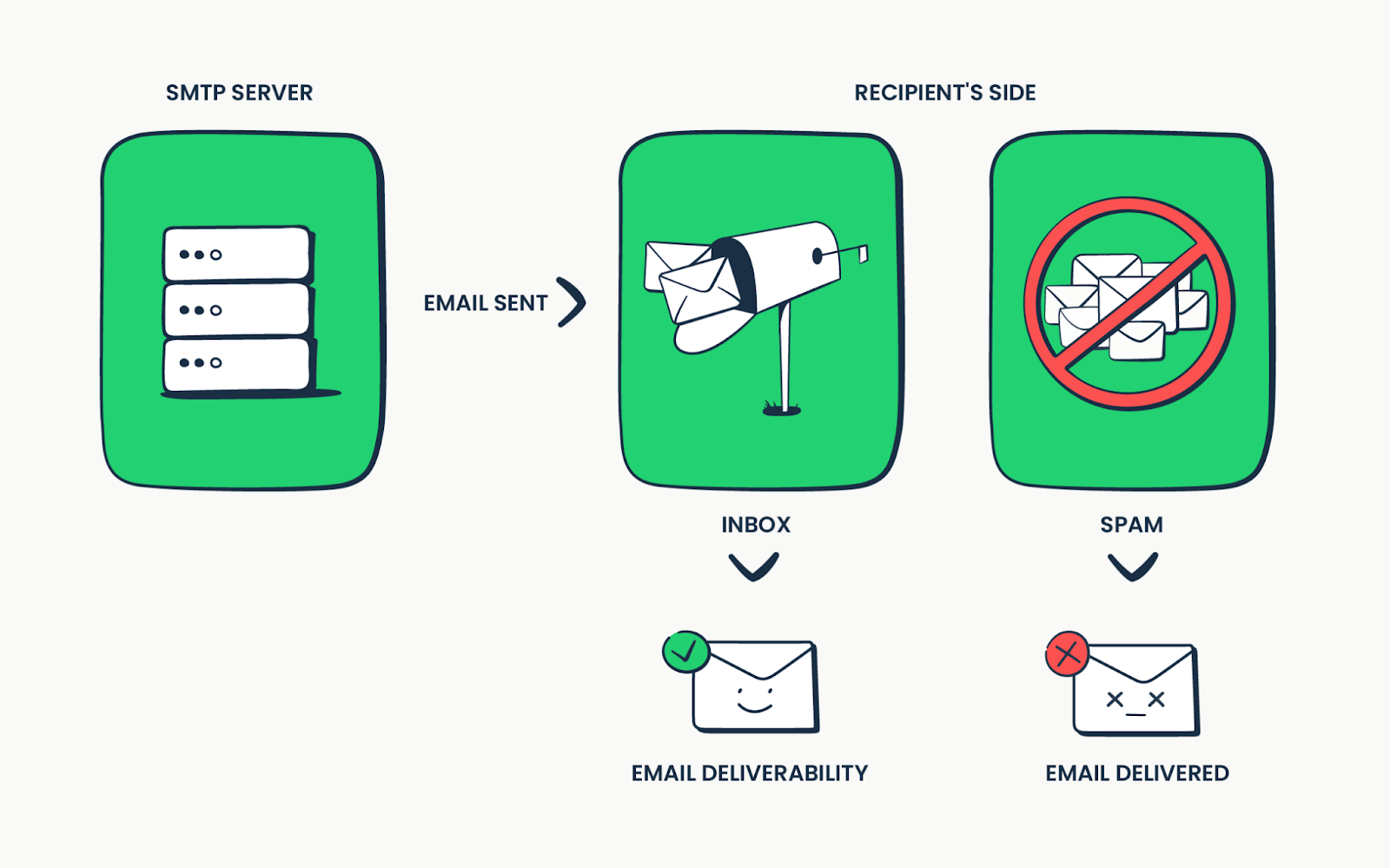
Bulk emails with large CC or BCC lists often trigger spam filters. Sending emails separately helps:
- Reduce spam signals
- Maintain sender reputation
- Improve inbox placement
That is why teams looking for how to send email to multiple recipients often choose individual delivery instead of bulk sending.
3. Increases Reply Rates

People are far more likely to respond to emails that feel personal.
Sending the same email to multiple recipients separately makes it appear like a direct conversation. This helps:
- Start real conversations
- Increase response rates
- Book more meetings
It is a key reason why cold outreach agencies focus heavily on personalization.
4. Avoids Spam Filters
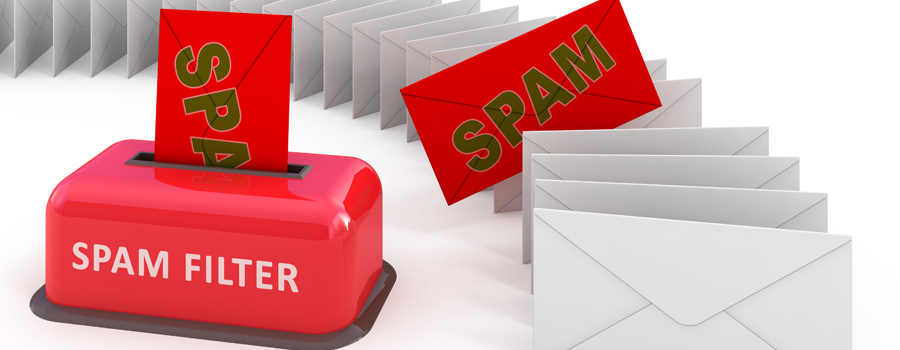
Spam filters look for common bulk email signals like:
- Large recipient lists
- Identical mass emails
- Too many CC or BCC addresses
When you send an email to multiple recipients individually, those signals are reduced. Your email looks like normal one-to-one communication.
5. Enables Real Personalization
Cold email personalization is one of the biggest advantages. You can easily customize:
- First name
- Company name
- Job role
- A relevant message for the recipient
This is exactly how a cold outreach agency like us at Cleverly runs outreach campaigns. Instead of blasting generic emails, we send highly personalized messages that feel written for one person at a time.
Also Check: Best Cold Email Blueprint to Generate Leads (100% Tested)
📩 Send Personalized Emails — At Scale
Cleverly runs done-for-you cold email campaigns where you only pay for qualified, meeting-ready leads.
Methods to How to Send Email to Multiple Recipients
If you are wondering how to send email to multiple recipients without making it look like a mass email, there are a few different methods you can use.
Some methods work well for small lists. Others help you send personalized emails to hundreds or even thousands of people.
Let’s go through the most common approaches.
Method 1: Manual Sending (One by One)
The simplest way to send an email to multiple recipients individually is to send each email manually.
You create one message and send it to each contact separately. Typical process:
- Write your email
- Copy the message
- Paste it into a new email
- Change the recipient
- Send again
This method works best when:
- Your list is very small
- You want full control over every message
- You are sending a few personal emails
Limitations:
- Very time consuming
- Hard to scale
- Easy to make mistakes
This is why most teams look for better ways when learning how to send the same email to multiple recipients separately.
Method 2: Using BCC (Limitations Explained)
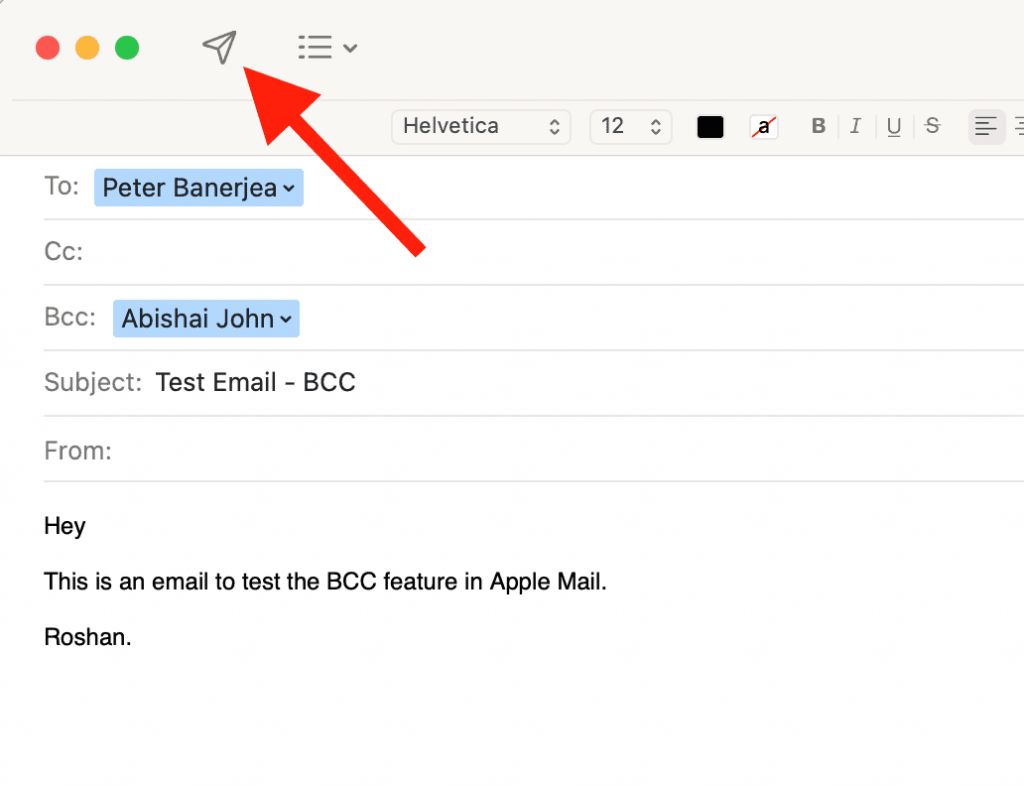
Another option is using the BCC (Blind Carbon Copy) field. This allows you to send one email to many people while hiding the recipient list.
How it works:
- Add your own email in the “To” field
- Add recipients in the BCC field
- Send the message once
Benefits:
- Hides recipient addresses
- Quick for simple announcements
But there are important limitations.
- The email is still a bulk message
- No personalization
- Higher risk of spam filtering
So while BCC can help if you want to send email to multiple recipients, it does not truly send an email to multiple recipients individually.
Method 3: Mail Merge (Recommended)
Mail merge is one of the best solutions if you want to send the same email to multiple recipients separately while still personalizing each message.
Mail merge tools combine:
- An email template
- A contact list
- Personal data fields
Each person receives a separate email with customized details.
For example:
- First name
- Company name
- Job title
- Custom notes
Benefits of mail merge:
- Sends emails individually
- Personalizes each message
- Works well for medium sized lists
- Saves a lot of time
This method is widely used by sales teams that want a reliable way to send an email to multiple recipients individually.
Method 4: Using Email Outreach Tools
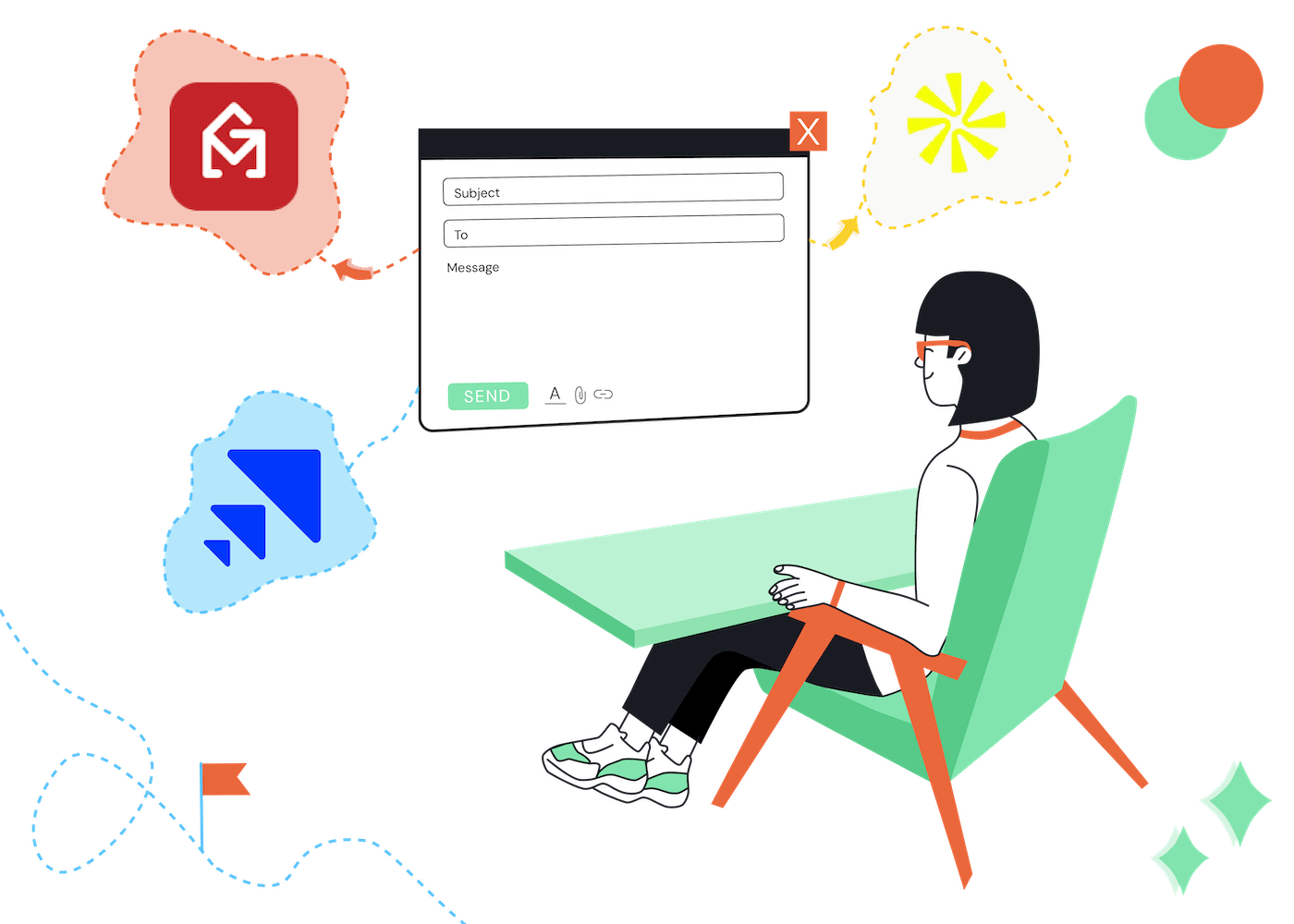
For larger campaigns, many companies use outreach tools.
These tools automate the entire process of how to send email to multiple recipients while keeping every email personalized.
Most tools allow you to:
- Upload prospect lists
- Personalize emails with variables
- Send emails automatically
- Schedule follow ups
- Track replies and meetings
This is the approach used by many sales teams and cold outreach agency providers when running outbound campaigns at scale.
Instead of manually sending emails, automation tools help deliver personalized messages to hundreds or thousands of prospects while still making every email feel one to one.
Tools to Explore: Best Cold Email Software (Tested & Compared)
How to Send Emails Individually in Gmail
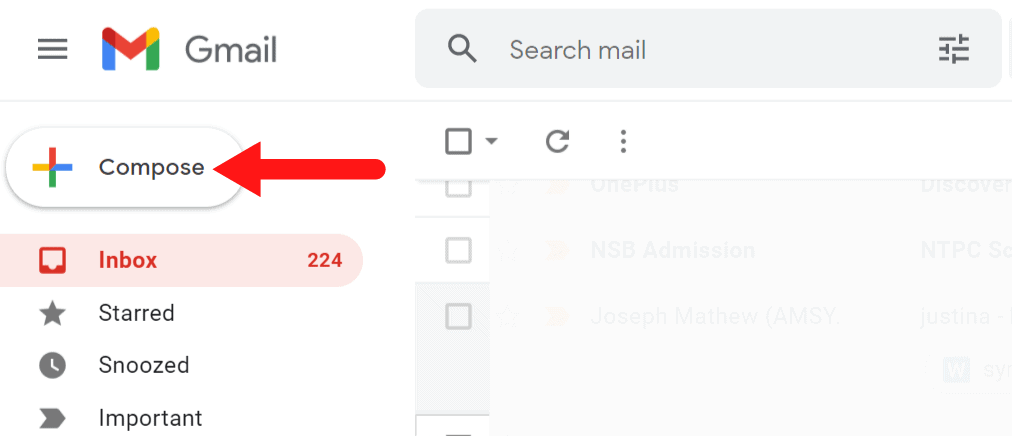
If you use Gmail, the easiest way to send the same email to multiple recipients separately is with a mail merge tool connected to Google Sheets.
This method lets you send personalized emails while each recipient receives a separate message. Here is the basic process:
Step 1: Create Your Recipient List
Start by creating a list of contacts in Google Sheets. Your sheet should include fields like:
- First Name
- Email Address
- Company Name
- Custom notes (optional)
These fields help personalize your emails.
Step 2: Connect a Mail Merge Tool to Gmail
Next, install a Gmail mail merge tool that connects with your Google Sheet. This allows Gmail to:
- Pull contact data from the sheet
- Insert personalization fields
- Send emails separately to each recipient
This is one of the easiest ways to send an email to multiple recipients individually using Gmail.
Step 3: Write Your Email Template
Now create your email template inside Gmail. Instead of writing a generic message, add personalization fields from your sheet.
Example:
- Hi {{First Name}}
- I noticed your company {{Company Name}} is growing fast
This makes every message feel personal even though you are sending many emails.
Step 4: Insert the Recipient List
Link your Google Sheet to the mail merge tool. The tool will automatically:
- Pull email addresses
- Match personalization fields
- Prepare individual emails for each recipient
This step ensures you truly send the same email to multiple recipients separately.
Step 5: Send Emails Individually
Once everything is ready, start the campaign. The tool will:
- Send each email one by one
- Personalize every message
- Deliver them as individual emails
This approach works well for:
- Sales outreach
- Networking emails
- Small outreach campaigns
For larger campaigns, many companies use automation tools or a cold outreach agency to manage this process at scale.
Read More: Why Your Cold Emails Still Go to Spam (and How to Fix It)?
🚀 Cold Email That Actually Books Meetings
Skip bulk blasts. Cleverly sends highly personalized outreach that turns prospects into sales calls.
How to Send Emails Individually in Outlook
If you use Outlook, you can send an email to multiple recipients individually using the built in Mail Merge feature with Excel and Microsoft Word.
This method lets you send personalized emails while keeping each message separate.
Step 1: Create Your Recipient List in Excel
Start by building your contact list in Excel. Include columns such as:
- First Name
- Email Address
- Company Name
- Job Title
This list will be used to personalize each email.
Step 2: Open Mail Merge in Microsoft Word
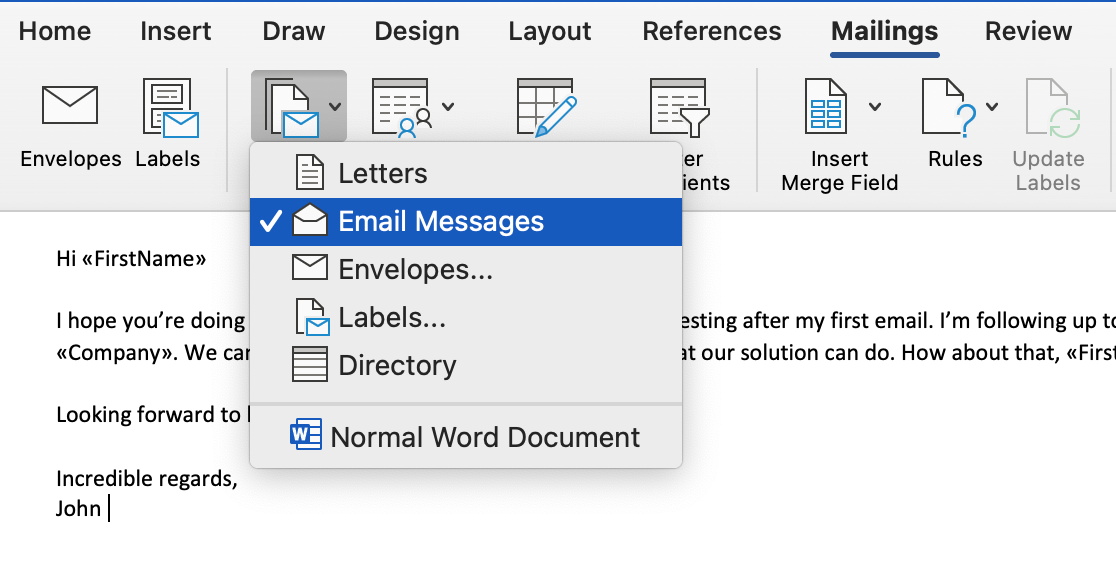
Next, open Microsoft Word and start a Mail Merge. Choose:
- Mailings tab
- Start Mail Merge
- Select Email Messages
Word will handle the personalization while Outlook handles the sending.
Step 3: Connect Your Excel File
Now connect your Excel contact list to Word. This allows Word to:
- Pull recipient data
- Insert personalization fields into your email
- Generate separate emails for each contact
This step is key if you want to know how do I send an email to multiple recipients while keeping every message personalized.
Step 4: Write Your Email Template
Create your email message in Word. Insert personalization fields such as:
- First Name
- Company Name
Example:
- Hi «First Name»
- I came across «Company Name» while researching companies in your space.
This ensures every email feels like a direct message.
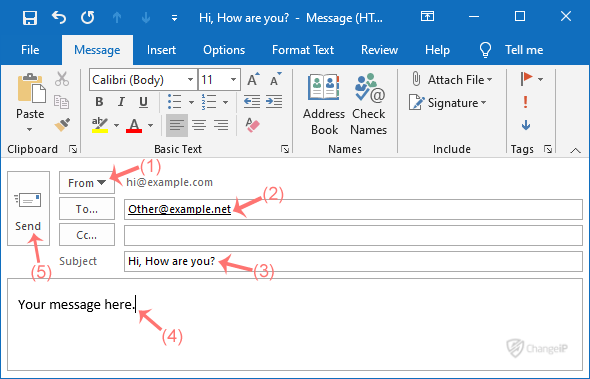
Step 5: Send Personalized Emails Through Outlook
Once your email is ready, finish the mail merge. Word will send the emails through Outlook.
The result:
- Each recipient gets a separate email
- Personalization fields are automatically filled
- No recipient list is visible
This is one of the most reliable ways to send an email to multiple recipients individually using Outlook.
Tools to Send an Email to Multiple Recipients Individually
If you want a faster way to send an email to multiple recipients individually, email outreach tools can help. These tools automate the process while still keeping every email personalized.
Here are some commonly used tools.
Mailmeteor
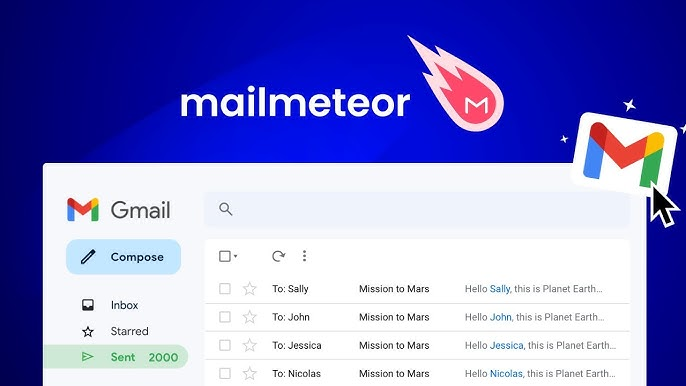
Mailmeteor is a simple mail merge tool built for Gmail. It helps you send the same email to multiple recipients separately using Google Sheets.
Key features:
- Works directly with Gmail
- Pulls contacts from Google Sheets
- Adds personalization fields
- Sends emails individually
It is a good option for small outreach campaigns.
GMass
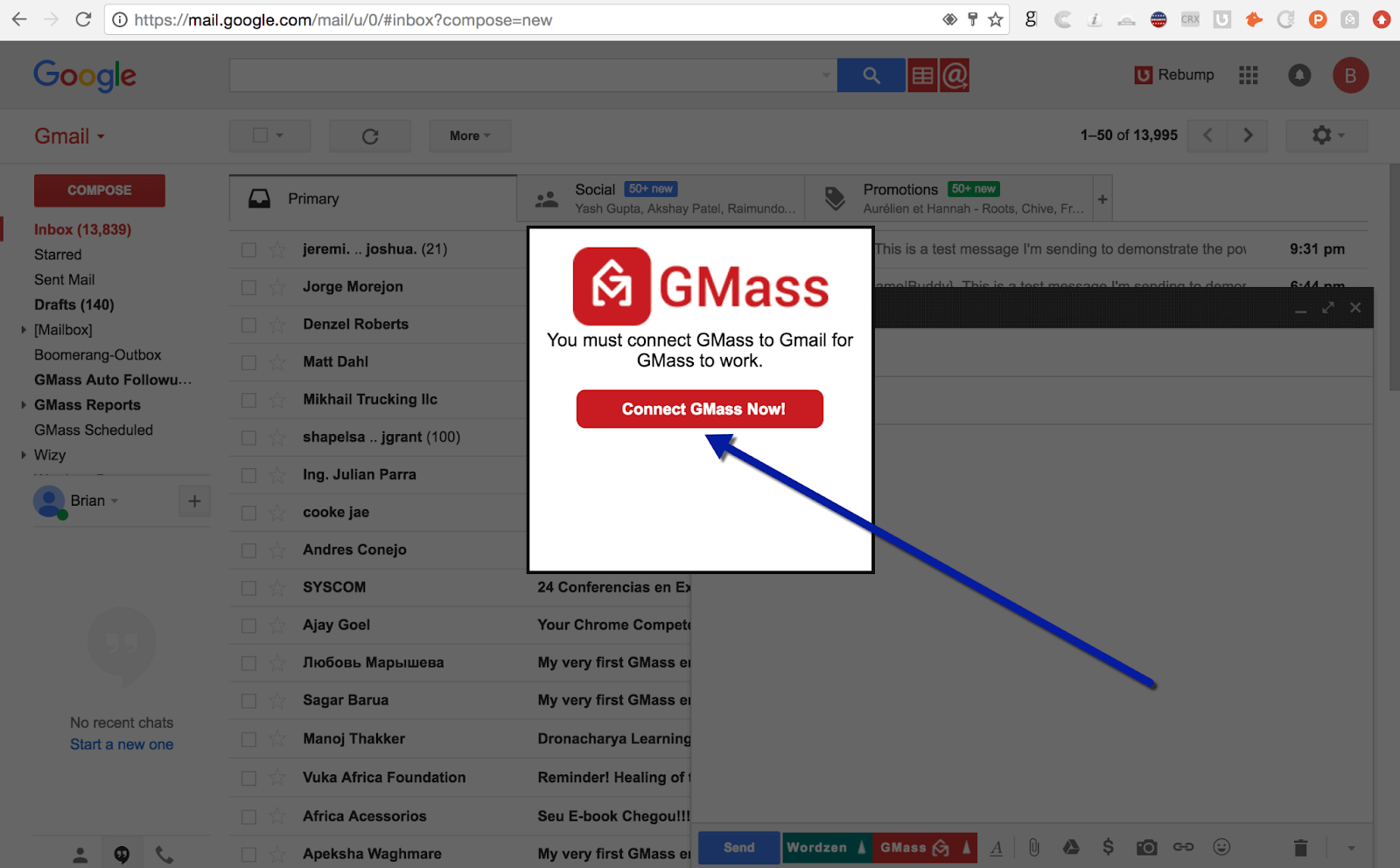
GMass is a popular Gmail extension used by many sales teams. It allows you to send email to multiple recipients while keeping each email separate and personalized.
Key features:
- Gmail integration
- Mail merge support
- Email scheduling
- Reply tracking
Many people use GMass for cold email and follow ups.
Yet Another Mail Merge (YAMM)
Yet Another Mail Merge, often called YAMM, is another Gmail based mail merge tool. It helps users send an email to multiple recipients individually from a Google Sheet.
Key features:
- Simple setup
- Gmail integration
- Personalized emails
- Email tracking
It is commonly used for newsletters, announcements, and small outreach campaigns.
Lemlist

Lemlist is an outreach platform designed for sales and lead generation teams. It helps automate how to send the same email to multiple recipients separately while keeping strong personalization.
Key features:
- Advanced personalization
- Automated follow ups
- Email warm up features
- Campaign analytics
Many outbound teams use Lemlist for larger outreach campaigns.
Instantly

Instantly is a cold email platform built for scaling outreach. It helps teams send an email to multiple recipients individually while managing deliverability and automation.
Key features:
- Large scale email sending
- Automated campaigns
- Inbox rotation
- Reply tracking
Tools like this are often used by sales teams and cold outreach agency providers that run outbound campaigns at scale.
Some More Tools: Best Email Filtering Software To Use
Best Practices for Sending Emails Individually at Scale
Once you start sending outreach at scale, the goal is not just to send an email to multiple recipients individually. You also want people to actually read and reply.
A few simple practices can make a big difference.
Personalize Subject Lines and Opening Lines
Personalizing subject lines is the biggest factor in reply rates. Instead of sending generic messages, add small personal details such as:
- First name
- Company name
- A short observation about their business
- Something relevant to their role
Even simple personalization makes your email feel like a real conversation.
Avoid Spam Triggers
Spam filters look for common patterns in bulk outreach. To improve inbox placement:
- Avoid spammy words like “free”, “guaranteed”, or “act now”
- Do not use too many links
- Keep formatting simple
- Send emails gradually instead of blasting thousands at once
These steps help ensure your emails land in the inbox when you send email to multiple recipients.
Keep Emails Short and Relevant
Long emails rarely get replies. Try to keep your message:
- Clear and direct
- Under a few short paragraphs
- Focused on one idea or question
Short emails work best when you send the same email to multiple recipients separately because they are easier to read and respond to.
Segment Your Audience
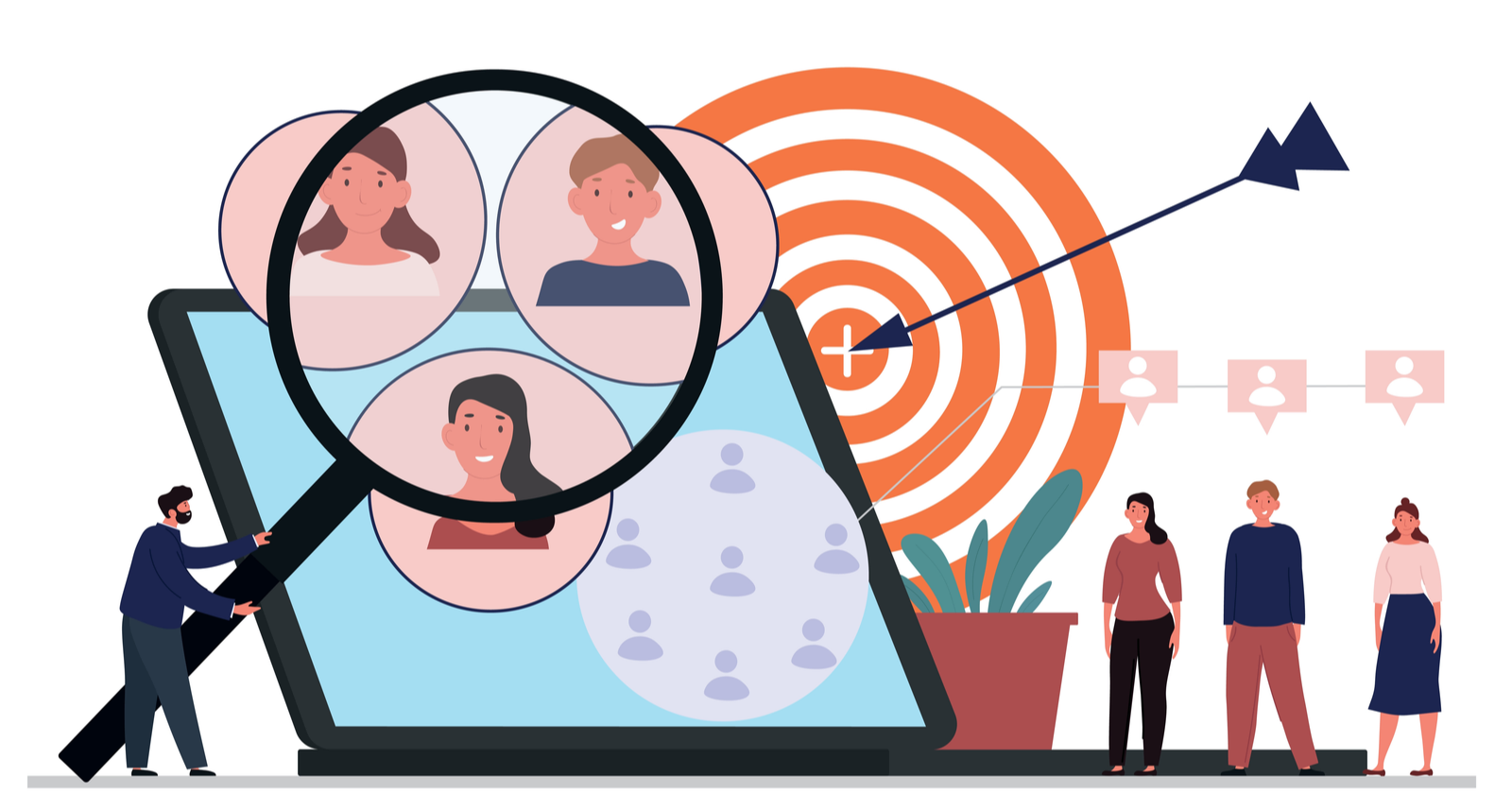
Not every contact should receive the exact same message. Segment your list based on:
- Industry
- Job role
- Company size
- Use case
This allows you to adjust your messaging and improve results when you send an email to multiple recipients individually.
Track Reply Rates
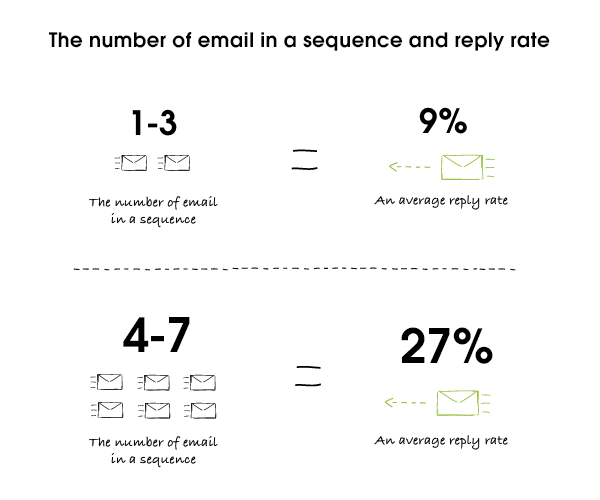
Always track performance so you know what works. Key metrics to monitor:
- Reply rate
- Open rate
- Meeting bookings
- Positive responses
Tracking these metrics helps you refine your messaging over time. This is exactly how teams running serious outreach improve results.
Learn More: The Ultimate Guide for Cold Email Outreach Best Practices
Common Mistakes to Avoid
Many people try to send email to multiple recipients but make mistakes that hurt deliverability and response rates.
Avoid these common issues.
❌ Sending Bulk Emails Without Personalization
Generic emails rarely get replies. If every email looks identical, recipients will assume it is a mass message and ignore it.
❌ Overusing BCC
BCC hides recipient emails, but it is still a bulk email. Problems with BCC include:
- No personalization
- Higher spam risk
- Lower engagement
If you want better results, it is better to send an email to multiple recipients individually.
❌ Ignoring Email Deliverability
Email deliverability is often overlooked. If your emails land in spam, nobody will see them. Good deliverability requires:
- Healthy sender reputation
- Proper email setup
- Gradual sending volume
❌ Sending Too Many Emails at Once
Sending hundreds of emails at once from a new account can trigger spam filters. Instead:
- Start with smaller sending volumes
- Increase gradually
- Warm up your email accounts
This helps maintain inbox placement when you send the same email to multiple recipients separately.
❌ Not Verifying Email Lists
Bad email lists can destroy outreach campaigns. If many emails bounce, email providers may flag your account. Always verify lists before sending to ensure:
- Valid email addresses
- Lower bounce rates
- Better deliverability
Clean data is critical when you want to send email to multiple recipients successfully.
How Cleverly Scales Personalized Cold Outreach Campaigns
Running effective outreach takes more than just learning how to send email to multiple recipients. You also need the right data, messaging, and systems.
At Cleverly, we operate as a cold outreach agency that manages this entire process for B2B companies.
We focus on one goal. Turning cold emails into real sales conversations.
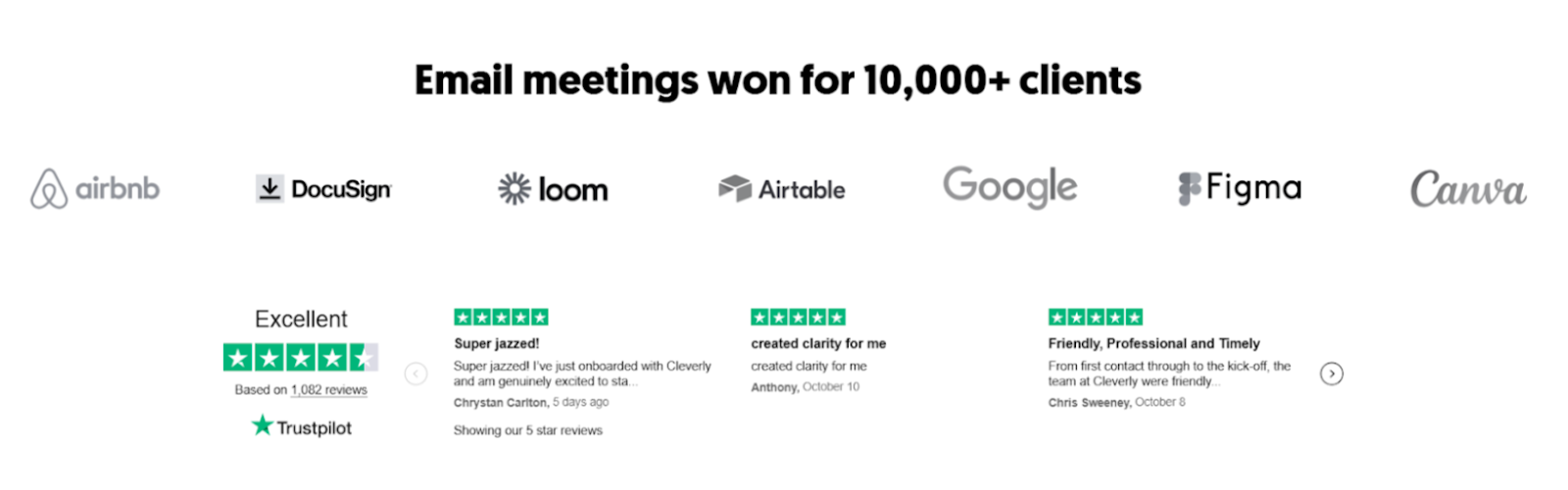
Trusted by Thousands of B2B Companies
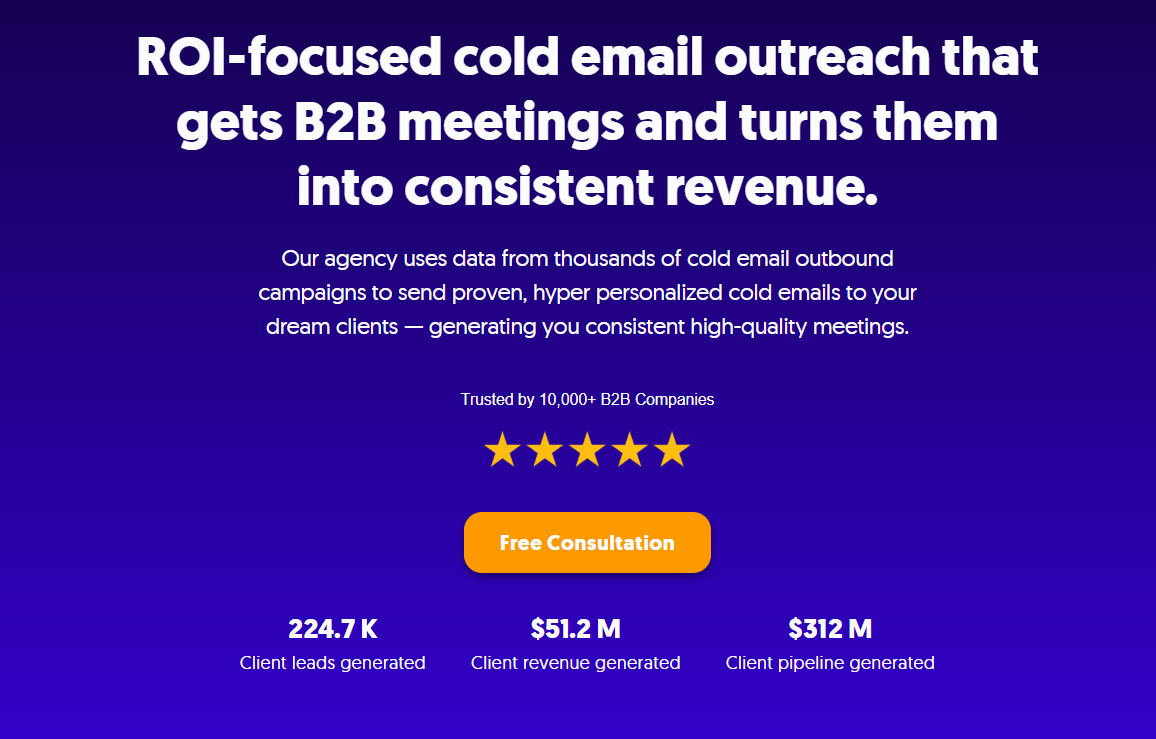
Our outreach systems are built from running thousands of campaigns. Results we have generated for clients:
- 10,000+ B2B companies trusted us
- 224.7K client leads generated
- $312M client pipeline generated
- $51.2M client revenue generated
These results come from sending highly personalized outreach that feels one to one.
ROI Focused Outreach
Our campaigns are built to drive measurable revenue.
You get access to the top 1% of email lead generation experts who know how to run outreach that actually works.
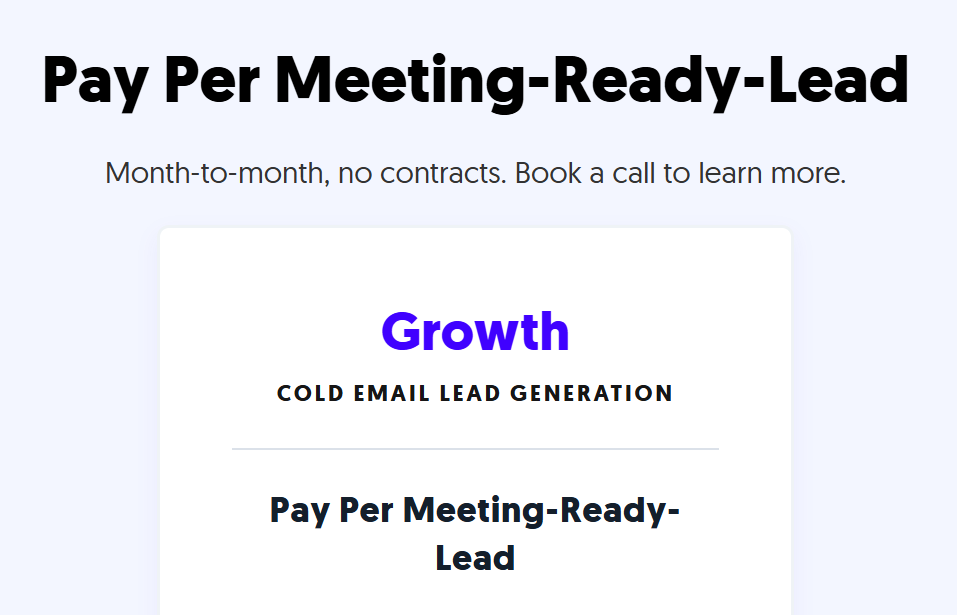
Our model is simple:
- Pay per performance pricing
- Month to month
- No long term contracts
If you want a reliable way to generate meetings with your ideal clients, we can help.
Book a free consultation with Cleverly to see how our cold email campaigns can generate consistent B2B meetings for your business.
Conclusion
Learning how to send an email to multiple recipients individually can make a big difference in how people respond to your emails.
Sending separate emails protects recipient privacy, improves deliverability, and makes your message feel more personal.
Tools like mail merge and outreach platforms make it much easier to manage this process without sending emails one by one.
When you combine the right tools with strong personalization and structured outreach sequences, you create a system that performs far better than traditional bulk email campaigns.
Frequently Asked Questions
Free Resource
How to Scale a Profitable Cold Call System
Get the complete guide — download it instantly now.
Free Ebook
Download the Free Guide
Enter your details to get instant access.
You're all set! 🎉
Your ebook is downloading now.
Click below if the download didn't start automatically.