Table of Contents
What Is Email Synchronization?
What Does Syncing Mail Mean? (A Non-Technical Breakdown)
How Email Synchronization Works (The Technical Side)
Email Sync Protocols — IMAP, POP3, EAS, and MAPI Explained
Types of Email Synchronization
How to Sync Your Email Across Devices (Step-by-Step)
Common Email Synchronization Issues (and How to Fix Them)
Email Synchronization for Sales Teams and Cold Email Outreach
How Cleverly Uses Email Synchronization to Power Cold Email Outreach
Conclusion
Frequently Asked Questions
Modified On :
April 21, 2026
Key Takeaways
- Email synchronization is the process of keeping your messages, folders, and read/unread status consistent across every device and server in real time — phone, laptop, desktop, all of it.
- IMAP is the gold-standard protocol for two-way sync; POP3 is outdated, one-directional, and a liability for any team managing multi-device outreach.
- Google, Microsoft, and Yahoo all enforced major authentication and sync protocol changes between 2025 and 2026 — misconfigured setups now face permanent rejection, not just spam filtering.
- For SDRs and sales teams, broken email sync directly causes missed replies, delayed follow-ups, and lost pipeline — it's not a background IT issue.
- Proper sync setup — IMAP, OAuth 2.0, and unified inbox management — is a foundational requirement for high-volume cold email outreach in 2026.
Email sync gets ignored… until it starts costing you deals.
You read an email on your phone during commute, open your laptop at the office, and the message still shows unread. Or worse: a prospect replied to your cold email sequence and you didn't catch it for two days because your outreach inbox wasn't syncing correctly. That delay cost you the meeting.
Between December 2025 and early 2026, millions of professionals experienced email synchronization failures despite working internet connections, as major providers like Gmail, Yahoo, and Microsoft implemented coordinated infrastructure changes — authentication protocol transitions, connection limits, and policy shifts — that disrupted email access across the board.
The average B2B professional already receives 120–150 emails per day, and daily global email volume is projected to hit 392.5 billion emails in 2026. At that scale, a sync problem isn't a minor inconvenience — it's a revenue problem.
This guide covers everything you need to know: what email synchronization actually is, how it works under the hood, the protocols driving it, how to set it up correctly, and why getting this right is mission-critical for cold email outreach in 2026.
What Is Email Synchronization?
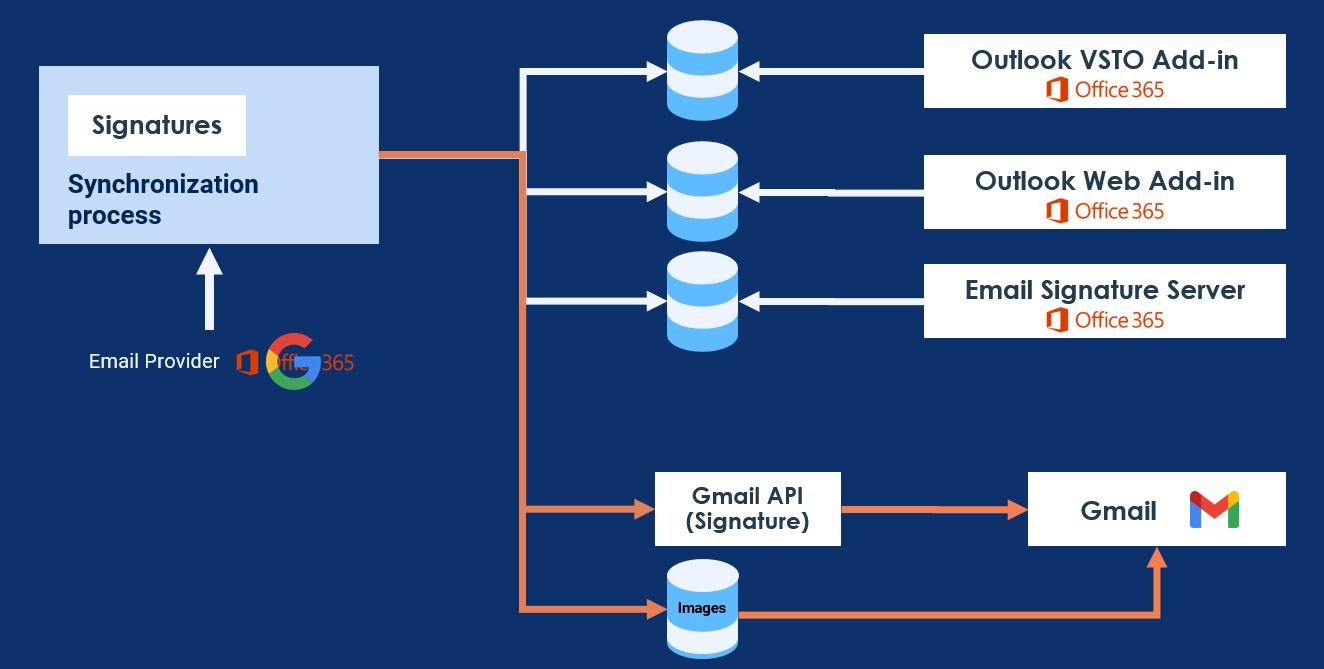
Email synchronization (or email syncing) — is the process of keeping your email messages, folders, labels, and read/unread status consistent across multiple devices and servers in real time.
When you open an email on your phone, your laptop shows it as read too. When you move a thread to a folder on your desktop, it appears in that folder everywhere.
That seamless consistency is email sync working as it should.
The key distinction: syncing is two-way. It's not just downloading emails to a single device (that's what POP3 does — more on that shortly). True email synchronization means any action you take on any device is reflected on every other device and on the server simultaneously.
What Gets Synced
List of a properly synced inbox keeps consistent across devices:
- New incoming messages — appear on all devices the moment they hit the server
- Read/unread status — read it once, it's marked everywhere
- Deleted items — trash it on your phone, it's gone from your laptop too
- Folder and label moves — organization actions propagate across all clients
- Sent mail — emails sent from any device appear in your Sent folder everywhere
- Drafts — start writing on desktop, finish on mobile
What doesn't sync? When something breaks — outdated auth credentials, a misconfigured IMAP setting, or an exceeded connection limit — users often don't notice immediately. Messages pile up silently on the server while the inbox on one device appears frozen in time.
📩 Syncing Emails ≠ Booking Meetings
We turn inbox activity into real sales calls. You only pay for qualified meetings we deliver.
What Does Syncing Mail Mean? (A Non-Technical Breakdown)
If you've ever searched what does syncing mail mean, you're not alone. The term sounds more technical than it is.
Think of syncing mail like a shared Google Doc. The moment one person makes an edit, everyone with the document open sees the change in real time. No version conflicts. No "which copy is the latest?"
Your email inbox works the same way. The server is the source of truth. Every device you use — phone, laptop, work computer — connects to that server and reflects its current state. When the sync is working, your inbox is the same everywhere, always up to date.
The breakdown happens when one of your devices loses that connection, uses the wrong protocol, or hits a server-side limit and stops checking for updates. To you, the inbox looks normal. But it stopped updating hours ago.
How Email Synchronization Works (The Technical Side)
Full Sync vs. Delta Sync
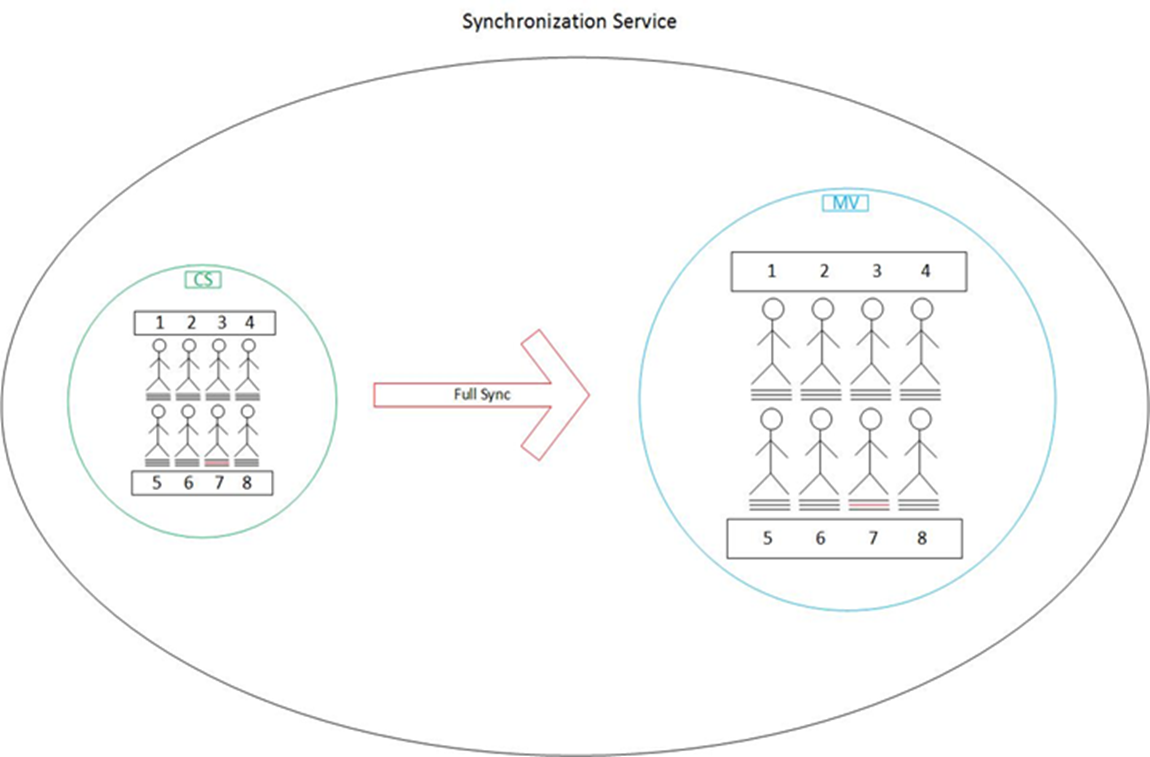
When your email client first connects to a mail server, it performs a full synchronization — downloading your entire email history, folder structure, and metadata. This is the initial handshake between client and server.
After that, your client switches to delta synchronization (also called partial sync). Instead of re-downloading everything, it only fetches changes since the last check: new messages, status updates, deletions. This is what makes ongoing sync fast and low-bandwidth.
The Role of OAuth 2.0
2026 has changed the game. Google completed its Basic Authentication retirement for Gmail on March 14, 2025, forcing all email clients to implement OAuth 2.0 authentication immediately. Microsoft followed with full enforcement reaching April 30, 2026 — applications attempting to use SMTP AUTH with Basic Authentication now receive error responses.
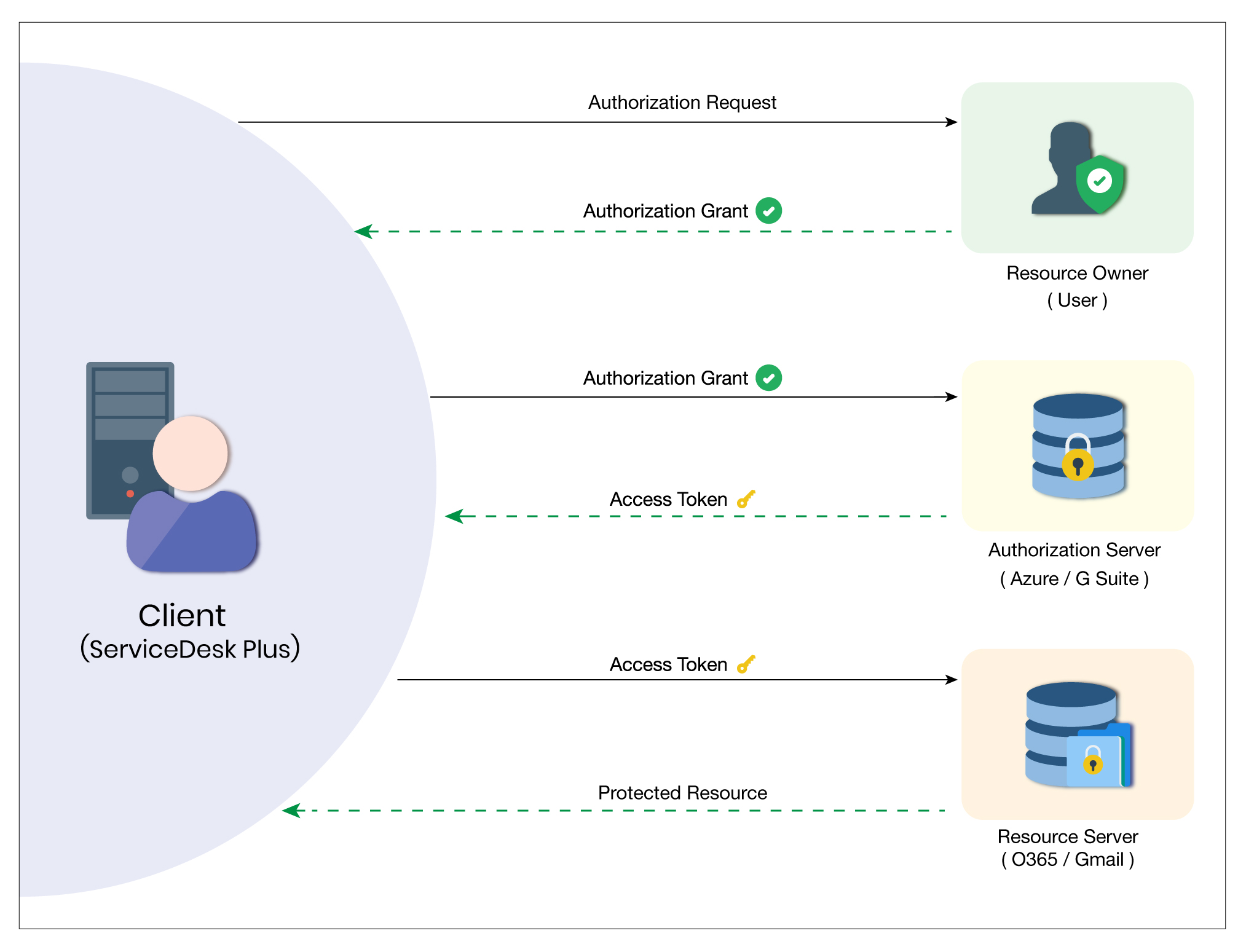
OAuth 2.0 is the modern authentication standard that replaced simple username/password logins for email sync. It uses token-based access, meaning your email client gets a secure token from your provider rather than storing your password directly.
If your email client or outreach tool hasn't been updated to support OAuth 2.0, your syncing emails will fail — not intermittently, but permanently.
Push vs. Pull Sync
There are two ways a client can stay in sync with the server:
- Push sync — the server notifies your device the moment new mail arrives. Instant. No waiting.
- Pull sync — your device checks the server at set intervals (every 5 minutes, every 15 minutes). Faster intervals mean more server connections.
Most modern email clients default to push sync via IMAP IDLE, which keeps a persistent connection open and receives notifications in real time. For sales teams managing reply-heavy inboxes, push sync is non-negotiable.
🚀 Your Stack Is Synced. Is Your Pipeline?
We run cold email end-to-end—targeting to booking. More replies. More meetings. Zero busywork.
Email Sync Protocols — IMAP, POP3, EAS, and MAPI Explained
Understanding synchronize mail starts with knowing which protocol your setup is using. Each one behaves very differently.
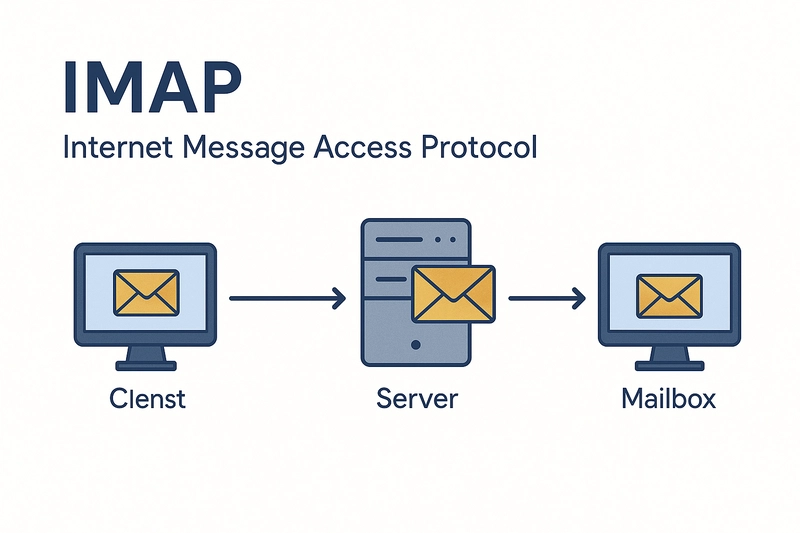
IMAP (Internet Message Access Protocol)
IMAP is the standard for modern email sync and the protocol you should be using for virtually every professional inbox.
It's a two-way synchronization protocol. Emails live on the server. Your email clients connect to the server, reflect its current state, and push any changes back. Read an email on your phone — IMAP marks it read on the server, which tells your laptop to mark it read too.
IMAP supports multiple simultaneous device connections, folder synchronization, and real-time updates via IMAP IDLE (push notifications). It's built for exactly the multi-device, always-connected workflows that B2B teams run.
The one caveat: each email client consumes multiple IMAP connections simultaneously, and when you access the same email account from multiple devices at once, these connection counts multiply rapidly. Exceeding your email provider's connection limit is now the most frequently overlooked cause of email synchronization failures.
POP3 (Post Office Protocol 3)
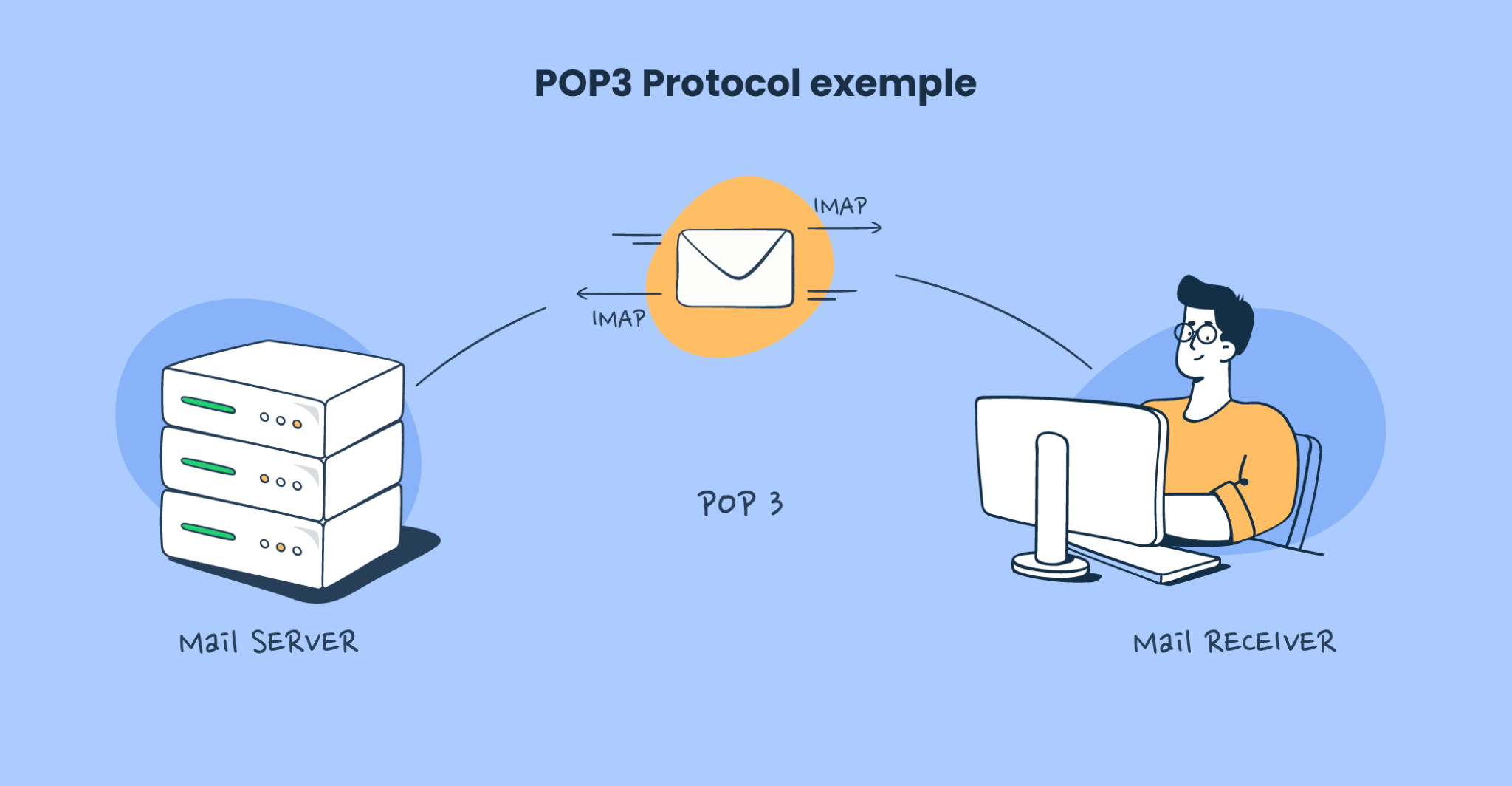
POP3 is the old protocol, and for most professional use cases in 2026, it's a liability.
POP3 is one-directional. It downloads emails to a single device and typically removes them from the server after retrieval. No real-time sync across devices. No two-way status updates. Delete something on your phone — your laptop still has it.
For solo operators who only ever access email from one machine and need offline access, POP3 still has a niche use. For any B2B team managing cold email outreach across multiple inboxes or devices, it's the wrong choice.
Exchange ActiveSync (EAS)
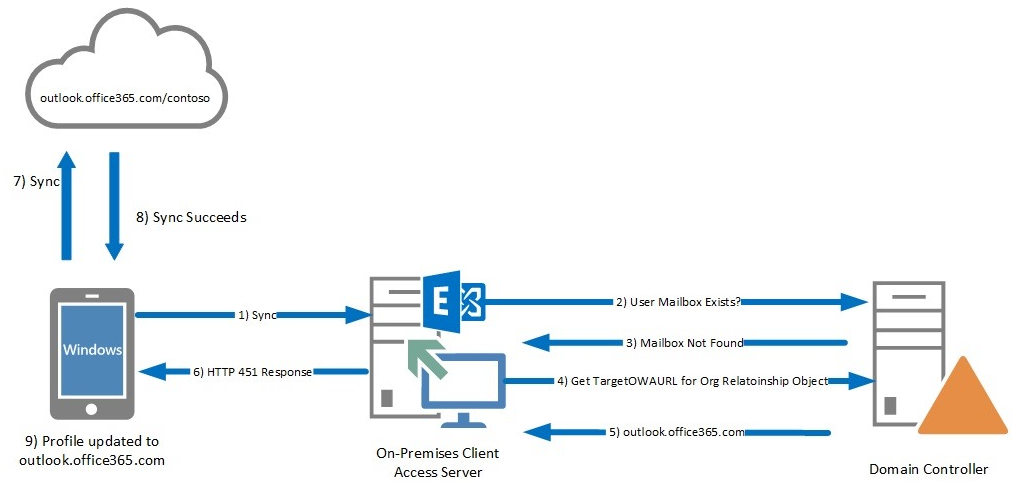
EAS is Microsoft's proprietary push-sync protocol, primarily used for syncing mobile devices to Exchange and Microsoft 365 accounts.
It handles more than just email — EAS syncs calendar events, contacts, and tasks simultaneously. It's optimized for low-bandwidth environments and delivers true push notifications without requiring an always-open IMAP connection.
If your team runs on Microsoft 365 and uses mobile devices heavily, EAS is likely already doing the heavy lifting for phone-to-server sync.
MAPI (Messaging Application Programming Interface)
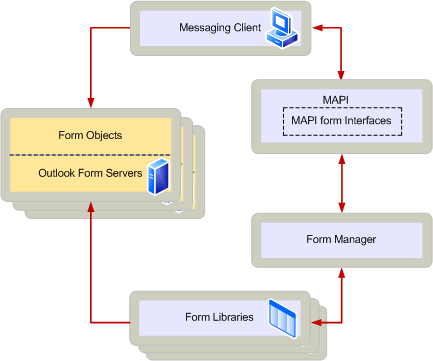
MAPI is what Microsoft Outlook uses when connecting to Exchange servers in an enterprise environment. It's a deep integration protocol — not just email sync, but full calendar, contacts, tasks, shared mailboxes, and delegate access.
MAPI is why Outlook in a corporate Microsoft 365 environment feels deeply integrated compared to a generic IMAP client. For enterprise teams running complex shared mailbox setups, MAPI provides capabilities that IMAP simply can't match.
Types of Email Synchronization
Not all email synchronization works the same way. Here's how the main types break down:
- One-way sync — data flows in a single direction. POP3 is the classic example: emails download to your device, but no changes propagate back to the server.
- Two-way sync — changes made on any device reflect on all connected clients and the server. IMAP is the standard here. This is what most professionals mean when they say their email is "synced."
- Push sync — the server pushes new data to your client the moment it arrives. Instant delivery, real-time status updates. Most IMAP clients support push via IMAP IDLE.
- Pull sync — your client polls the server at set intervals. Introduces a delay between when mail arrives on the server and when your device shows it. Common in older or resource-constrained setups.
- Real-time sync vs. scheduled sync — for business teams managing high-reply-volume inboxes, real-time sync isn't optional. A 15-minute polling delay in a cold email reply thread can be the difference between booking a meeting and losing the conversation.
How to Sync Your Email Across Devices (Step-by-Step)
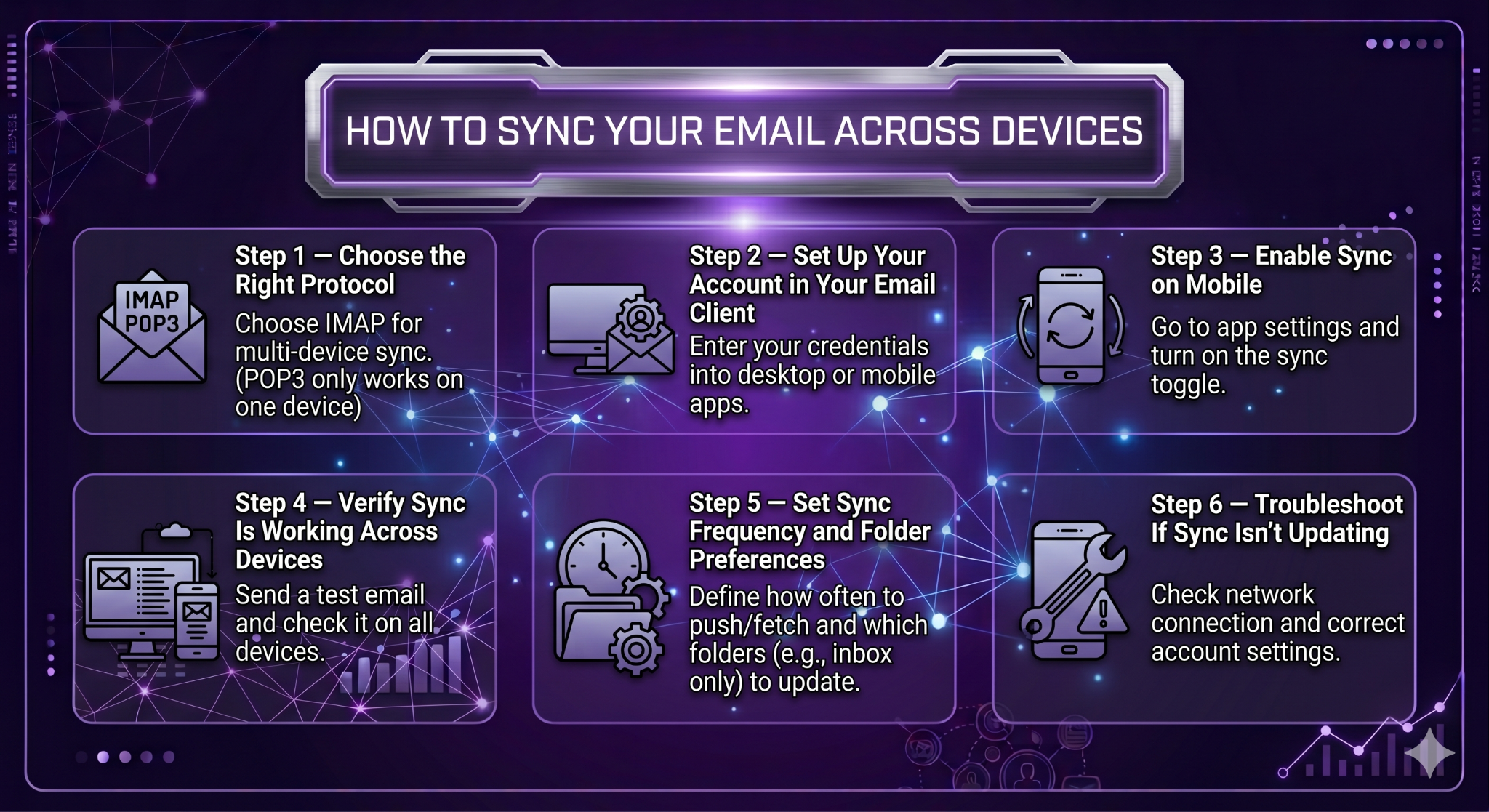
Step 1 — Choose the Right Protocol
For almost everyone reading this: use IMAP. It supports two-way sync, works across unlimited devices, and is compatible with every major email provider and client.
Only use POP3 if you have a specific offline-only requirement and access email from exactly one device. For sales teams and SDRs, that scenario doesn't exist.
Step 2 — Set Up Your Account in Your Email Client
In Gmail, Outlook, or Apple Mail, adding an account via IMAP requires:
- Your email address and password (or OAuth 2.0 token)
- Incoming mail server (IMAP): e.g., imap.gmail.com / outlook.office365.com
- Outgoing mail server (SMTP): e.g., smtp.gmail.com / smtp.office365.com
- Port numbers: IMAP typically uses port 993 (SSL/TLS); SMTP uses port 587 (STARTTLS)
Most modern email clients auto-detect these settings. If yours doesn't, your provider's support docs will have the exact configuration.
Step 3 — Enable Sync on Mobile
On iOS, go to Settings → Mail → Accounts → [Your Account] → Mail and toggle it on. Set fetch settings to Push for real-time updates.
On Android, open your email app, go to account settings, and confirm sync is enabled with Push or the shortest polling interval available.
Step 4 — Verify Sync Is Working Across Devices
Send a test email to yourself. Open it on one device. Check whether it's marked as read on your other devices within 30–60 seconds. If it is, sync is working. If not, your connection or authentication settings need troubleshooting.
Step 5 — Set Sync Frequency and Folder Preferences
Not all folders need to sync at the same frequency. For your primary inbox and sent mail, push or frequent polling is appropriate. For archive folders, less frequent sync reduces server connection load.
In Gmail via IMAP, you can choose which labels sync to your client. In Outlook, you can select folders to cache locally. Customize this to keep your IMAP connection count within provider limits.
Step 6 — Troubleshoot If Sync Isn't Updating
Common fixes when syncing emails fails:
- Re-authenticate — expired OAuth tokens are the #1 cause of sudden sync failures in 2025–2026
- Check IMAP connection limits — too many simultaneous device connections can hit your provider's cap
- Verify server settings — port numbers or server addresses that were correct last year may have changed after provider migrations
- Check DNS records — for custom domains, SPF, DKIM, and DMARC misconfigurations can affect server trust
Common Email Synchronization Issues (and How to Fix Them)
❌ Emails Not Syncing Across Devices
Cause: Expired authentication credentials, IMAP connection limit exceeded, or server-side changes from provider.
Fix: Re-authenticate your account (OAuth 2.0 token refresh), reduce the number of simultaneous connections, and confirm IMAP settings match your provider's current documentation.
❌ Duplicate Emails Appearing in Inbox
Cause: Multiple email clients connected via both IMAP and POP3, or account added twice with different settings.
Fix: Remove duplicate account configurations. Ensure all clients are using IMAP only — never mix protocols on the same account.
❌ Sent Items Not Showing Up on Other Devices
Cause: IMAP folder mapping isn't configured to sync the Sent folder, or the email client is using a local Sent folder rather than the server-side one.
Fix: In your email client settings, map the Sent folder to your server-side Sent mailbox rather than a local folder.
❌ Authentication Failures After 2025–2026 OAuth 2.0 Changes
Google, Yahoo, and Microsoft all coordinated unprecedented infrastructure changes between 2025 and 2026 that fundamentally altered how email synchronization works — these changes implemented mandatory OAuth 2.0 authentication requirements that broke compatibility with older email clients and workflows that had functioned reliably for years.
Fix: Update your email client to the latest version. If your outreach tool or email sequencer doesn't support OAuth 2.0, contact the vendor — or switch to one that does.
❌ Sync Delays or Messages Arriving Late
Cause: Using pull/polling sync instead of push. Long polling intervals mean messages sit on the server for minutes before your device receives them.
Fix: Enable push sync (IMAP IDLE) in your email client or app settings. For mobile, set fetch to "Push" rather than "Every 15 minutes" or "Manually."
Email Synchronization for Sales Teams and Cold Email Outreach
Why Sync Is Foundational for SDRs
For SDRs and sales teams, email synchronization isn't a background IT concern. It's directly tied to pipeline performance.
Every unsynchronized inbox is a potential missed reply. Every delayed sync is a follow-up that goes out of order. In cold email outreach, timing is everything — a reply that sits unseen for 24 hours in a misconfigured inbox is a meeting that didn't get booked.
Sales teams running multi-inbox outreach setups — multiple sending domains, multiple inboxes, rotating accounts — face a compounded version of this problem. Without synchronized reply management, replies come in across dozens of inboxes with no unified view, no thread context, and no way to prioritize responses.
How Sync Connects to Deliverability
Proper email synchronization and cold email deliverability are more connected than most teams realize.
Only 16 percent of domains have implemented DMARC, leaving 87 percent vulnerable to spoofing and delivery failures. In 2026, without proper SPF, DKIM, and DMARC implementation, Google and Yahoo effectively block emails entirely.
When your sync infrastructure is properly configured — correct IMAP settings, current OAuth 2.0 authentication, and full DNS records — your server connections are treated as legitimate by inbox providers. When it's broken or outdated, your sending reputation takes the hit.
The Risk of POP3 or Misconfigured IMAP in Outreach
Using POP3 for outreach inboxes breaks sent item tracking across devices, creates gaps in reply thread visibility, and makes inbox rotation impossible. Misconfigured IMAP — wrong folder mapping, incorrect port settings — produces the same result: a pipeline where replies disappear into the void.
The fix is unglamorous but critical: audit every inbox in your outreach stack, confirm IMAP is configured correctly on each one, and verify OAuth 2.0 authentication is current.
How Cleverly Uses Email Synchronization to Power Cold Email Outreach
Most teams focus on copy, targeting, and offer — and don't touch infrastructure until something breaks. That's backwards.
At Cleverly, our cold email lead generation starts with a properly synchronized, fully authenticated sending environment before a single message goes out. We configure IMAP-based synchronization across multiple sending accounts, map folders correctly, verify OAuth 2.0 authentication, and set up unified reply management so no response falls through the cracks.
Results? Replies land in a synchronized, managed inbox where the team can act on them fast. Faster response times mean more meetings booked from the same volume of outreach.
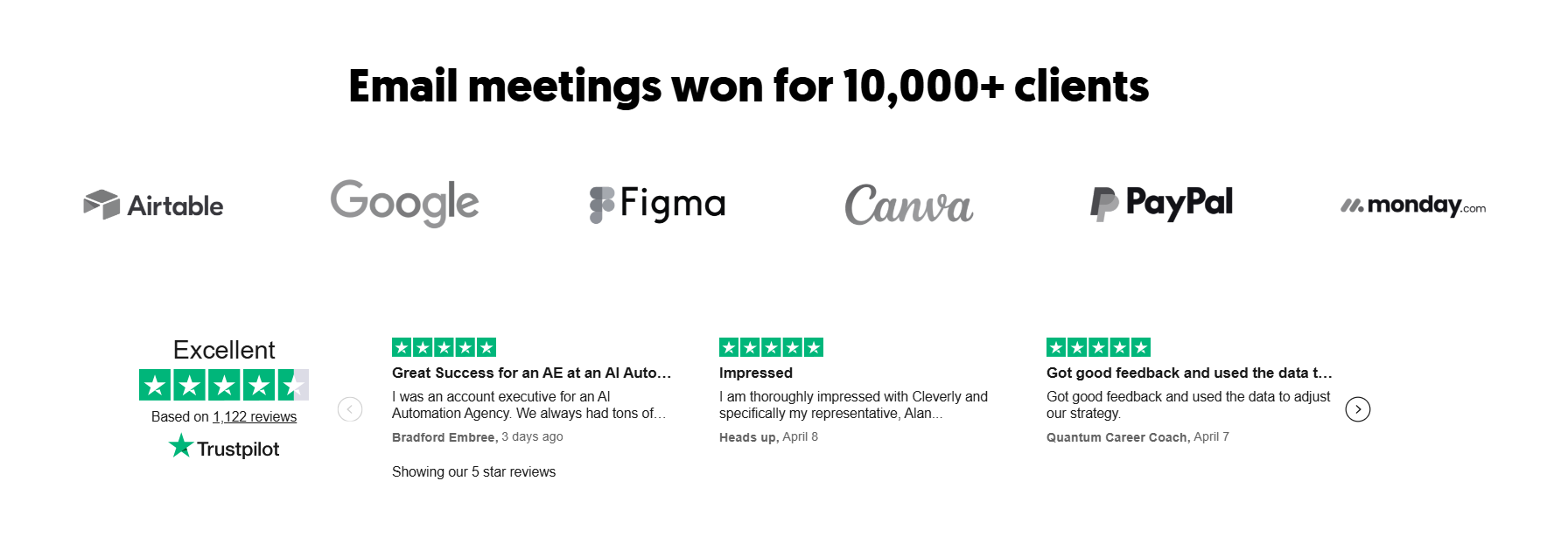
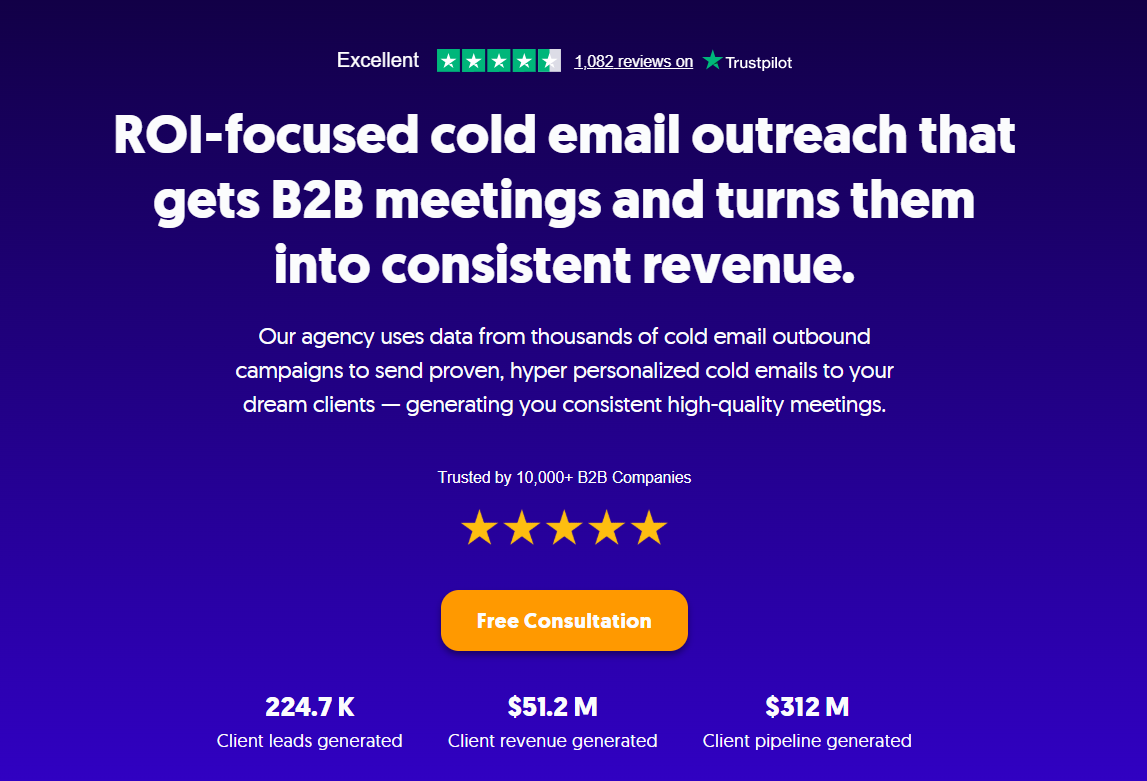
We've run this infrastructure for 10,000+ B2B clients, generating $312M in pipeline and $51.2M in closed revenue. Clean sync doesn't just protect deliverability, it directly improves the conversion rate from reply to booked meeting.
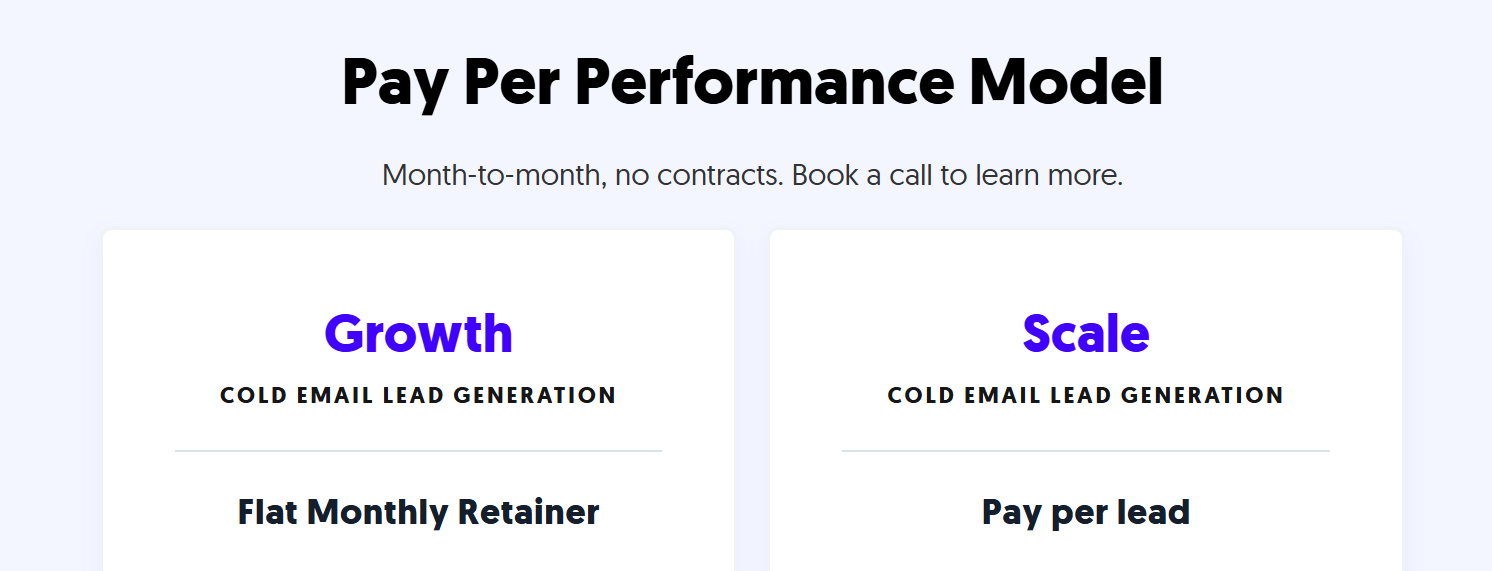
Our cold email model is pay-per-performance. Month-to-month, no long-term contracts. We build the lists, write the copy, run the outreach, and deliver meeting-ready leads. The infrastructure — including synchronized inboxes — is fully managed by our team.
Want cold email built on proper infrastructure from day one?
🔥 Book a strategy call with Cleverly
Conclusion
Email synchronization is no longer a background technical detail you can ignore. With Google, Microsoft, and Yahoo all enforcing new authentication requirements through 2025–2026, misconfigured or outdated sync setups don't just create inconvenience — they cause permanent delivery failures and missed pipeline.
Use IMAP. Authenticate with OAuth 2.0. Configure your folders correctly. Monitor your sync health. And if you're running cold outreach at scale, make sure your reply management infrastructure is as tight as your sending infrastructure.
Frequently Asked Questions
Free Resource
How to Scale a Profitable Cold Call System
Get the complete guide — download it instantly now.
Free Ebook
Download the Free Guide
Enter your details to get instant access.
You're all set! 🎉
Your ebook is downloading now.
Click below if the download didn't start automatically.