Table of Contents
What Are LinkedIn Sales Navigator Filters?
LinkedIn Sales Navigator Lead Filters Explained
LinkedIn Sales Navigator Account Search Filters Explained
Spotlight Filters: Where Buying Intent Actually Lives
How to Stack LinkedIn Sales Navigator Filters for Buying Intent
Best Filter Combinations by ICP and Use Case
Common Mistakes to Avoid
How Cleverly Uses Sales Navigator to Book Qualified Meetings
Conclusion
Frequently Asked Questions
Modified On :
July 6, 2026
Key Takeaways
- LinkedIn Sales Navigator filters go far beyond basic search. Stacking Lead, Account, and Spotlight filters together is what actually separates a high-reply list from a dead one.
- Spotlight filters (job changes, recent posts, buyer intent) are the most underused layer in Sales Navigator, and they're the closest thing to a live buying signal you'll find on the platform.
- The right sequence matters: start broad with firmographic filters, narrow with role targeting, then layer in behavioral signals last to collapse a bloated list into a workable one.
- Boolean search inside the Job Title and Keyword fields lets you cover every title variation for a role without running five separate searches.
- A tight, well-filtered list of 200-1,000 people will consistently outperform a 10,000-contact spray list, because you're targeting timing and fit, not just headcount.
You've probably built a Sales Navigator search that pulled back thousands of results, exported half of them, and watched your reply rate sit somewhere between "disappointing" and "why are we paying for this." You're not alone.
LinkedIn Sales Navigator now has over 1.2 million paid seats, up 18% year over year, and 87% of subscribers say they use advanced search on a weekly basis. The tool isn't the problem. How people use it usually is.
89% of B2B sales professionals now call LinkedIn their primary prospecting channel, and the reply-rate gap between good and bad campaigns has only gotten wider as more reps flood the same inboxes.
A good LinkedIn message today lands somewhere in the 10-15% reply range. A poorly targeted one barely cracks 3-5%. The difference almost never comes down to copywriting talent. It comes down to who you're messaging and when.
This guide breaks down every major Sales Navigator filter category, shows you how to use Spotlight filters to catch people mid buying-window, and gives you a step-by-step way to stack filters so your list gets smaller and sharper instead of bigger and vaguer.
What Are LinkedIn Sales Navigator Filters?
LinkedIn Sales Navigator filters are the advanced targeting fields that sit on top of regular LinkedIn search. Standard LinkedIn search or LinkedIn Premium gives you basic keyword and location filtering.
Sales Navigator gives you dozens of layered filters split across four categories:
- Lead Filters – target individual people (title, seniority, function, tenure)
- Account Filters – target companies (industry, headcount, revenue, growth)
- Spotlight Filters – behavioral and intent signals (job changes, posts, news, buyer intent)
- Workflow Filters – manage leads and accounts you're already tracking
Here's the practical difference this makes: a normal LinkedIn search caps out around 100-200 results before it starts hiding profiles. A properly filtered Sales Navigator search can surface 2,000+ people who genuinely match your ICP, and that's before you even touch the behavioral filters.
The real unlock isn't picking the "best" filter. It's stacking them. Each filter you add removes noise. By the time you've layered five or six filters together, what's left isn't a database dump, it's a list of people worth messaging today.
🎯 Better Filters. Better Prospects. Better Meetings.
Our experts use advanced Sales Navigator targeting to generate 15–30 qualified meetings every month.
LinkedIn Sales Navigator Lead Filters Explained
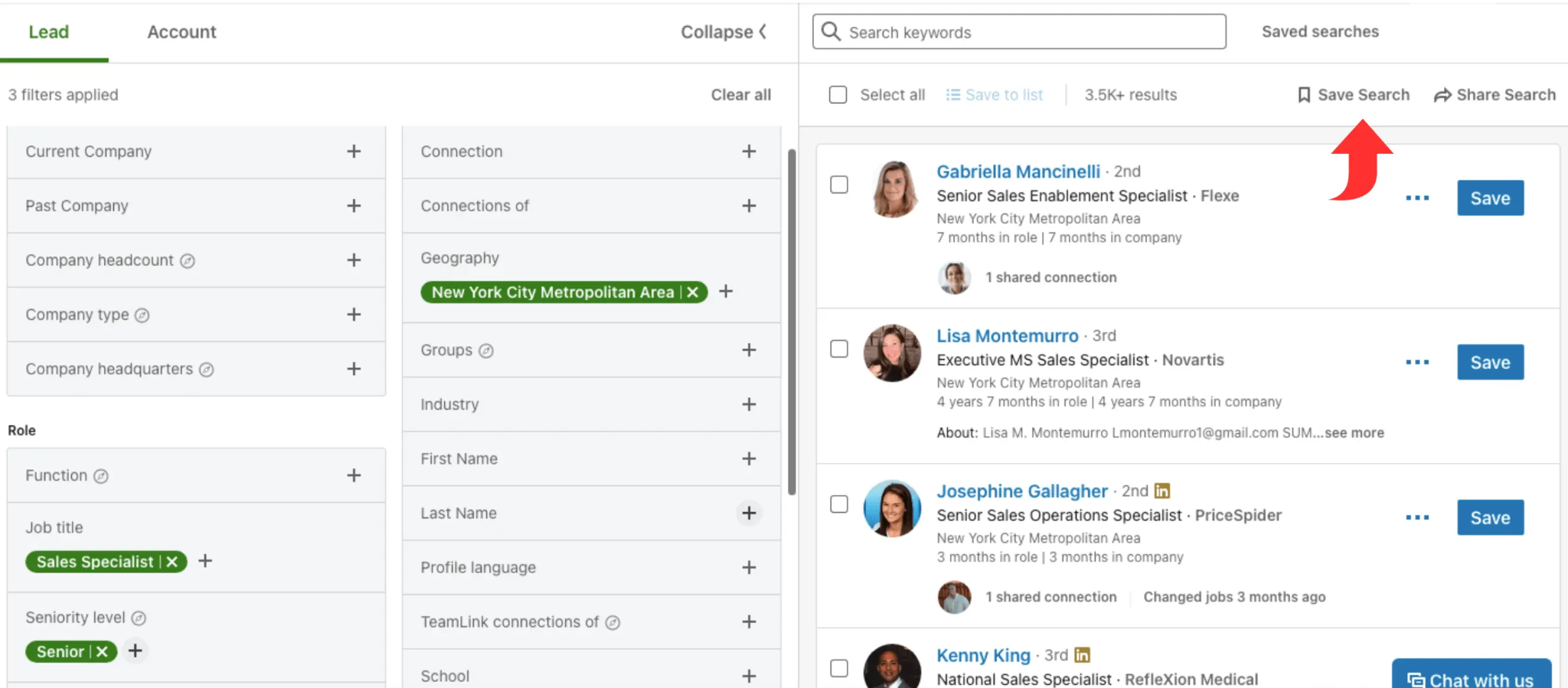
Lead filters target individual people. Use these once you already know roughly who the right buyer is and need to find them across accounts.
Role & Seniority Filters
- Job Title – search by exact title or Boolean strings, e.g., ("VP Sales" OR "Head of Revenue" OR "Director of Business Development")
- Seniority Level – C-Suite, VP, Director, Manager, Senior, Entry. Match this to your deal size and who actually has budget authority.
- Function – department-level targeting (Sales, Marketing, IT, Finance, Operations), useful when titles are inconsistent across industries.
- Years in Current Position – surfaces people who've had time to build budget authority, or people newly promoted and looking to make an early impact.
Geography & Demographics Filters
- Geography – country, region, state, or city, essential for territory-based outreach.
- Industry – reflects the individual's profile industry, not necessarily their current employer's industry (use Account filters for company-level accuracy).
- Years of Experience – helps target senior practitioners or filter out junior-level noise.
Company Filters (Lead-Level)
- Current Company – target or exclude named companies
- Past Company – great for competitive displacement plays; reach people who used to work at a specific competitor
- Company Size (current) – filters individuals by their employer's size
- Company Headcount Growth – a solid proxy for budget availability at the individual's current company
LinkedIn Sales Navigator Account Search Filters Explained
Account search filters target companies first, so you can build a target account list before drilling into the right people inside each one.
Firmographic Filters
- Industry – be precise here. "Information Technology & Services" and "Computer Software" are separate categories in LinkedIn's taxonomy.
- Company Headcount – filter by employee ranges that match your ideal deal size
- Annual Revenue – available on higher-tier plans; filters by revenue bands aligned to purchasing power
- Geography – filter by HQ location or operating region
Growth & Signal Filters
- Headcount Growth (%) – companies growing 10%, 20%, or more are typically expanding budget and re-evaluating tools
- Department Headcount Growth – drills into which team is growing (a Sales team up 30% signals active tooling investment in that function specifically)
- Recent Activity – companies that have posted on LinkedIn in the last 30 days tend to be more reachable and responsive than dormant ones
Technology & Funding Filters
- Technologies Used – filter by tech stack (e.g., "uses Salesforce" or "uses HubSpot") for competitive displacement or complementary positioning
- Funding Events – one of the strongest intent signals available. Funding triggers new tool purchases, hiring sprees, and vendor evaluations
- Fortune 500 / Fortune 1000 – a quick shortcut for enterprise-tier accounts
🚀 Turn Sales Navigator Into a Pipeline Engine
Starting at $397/month, our done-for-you LinkedIn lead generation service finds the right buyers and books meetings for your team.
Spotlight Filters: Where Buying Intent Actually Lives
If you only use firmographic and lead filters, you're using maybe half of what Sales Navigator can do. Spotlight filters surface behavioral signals instead of static attributes, and they're consistently the most under-used part of the platform.
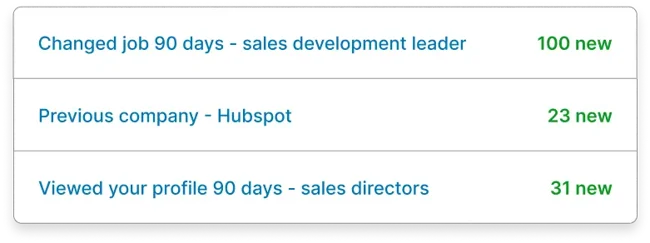
Changed Jobs in Past 90 Days
New leaders evaluate vendors, spot gaps, and make buying decisions fast, especially in their first 90 days. Targeting recently promoted or newly hired decision-makers (VP Sales, CRO, CMO, CTO) is one of the highest-converting tactics in outbound. Pair it with Job Title, Seniority, and Company Size for the best results.
Posted on LinkedIn in Past 30 Days
People who post are active on the platform, which means dramatically higher connection acceptance and reply rates than someone who logs in once a month. It also tends to correlate with influence and decision-making authority. Stack this with Role and Industry filters to find the active voices inside your target market.
Mentioned in the News
Recent news coverage on a company or individual signals growth, funding, leadership change, or a public challenge, all of which create natural conversation starters. This filter works especially well for enterprise prospecting.
Buyer Intent
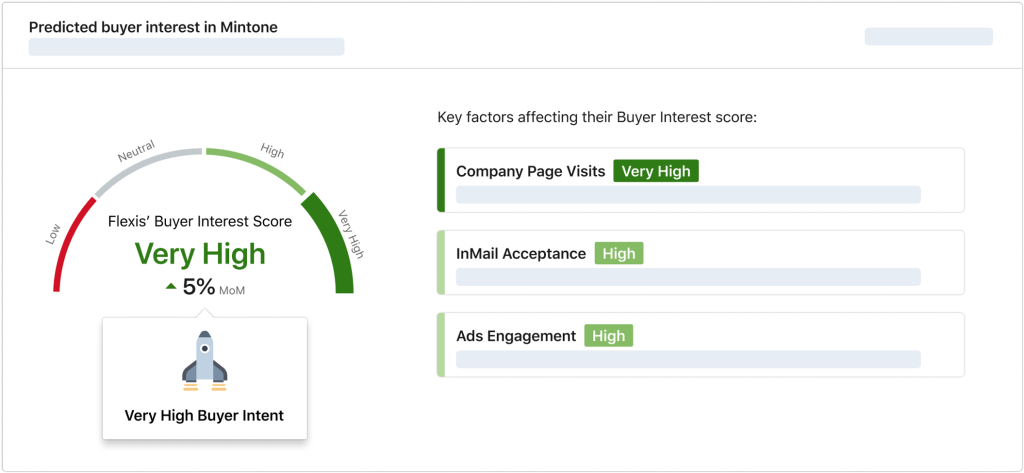
LinkedIn's AI-driven Buyer Intent signal surfaces accounts where multiple employees are actively engaging with content and profiles in your category. It's available at the account level on Sales Navigator's higher-tier plans, and it's the single most useful filter for timing your outreach. Use it to prioritize which accounts to hit first, not as a guarantee anyone's ready to buy.
Following Your Company on LinkedIn
This surfaces people who already know your brand exists. Warm outreach to this group converts noticeably better than cold. If your company has any real LinkedIn presence, this filter alone can fill a decent chunk of your pipeline.
How to Stack LinkedIn Sales Navigator Filters for Buying Intent
Here's the sequence that actually works, broad to narrow:
Step 1: Set your ICP foundation.
Industry + Company Size + Geography + Seniority Level + Job Function. This is your baseline of who fits, before you touch anything behavioral.
Step 2: Add role specificity.
Layer in Job Title keywords with Boolean, e.g., ("VP Sales" OR "Director of Revenue" OR "Head of Business Development"), to zero in on the exact decision-maker.
Step 3: Apply firmographic intent signals.
Add Headcount Growth (%) and/or Funding Events to surface companies that are actually in a buying window right now.
Step 4: Layer in behavioral Spotlight filters.
Add Changed Jobs in Past 90 Days and/or Posted on LinkedIn in Past 30 Days to prioritize the most reachable, receptive people.
Step 5: Apply Buyer Intent if it's available on your plan.
This surfaces accounts already researching your category.
Step 6: Review your list size.
A well-stacked search should land you somewhere around 200-1,000 prospects. Too big, add another filter. Too small, loosen one.
Step 7: Save the search.
Sales Navigator sends alerts as new people match your filters, so you're not rebuilding this from scratch every week.
Best Filter Combinations by ICP and Use Case
These stacks are starting points. Adjust based on your deal size and buying committee.
Boolean Search in LinkedIn Sales Navigator
Boolean operators give you control inside the Job Title and Keyword fields.
- AND – both conditions must be true ("Sales" AND "Director")
- OR – either condition qualifies ("VP Sales" OR "Head of Revenue" OR "CRO"), expanding title coverage without losing precision
- NOT – excludes a term ("Marketing" NOT "Digital")
- Quoted phrases – matches an exact phrase, e.g., "Head of Business Development"
A practical example that shows up in almost every serious campaign: ("VP Sales" OR "Director of Sales" OR "Head of Revenue") NOT "Assistant". That single string targets senior sales leaders while filtering out assistant-level false positives.
Pro tip: put your Boolean string in the Job Title field, not just Keywords. It covers title variance across industries without forcing you to run five separate searches for the same role.
Common Mistakes to Avoid
❌ Using too few filters. A 10,000-person list isn't a target list, it's a database. Fewer, better-qualified prospects consistently beat high-volume spray campaigns.
❌ Ignoring Spotlight filters entirely. Most users stop at firmographic filters and never touch the behavioral layer where the real intent signals live.
❌ Targeting by job title alone. Titles vary wildly by industry and company size. Combine Function + Seniority + Title for accuracy instead of relying on title matching by itself.
❌ Not saving searches. Rebuilding the same search manually every week wastes time and means you miss new prospects entering your ICP.
❌ Mixing up lead-level and account-level filters. Company size at the lead level pulls from the individual's (often outdated) profile data. Use Account filters when you need accurate firmographics.
❌ Treating Buyer Intent as a guarantee. It shows research behavior, not confirmed purchase readiness. Use it to prioritize your outreach order, not as proof someone's ready to sign.
How Cleverly Uses Sales Navigator to Book Qualified Meetings
Building a sharp Sales Navigator search is only half the job. The other half is turning that filtered list into actual conversations, and that's where most internal teams get stuck between building lists and writing sequences that convert.
We run LinkedIn lead generation for over 10,000 B2B companies, and filter stacking is the first thing we build for every new client. Our team combines ICP-aligned Sales Navigator targeting with outreach sequences engineered around reply rates, not generic connection templates.
We also keep an eye on Spotlight filters continuously, so outreach always hits people at the moment they're most reachable, not three weeks after a job change or funding round.
Companies come to us instead of managing this internally because prospecting well takes real time: building the search, refreshing it, writing sequences that don't sound like templates, and handling replies as they come in.
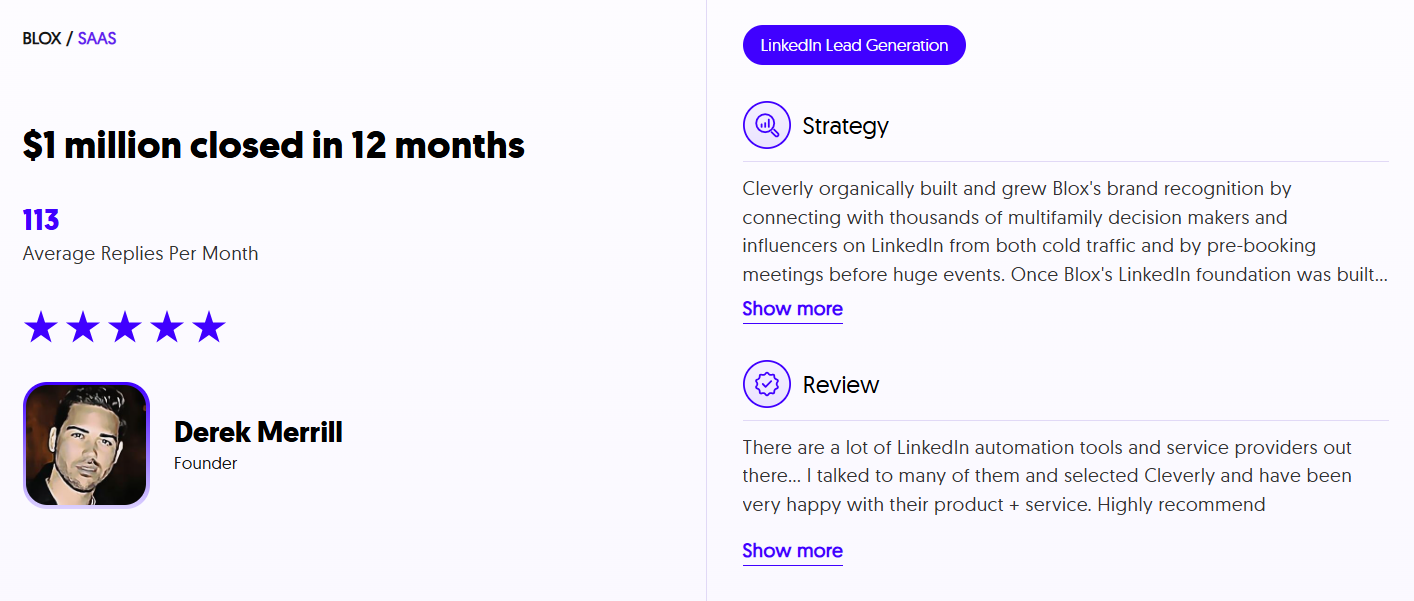
We've generated over $312 million in pipeline for clients doing exactly this.
If you'd rather have qualified LinkedIn conversations show up on your calendar than spend hours inside Sales Navigator yourself, you can book a strategy call with us and we'll show you what a properly stacked campaign looks like for your ICP.
Conclusion
Sales Navigator's filters are the most powerful targeting system in B2B outbound, but only when you treat them as a system instead of a search bar.
Firmographic filters tell you who fits. Spotlight filters tell you when to reach out. The teams getting real results are the ones stacking both together, not picking one and ignoring the other.
Start with your ICP foundation, layer in growth and funding signals, add behavioral filters last, and save every search you build. It's a small process change, but it's the difference between a list full of names and a list full of people actually worth messaging today.
Frequently Asked Questions
Free Resource
How to Scale a Profitable Cold Call System
Get the complete guide — download it instantly now.
Free Ebook
Download the Free Guide
Enter your details to get instant access.
You're all set! 🎉
Your ebook is downloading now.
Click below if the download didn't start automatically.