Table of Contents
What Is a LinkedIn QR Code?
How to Find Your LinkedIn QR Code
How to Scan Someone Else's LinkedIn QR Code
How to Use Your LinkedIn Profile QR Code for Networking
How to Turn LinkedIn QR Code Connections Into Leads
LinkedIn QR Code Best Practices
Common Mistakes When Using LinkedIn QR Codes
How Cleverly Turns LinkedIn Connections Into Real Pipeline
Conclusion
Frequently Asked Questions
Modified On :
August 12, 2026
Key Takeaways
- Your LinkedIn QR code is built into the mobile app and opens your profile instantly, no name search required.
- It only exists on mobile. If you're on the desktop looking for it, you're wasting your time.
- A scan is a connection, not a lead. What you do in the 24 hours after matters more than the scan itself.
- QR codes solve identification problems at events and on print materials, but they don't replace an ongoing outreach strategy.
- Pairing in-person QR connections with proactive LinkedIn lead generation is what actually turns networking into a pipeline.
You meet someone at a conference, exchange names, and then spend the next ten minutes at your hotel scrolling through search results trying to figure out which "Mike Johnson" you just talked to.
That's the problem the LinkedIn QR code was built to solve.
It sounds like a small feature, but the numbers around professional networking back up why it matters. Cleverly has run outbound campaigns for over 1,000 active clients, and one pattern shows up constantly: the businesses that treat every touchpoint, in person or digital, as part of one connected system tend to build stronger pipelines than the ones that treat networking as separate from outreach.
Roughly 89% of B2B marketers already use LinkedIn for lead generation, and 72% of marketers say prospects close deals faster after attending an event. A QR code is the small mechanic that connects those two worlds.
This guide covers how to find your own LinkedIn QR code, how to scan someone else's, where to use it, and how to turn a quick scan into an actual business relationship. It's written for sales reps, founders, and anyone who spends time networking in person or online.
What Is a LinkedIn QR Code?
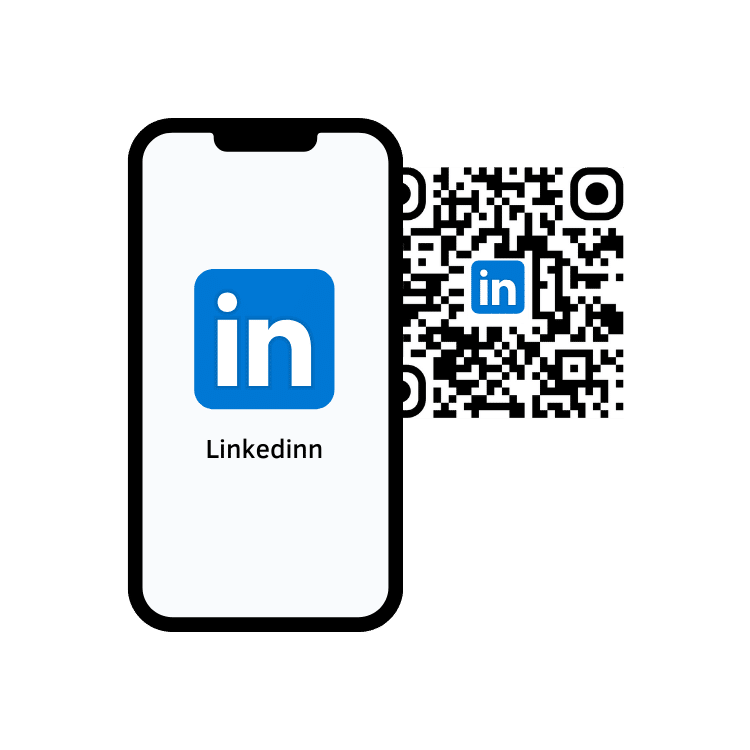
Every LinkedIn member has a QR code on LinkedIn tied directly to their profile. Scan it, and the person's profile opens immediately. No typing a name, no scrolling through ten people with the same one, no risk of sending a connection request to the wrong person.
A few things worth knowing upfront:
- It's built into the LinkedIn mobile app. There's no version of this feature on the desktop site.
- It's not the same as a custom branded QR code you'd put on a business card or event booth. Those are usually generated through third-party tools and can include tracking. LinkedIn's native code is free, simple, and doesn't come with analytics.
- It works both ways. You can show your code to be scanned, or scan someone else's code to pull up their profile.
Think of it as a shortcut around the most annoying part of in-person networking: figuring out who's who after the fact.
🔗 Make Connecting Easy. Make Outreach Count.
Our LinkedIn outreach campaigns generate 15–30 qualified meetings every month by connecting businesses with the right decision-makers.
How to Find Your LinkedIn QR Code
Getting to your own code takes about ten seconds once you know where to look.
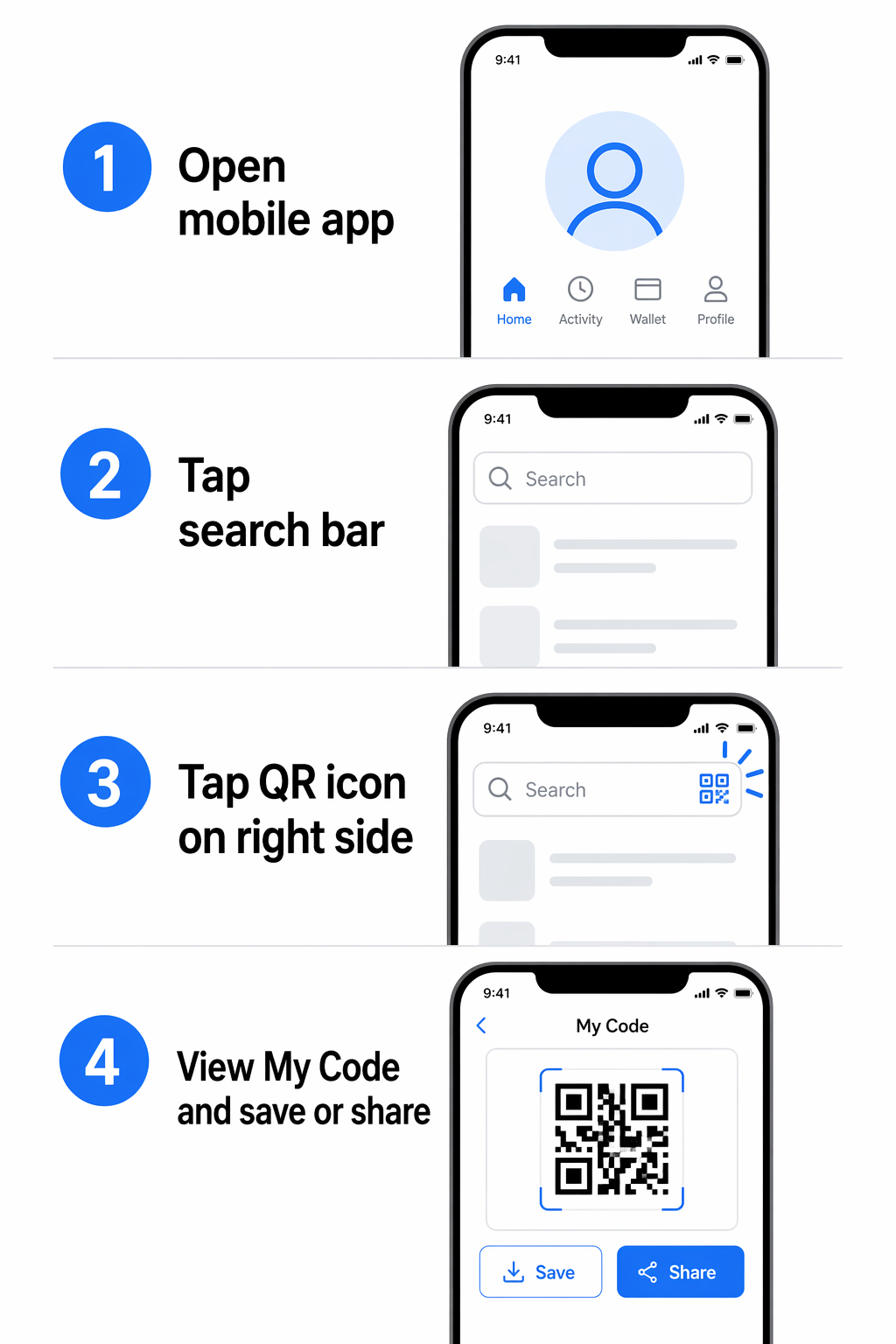
Step 1: Open the LinkedIn app on your phone.
Step 2: Tap the search bar at the top of the screen.
Step 3: Tap the QR code icon in the top right corner.
Step 4: Your personal code will appear on screen. From here, you can save it to your camera roll or share it directly through a message or email.
One thing to flag: this is a mobile-only feature. If you open LinkedIn on your laptop and go looking for it, you won't find it. If you want your code handy for an event, save it to your phone's camera roll ahead of time so you're not fumbling through the app while someone's standing in front of you.
How to Scan Someone Else's LinkedIn QR Code
Scanning works the same way, just in reverse.
Ask the other person to pull up their own code using the steps above. Then open your LinkedIn app, tap the QR icon, and switch over to "Scan" mode. Point your camera at their code, and their profile opens right away, ready for you to connect.
Either person can be the one presenting their code or the one scanning. There's no fixed role. At a busy event, it's often faster to just ask "can I scan you?" and let the other person hold up their phone.
🚀 224.7K+ Leads Generated on LinkedIn
Cleverly helps 10,000+ businesses turn LinkedIn into a predictable lead generation channel with done-for-you organic outreach.
How to Use Your LinkedIn Profile QR Code for Networking
The same code works across in-person events and digital touchpoints. Here's where it earns its keep.
At Events and Conferences
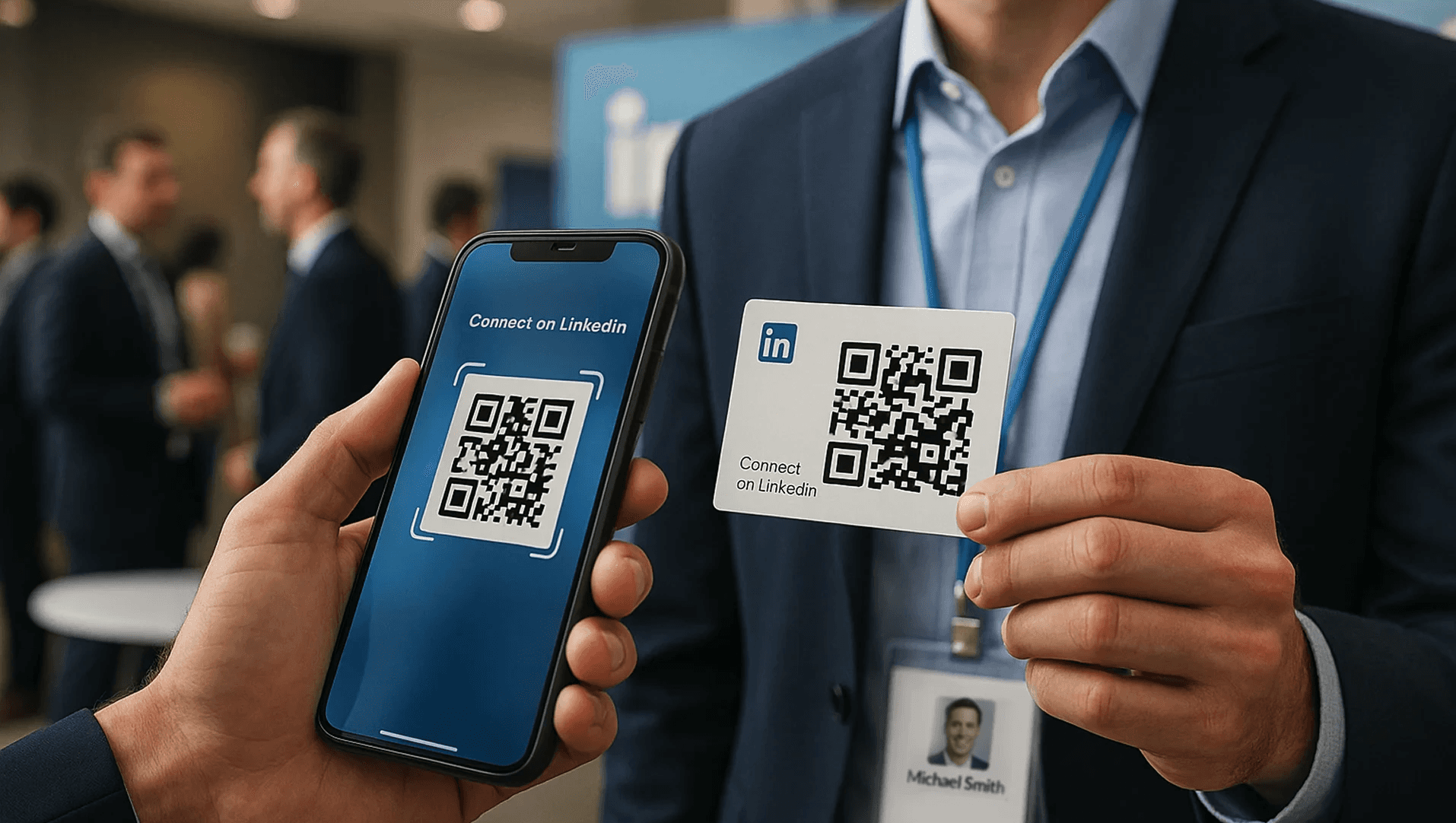
Add your LinkedIn profile QR code to event badges, lanyards, or business cards so people can connect with you without manually typing your name into a search bar later (and possibly finding the wrong person).
If you're working a booth at a trade show, put the code on your signage or handouts so interested attendees can connect on the spot, even if you're mid-conversation with someone else.
On Business Cards and Print Materials
Printing your code directly on a physical business card removes the guesswork entirely. This matters more than people think. Names get misspelled, common names return dozens of search results, and a rushed connection request sent to the wrong profile just looks sloppy.
In Digital Content and Email Signatures
You can drop the QR code image into an email signature, a digital business card, or a presentation slide. This is especially useful for webinars and virtual events, where attendees can screenshot your slide and scan it later instead of scrambling to connect in the moment.
How to Turn LinkedIn QR Code Connections Into Leads
Here's the part most people skip: a scan only creates a connection. It doesn't create a lead. That happens in the follow-up.
A few things that actually move the needle:
- Send a personalized message right after connecting. Reference where you met and what you talked about. Generic "great to connect!" messages get ignored.
- Engage before you pitch. Like or comment on something they've posted before sending any kind of ask. It builds familiarity so your outreach doesn't feel cold.
- Follow up fast. For event-driven connections, reach out within 24 to 48 hours while the conversation is still fresh in their mind.
- Track what's working. If you're using a custom QR tool with analytics, keep an eye on which placements, booth signage, badges, business cards, actually drive scans. Double down on what performs.
The QR code gets you the connection. Everything after that is on you.
LinkedIn QR Code Best Practices
A few habits separate people who get real value from their QR code from people who just have one sitting unused on their phone:
- Make it visible and big enough to scan quickly. A tiny code buried in the corner of a cluttered flyer isn't going to get scanned.
- Test it yourself before an event. Pull up your own code on a second phone and make sure it scans cleanly. A code that doesn't work wastes the interaction.
- Add a clear prompt. Something as simple as "scan to connect on LinkedIn" tells people exactly what to do with it.
- Don't rely on it as your only lead source. A QR code is a fast connection tool. It's not a full outreach strategy on its own.
Common Mistakes When Using LinkedIn QR Codes
A few patterns show up again and again with people who don't get much out of this feature:
❌ Assuming a scan equals a qualified lead. Without follow-up, it's just a name added to your connections list.
❌ Placing the code somewhere too small or hard to see. If people have to squint, they won't bother.
❌ Using it passively. A code sitting on a badge that nobody points out gets ignored. Prompt people to scan it.
❌ Sending generic follow-ups. A copy-paste message after the event gets the same reaction as a cold, unpersonalized one.
❌ Relying only on in-person scans. If your entire LinkedIn strategy depends on who you physically run into at events, you're capping your own pipeline.
How Cleverly Turns LinkedIn Connections Into Real Pipeline
A QR code is great for capturing connections in the moment, but most B2B pipeline doesn't come from who you happen to meet at a conference. It comes from proactive, ongoing outreach to the people you'd never run into otherwise.
That's what Cleverly's LinkedIn lead generation service is built to do.
We run targeted outreach and connection campaigns to your ideal customer profile at scale, well beyond what in-person networking alone can produce. Event and QR-based connections are valuable, but they're limited by how many people you can physically meet in a room. Outbound outreach reaches your ideal buyers directly, whether or not you're standing in the same conference hall as them.
Cleverly has generated $312 million in pipeline for clients across LinkedIn, cold email, and cold calling, using the same principle a good QR code follow-up relies on: personalized messaging, sent at the right time, to the right person.
The difference is scale. Instead of waiting for a chance encounter, you're reaching decision-makers who match your ICP every day.
If you want LinkedIn to generate leads beyond who you happen to meet in person, book a strategy call with Cleverly.
Conclusion
The LinkedIn QR code is a small, free feature that solves a real problem: turning a rushed introduction into an accurate, instant connection. But the code itself doesn't do the heavy lifting. A scan without a personalized follow-up is just a name added to your list, not a relationship or a lead.
Use it at your next event, print it on your business cards, and drop it into your email signature. Just don't stop there.
Pair it with a real outreach strategy, and it becomes one small piece of a much bigger LinkedIn lead generation system instead of a nice trick that never turns into business.
Frequently Asked Questions
Free Resource
How to Scale a Profitable Cold Call System
Get the complete guide — download it instantly now.
Free Ebook
Download the Free Guide
Enter your details to get instant access.
You're all set! 🎉
Your ebook is downloading now.
Click below if the download didn't start automatically.