Table of Contents
What Is a Confirmation Email and What Should It Include?
Which Confirmation Email Template Do You Need? (Quick Comparison Table)
27 Confirmation Email Templates by Trigger
Confirmation Email Subject Lines That Get Opened
How to Write a Confirmation Email in 6 Steps
Confirmation Email Best Practices and Deliverability
Common Confirmation Email Mistakes to Avoid
How Cleverly Helps B2B Teams Fill Their Calendars With Qualified Meetings
Conclusion
Frequently Asked Questions
Modified On :
November 18, 2026
Key Takeaways
- A confirmation email is the first proof that your business is reliable. A vague or late one creates doubt and support tickets.
- Put the key detail (order number, meeting time, amount) in the subject line and the first two lines.
- Send transactional confirmations instantly, booking confirmations within minutes, and meeting reminders 24 hours before.
- For B2B meetings, send a confirmation email and a calendar invite. They are not the same thing.
- Authenticate your domain (SPF, DKIM, DMARC) and keep promo content light. A confirmation in spam is no confirmation.
Someone just paid you, booked a call, or signed up. The next email they get decides whether they relax or start worrying.
Order confirmation emails are the best-performing email type in ecommerce. They averaged a 53.99% open rate and a 14.25% click-to-conversion rate.
On the B2B side, the stakes are different. Sales meeting no-show rates are often cited at 20-35%, though other sources report lower medians, like the 13.5% Demodesk cites for B2B SaaS. Either way, a lot of booked meetings never happen.
This guide gives you 27 confirmation email templates across 5 groups, subject lines, a send-timing map, and a B2B meeting section most guides skip.
We book meetings for B2B teams every day at Cleverly, so we care a lot about what happens between “booked” and “held.”
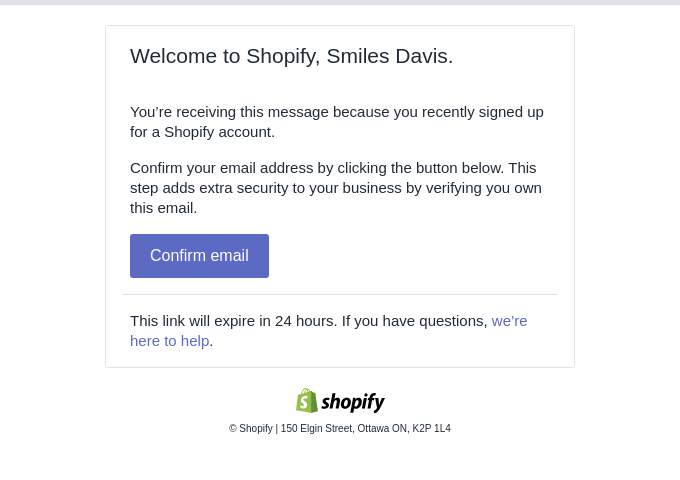
What Is a Confirmation Email and What Should It Include?
A confirmation email is an automated transactional message that confirms an action went through, such as a purchase, booking, or signup.
Every good one has seven parts:
- A clear subject line
- A sender the reader recognizes
- What was confirmed
- Key details (date, order number, amount)
- The next step
- A support contact
- One primary CTA
You can add product recommendations, a referral link, or a calendar file. Keep the transactional content dominant, though. The email exists to confirm, not to sell.
Here is how a confirmation email differs from its neighbors:
🎯 Make Every Customer Interaction Count
Confirmation emails set the tone for customer communication. Cleverly helps B2B teams build stronger prospect relationships through targeted, personalized outreach.
Which Confirmation Email Template Do You Need? (Quick Comparison Table)
27 Confirmation Email Templates by Trigger
These confirmation email examples are grouped by what triggers the email. Each one has four parts: when to use it, a subject line, a copy-paste body, and one tip.
Replace everything in [brackets]. Then tweak the wording to match your brand voice. If you wouldn’t say it out loud, cut it.
Order and Payment Confirmation Email Templates (1-5)
These are the highest-traffic emails you will send. Every order confirmation email template needs the same mini-checklist:
- Order number at the top
- Itemized list
- Totals
- Billing and shipping addresses
- Delivery window
- Support link
1. Order Confirmation Email Template
When to use: Right after checkout.
Tip: If you use a custom email, turn off your platform’s default one. Duplicates confuse people.
2. Payment Receipt Confirmation Email Template
When to use: After payment clears, especially for services, invoices, and subscriptions.
Tip: Never include full card numbers. Last four digits only.
3. Shipping Confirmation Email Template
When to use: When the carrier scan happens.
Tip: Use one clear “Track your order” button. Don’t bury it in a paragraph.
4. Delivery Confirmation Email Template
When to use: After the order is marked delivered.
Tip: Link to your help page instead of answering every question in the email.
5. Delayed Order Update Confirmation Email Template
When to use: When you know about a delay before the customer notices.
Tip: Keep the design plain. When the news is bad, clarity beats polish.
Appointment, Booking and Event Confirmation Email Templates (6-10)
A booking confirmation email template prevents no-shows by restating exactly when, where, and how. Every one should include the date, time, time zone, location or link, and a way to change or cancel.
6. Appointment Confirmation Email Template
When to use: Right after an appointment is booked.
Tip: Attach a calendar file and mention that a reminder is coming.
7. Reservation Confirmation Email Template (Hotel, Restaurant, Rental)
When to use: Hospitality and rental bookings.
Tip: Put the change-or-cancel link above the fold.
8. Event Registration Confirmation Email Template
When to use: After a ticket purchase or registration.
Tip: Keep the in-person and virtual versions as two short variants. Don’t mix them.
9. Webinar Registration Confirmation Email Template
When to use: After signup for a live or on-demand session.
Tip: Tie this to a reminder sequence. Send one the day before and one an hour before.
10. Waitlist Confirmation Email Template
When to use: Sold-out events, launches, or limited capacity.
Tip: Don’t promise a spot. Set the expectation honestly.
Account, Subscription and Sign-Up Confirmation Email Templates (11-15)
A subscription confirmation email often doubles as verification and welcome. A quick note on opt-ins: single opt-in is faster, while double opt-in verifies the address and keeps your list cleaner.
11. Double Opt-In Subscription Confirmation Email Template
When to use: Right after a newsletter or list signup.
Tip: Tell people what they’ll get and how often. It lifts confirmation rates.
12. Account Creation and Email Verification Template
When to use: After registration.
Tip: State when the link expires. It saves a support ticket.
13. Free Trial or SaaS Subscription Confirmation Email Template
When to use: At trial start or paid plan start.
Tip: Be upfront about the billing date. It cuts disputes.
14. Account Change or Password Reset Confirmation Email Template
When to use: After a change to a password, email, or security setting.
Tip: No promo content in security emails. Ever.
15. Cancellation Confirmation Email Template
When to use: After a subscription, order, or booking is cancelled.
Tip: Stay respectful. One soft “come back” line is enough.
Refund, Return, Support and Feedback Confirmation Email Templates (16-20)
These go to people who may already be frustrated, so refund confirmation email clarity matters most. State the outcome and the timeline in the first two lines.
16. Refund Confirmation Email Template
When to use: When a refund is issued.
Tip: State the timeline in business days.
17. Return Request Confirmation Email Template
When to use: After a return is approved.
Subject: Your return is approved
Tip: Number the steps. People follow numbered steps.
18. Support Ticket Received Confirmation Email Template
When to use: Right after a ticket is opened.
Tip: Set a response time you can actually meet.
19. Contact Form Submission Confirmation Email Template
When to use: After any website form.
Tip: For B2B, name a real person. It feels very different from “the team.”
20. Feedback Received Confirmation Email Template
When to use: After a review, survey, or feedback form.
Tip: Say how you’ll use the feedback. It builds trust.
B2B Sales and Meeting Confirmation Email Templates (21-27)
This group matters most if you sell. A booked meeting is not a held meeting, and no-shows run around 20-35% in some sources. Think of meeting confirmation email templates as a three-part pattern:
- Confirm at booking
- Remind before the meeting
- Follow up fast after a miss
If a prospect no-shows, our no-show follow-up templates cover what to send next.
Also remember: a confirmation email is not a calendar invite. Send both.
21. Sales Discovery Call Confirmation Email Template
When to use: Within minutes of a discovery call being booked.
Tip: Use a statement (“looking forward to Tuesday”), not “are we still on?” The second one invites a cancellation.
22. Product Demo Confirmation Email Template
When to use: After a demo is booked.
Tip: Ask for the number of attendees so you can invite the right people.
23. Meeting Reschedule Confirmation Email Template
When to use: After a meeting time changes.
Tip: Make rescheduling easier than ghosting. Always include the link.
24. 24-Hour Meeting Reminder and Confirmation Email Template
When to use: The day before.
Tip: For high-value meetings, add one more touch the morning of the call.
25. Interview Confirmation Email Template
When to use: HR and recruiting.
Tip: Include a contact for day-of problems.
26. Purchase Order Confirmation Email Template
When to use: When a seller confirms receipt and acceptance of a buyer’s PO.
Tip: Ask the buyer to reply if anything is off. It catches errors before they get expensive.
27. Contract Signed and Onboarding Kickoff Confirmation Email Template
When to use: Right after a signed agreement.
Tip: This is a great moment for a plain-text, human-sounding message. Skip the heavy design.
🚀 Turn More Email Conversations Into Meetings
Great email communication starts with the right message. Let Cleverly handle B2B prospecting, follow-ups, and appointment setting while your team focuses on closing deals.
Confirmation Email Subject Lines That Get Opened
The best confirmation email subject lines state what happened. Personalization helps, but clarity comes first. Keep them under about 50 characters so they display fully on mobile, which both Omnisend and EngageBay recommend. You can use the preheader to set the next step.
Avoid vague or clickbait lines like “Important update” or “You won’t believe this.”
Order
- Order #[1234] is confirmed
- We got your order, [Name]
- Your order is on its way
Booking
- You’re booked for [Day] at [Time]
- Appointment confirmed: [Date]
- See you [Day], [Name]
Registration
- You’re registered for [Event]
- You’re in: [Webinar] on [Date]
- Your spot is saved
Subscription
- Confirm your subscription
- Welcome to [Brand], [Name]
- Your [Plan] trial has started
B2B meeting
- [Company] x [Company]: Tue 2pm ET
- Confirmed: our call on [Day]
- Tomorrow at [Time + time zone]
How to Write a Confirmation Email in 6 Steps
Here’s how to write a confirmation email that works every time:
- Pick the trigger. One action, one email.
- Write the subject. Say what happened, in plain words.
- Confirm the action in the first line. “Your order is confirmed.” Done.
- List the key details. Dates, numbers, amounts. Nothing extra.
- Give one next step. One button, one action.
- Add a support contact. A real email or a human name.
Keep sentences short and write the way you talk.
Before (vague):
Subject: Update
Hi, thanks for your recent activity. We’ll be in touch soon with more details.
After (clear):
Subject: You’re booked for Tue at 2pm ET
Hi Sam, your call with Priya is set for Tuesday at 2pm ET. Link: [link]. Need to move it? [Reschedule].
The “after” version answers what, when, and what to do next. The “before” answers nothing.
Confirmation Email Best Practices and Deliverability
A confirmation that lands in spam is the same as no confirmation. Here is how to avoid that.
Design and Content Best Practices
- Use a single-column, mobile-first layout.
- Include one CTA.
- Write descriptive link text (“Track your order,” not “Click here”).
- Add alt text on images.
- Include a plain-text version.
- Keep promotions secondary. Omnisend suggests roughly 80% transactional and 20% promotional, while MailerSend suggests 90/10. Treat that as a range and stay on the transactional side.
Authentication, Verification and Spam Prevention
- Set up SPF, DKIM, and DMARC. In plain language: SPF says who can send for your domain, DKIM proves the message wasn’t altered, and DMARC tells inboxes what to do if either check fails.
- Verify email addresses before sending. A bounced confirmation can turn into a no-show.
- Send from a branded domain, not a generic address.
- Avoid duplicate sends from retries or platform defaults.
Compliance Basics for Transactional Emails
Confirmation emails are generally treated as transactional under CAN-SPAM and GDPR. But promotional content can change that. Once you add heavy upsells, regulators may see the email as marketing.
This is not legal advice. Check the current FTC and GDPR guidance and confirm with your legal team before you publish a template.
Common Confirmation Email Mistakes to Avoid
These are the confirmation email mistakes we see most often:
- Sending duplicates. The platform default plus your custom email.
- Burying the key detail. Order number or meeting time buried low in the email.
- Missing time zones. “2pm” means nothing across states.
- Too many CTAs. Heavy upsells make the email feel like an ad.
- Using the email instead of a calendar invite. Meetings need both.
- No plain-text version or mobile check. Plenty of people read on a phone.
- Never testing the trigger. Place a test order or book a test call before you go live.
How Cleverly Helps B2B Teams Fill Their Calendars With Qualified Meetings
A confirmation email protects a booked meeting. But you still need qualified meetings to confirm in the first place. That’s where we come in.
Our appointment setting services work both cold and warm leads across LinkedIn, cold email, and cold calling. A dedicated SDR cold calls 200-300 decision-makers from your ICP every day. We also funnel the leads already sitting in your CRM into a dialer to revive stalled conversations. Every lead gets qualified before it reaches your calendar, so your team only shows up for calls worth taking.
We handle the full process end to end: prospecting, dead list reactivation, speed-to-lead follow-up, and objection handling. If your SDR isn’t performing, we replace them for free.
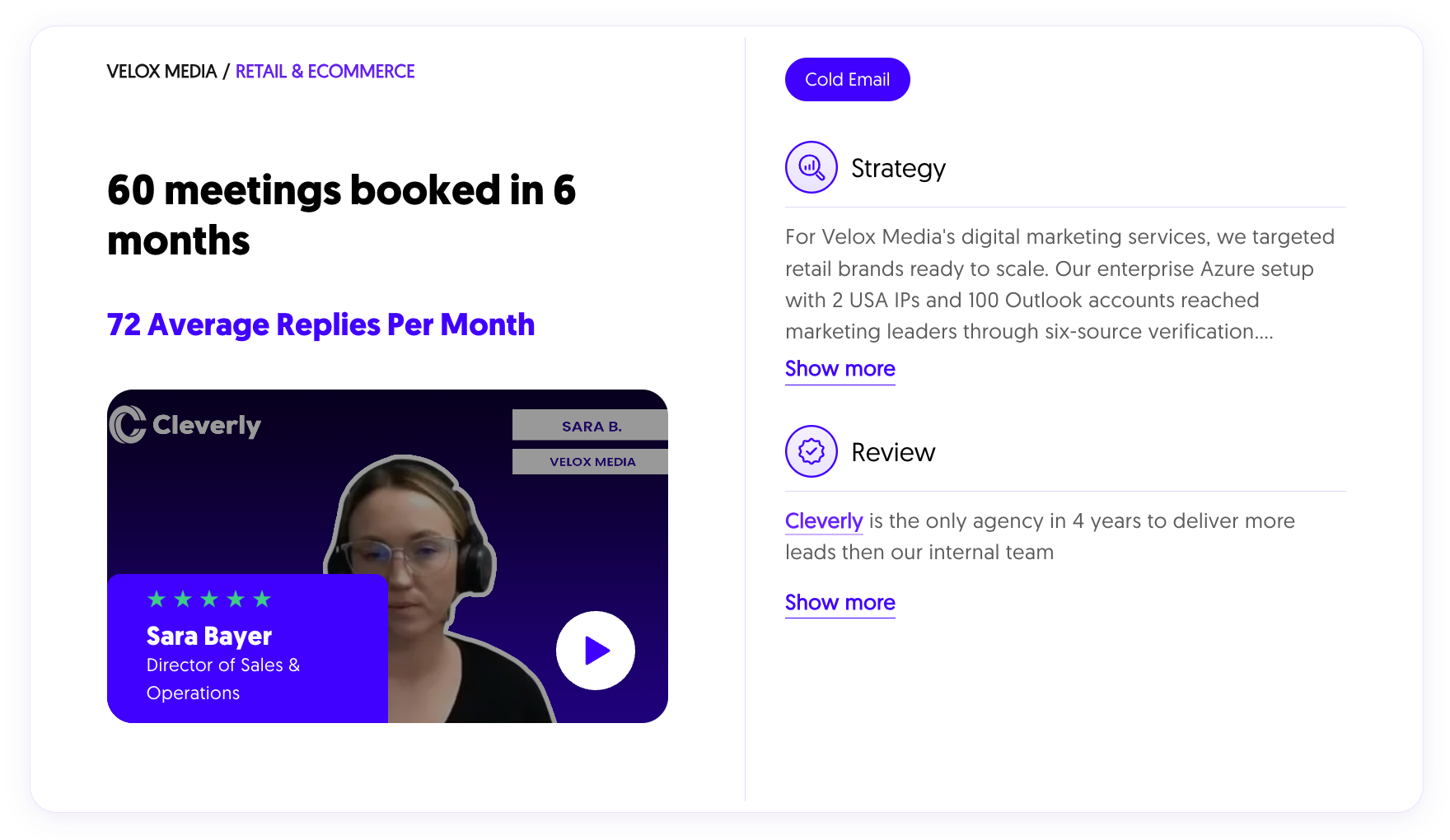
Teams pick this over managing tools internally because the work is hard to do well in-house. Data, scripts, dialers, deliverability, and trained reps all need to work together. We’ve done this for 10,000+ B2B companies, so we’ve already seen what breaks.
Want more qualified meetings on your calendar? Book a free consultation with Cleverly.
Conclusion
The right confirmation email removes doubt, cuts support load, and protects the meetings you worked hard to book. The playbook is simple: match the template to the trigger, send it at the right time, and protect your deliverability.
Your next step is small. Pick two confirmation email templates from this list and set up the triggers this week. And if you want a steady flow of qualified meetings to confirm, our appointment setting team is a good place to start.
Frequently Asked Questions
Free Resource
How to Scale a Profitable Cold Call System
Get the complete guide — download it instantly now.
Free Ebook
Download the Free Guide
Enter your details to get instant access.
You're all set! 🎉
Your ebook is downloading now.
Click below if the download didn't start automatically.