Table of Contents
What Does It Mean to Whitelist an Email in Gmail?
Method 1 — Whitelist an Email Using Gmail Filters (Most Reliable)
Method 2 — Whitelist an Email by Adding to Google Contacts
Method 3 — Mark Email as "Not Spam" From the Spam Folder
How to Whitelist an Entire Domain in Gmail
How to Whitelist Emails in Gmail on Mobile (iPhone & Android)
Comparison — Which Gmail Whitelisting Method Is Most Reliable?
Why Your Emails Still Land in Spam Even After Whitelisting
How Cleverly Helps Cold Email Senders Land in the Inbox — Not Spam
Conclusion
Frequently Asked Questions
Modified On :
April 14, 2026
Key Takeaways
- Gmail has no dedicated "Whitelist" button — the filter method ("Never send it to Spam") is the closest thing to an official whitelist and the only hard rule Gmail follows every time.
- Gmail auto-deletes spam after 30 days, so important emails that land there don't just hide — they disappear permanently.
- Adding a sender to Google Contacts and marking emails "Not spam" are signals to Gmail's algorithm, not guaranteed rules — always combine them with a filter.
- You can whitelist an entire domain (e.g., @company.com) using the filter method, but it carries real risk if that domain gets spoofed — reserve it for fully trusted senders only.
- Gmail's mobile app does not support filter creation — desktop is required for the most reliable whitelisting method.
- For cold email senders, asking recipients to whitelist you is a reactive fix — inbox placement starts with your own sending infrastructure, not the recipient's settings.
Gmail's spam filter is one of the most sophisticated in the world. It's also one of the most aggressive.
Every day, it quietly intercepts emails you actually want — client replies, invoices, follow-ups from vendors, and notifications from tools your team relies on.
The problem isn't just that these emails land in spam. According to Google's own support documentation, Gmail permanently deletes spam after 30 days — so important emails don't just hide, they vanish.
What makes this frustrating is that Gmail doesn't have a simple "Whitelist" button like Outlook's Safe Senders list. Whitelisting in Gmail requires working around filters, contacts, and settings that Google never made especially obvious.
Gmail holds over 29% of the global email client market — making this a problem that affects hundreds of millions of users every day.
This guide covers every method to whitelist an email in Gmail, ranked by reliability — including desktop filters, Google Contacts, mobile workarounds, and domain-level whitelisting.
Whether you're an individual trying not to miss a client reply, a business professional managing vendor communication, or a cold email sender trying to improve deliverability, this is everything you need to know.

What Does It Mean to Whitelist an Email in Gmail?
Whitelisting an email means telling Gmail's spam filter to always trust and deliver messages from a specific sender — bypassing its spam detection entirely.
The key word there is "always." Most people assume marking an email as "Not spam" accomplishes this. It doesn't — not reliably. Gmail treats that action as a signal to its algorithm, not a hard rule. The filter method, on the other hand, is a hard rule. When you create a Gmail filter set to "Never send it to Spam," Gmail follows it without exception.
It's also worth knowing what how to whitelist an email actually covers in practice — because Gmail handles it differently from most other providers:
- Single address whitelisting — trusting one specific email like john@company.com
- Domain whitelisting — trusting every email from an entire domain like @company.com
- Algorithm training — signals like "Not spam" and adding contacts that nudge (but don't guarantee) better sorting
Whitelisting protects recipients from missing important emails. For senders, getting recipients to whitelist you can improve engagement rates. But as we'll cover later, if you're the sender, the real inbox placement work starts on your end — not the recipient's.
📩 Emails Going to Spam? That’s Revenue Lost.
We fix deliverability, targeting, and copy—end to end. You only pay for meetings we actually book.
Method 1 — Whitelist an Email Using Gmail Filters (Most Reliable)
When it comes to how to whitelist an email address in Gmail, this is the gold standard. Gmail filters are the only method that functions as a hard rule — when you tell a filter to "Never send it to Spam," Gmail follows that instruction every single time, regardless of what its algorithm thinks.
This is the closest thing Gmail has to an official whitelist.
Why Filters Beat Everything Else
Unlike adding contacts or clicking "Not spam," filters don't rely on Gmail's spam scoring. They run before spam detection. That means even an email that would otherwise trigger every spam signal in the book gets delivered to your inbox if a filter says so.
The tradeoff: Filters can only be created from Gmail's desktop web version. The mobile app doesn't support it.
Step-by-Step: How to Create a Gmail Whitelist Filter
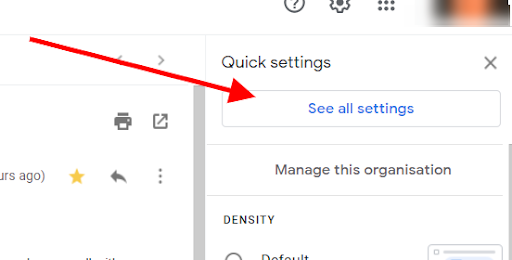
- Step 1: Open Gmail on desktop and click the gear icon in the top-right corner.
- Step 2: Click "See all settings."
- Step 3: Navigate to the "Filters and Blocked Addresses" tab.
- Step 4: Click "Create a new filter."
- Step 5: In the "From" field, enter the email address you want to whitelist (e.g., john@company.com). To whitelist multiple senders at once, separate them with the pipe symbol: john@company.com | sarah@company.com.
- Step 6: Click "Create filter."
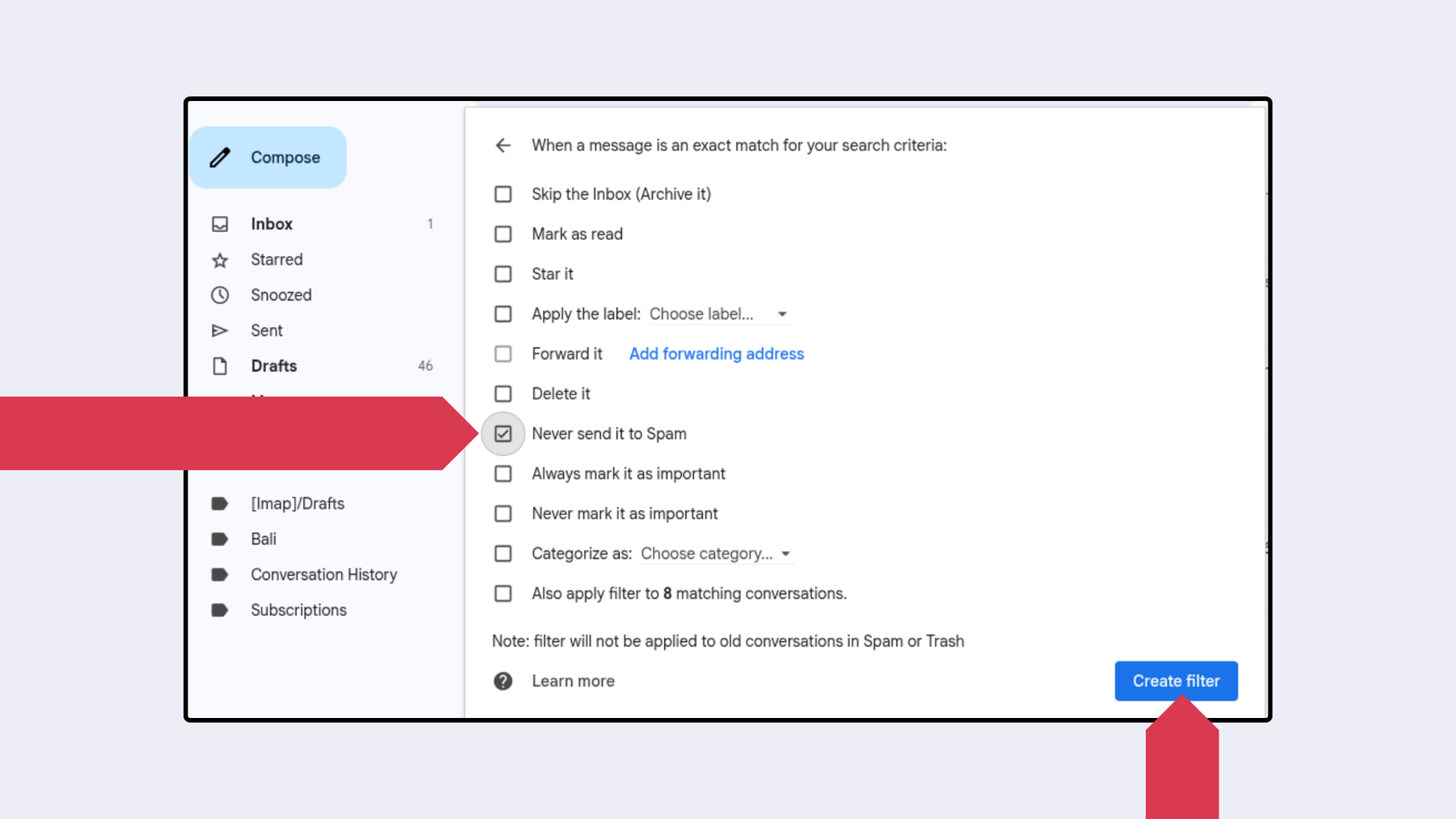
- Step 7: Check "Never send it to Spam" — and optionally check "Star it" or "Mark as important" for high-priority senders like clients or finance contacts.
- Step 8: Click "Create filter" to save.
That's it. Every future email from that address will bypass spam entirely.
How to Edit or Delete a Filter
Go back to Settings → Filters and Blocked Addresses. You'll see a list of all active filters. Click "edit" to modify or "delete" to remove any filter you no longer need.
Pro tip: When whitelisting a client or vendor you deal with regularly, also check "Mark as important" when creating the filter. That way, Gmail surfaces their emails prominently — not just delivers them.
Method 2 — Whitelist an Email by Adding to Google Contacts
Adding a sender to Google Contacts is the most natural mobile-friendly workaround for how to whitelist an email on Gmail without touching desktop settings.
How It Actually Works
Gmail treats email addresses in your Google Contacts as more trustworthy senders. When a known contact sends you an email, Gmail's algorithm weights it toward the inbox rather than spam. This is a signal, not a guarantee — but it's a meaningful one, especially combined with the filter method.
Step-by-Step: Adding a Sender to Google Contacts
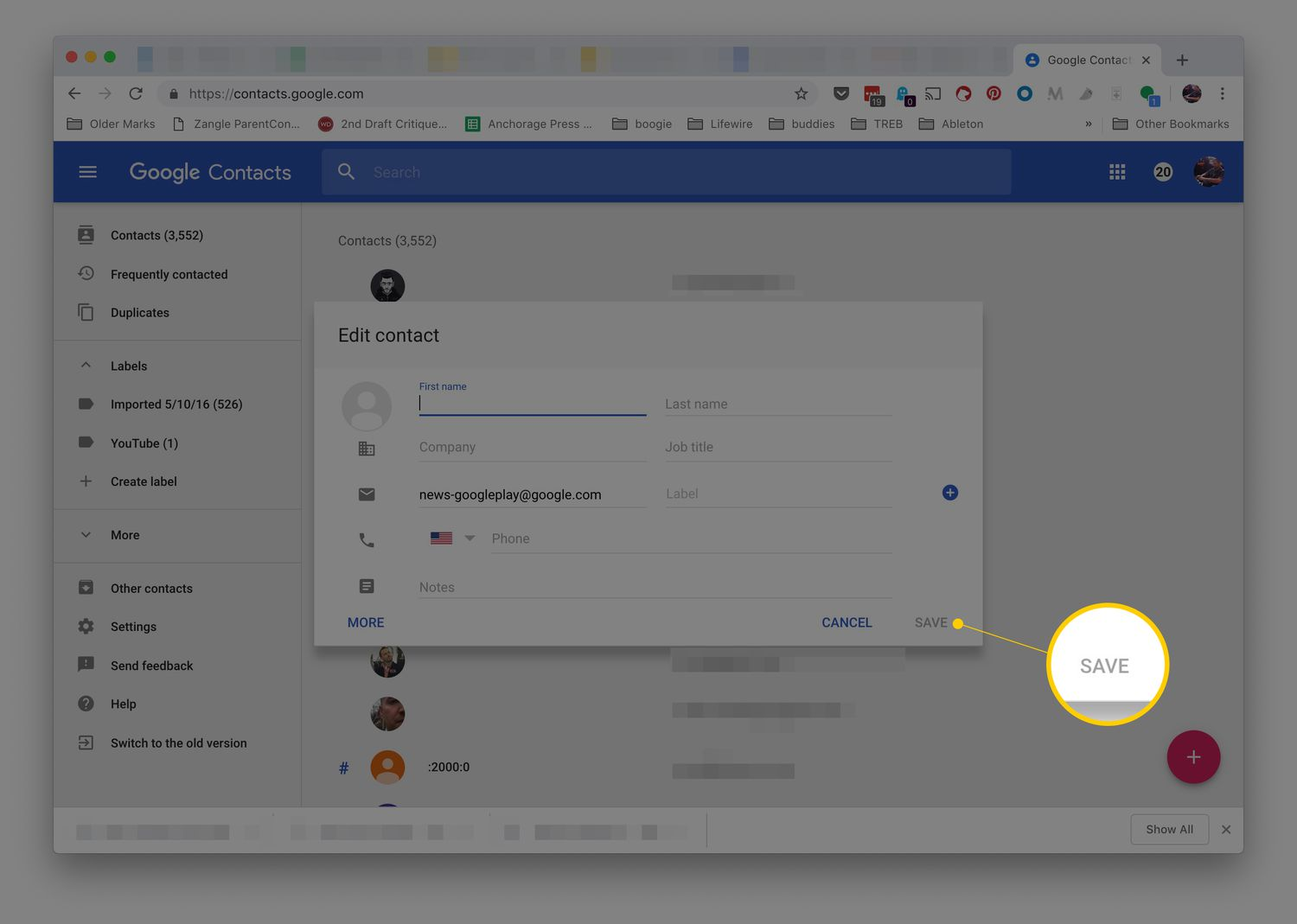
- Step 1: Go to contacts.google.com.
- Step 2: Click "Create contact."
- Step 3: Enter the sender's name and full email address.
- Step 4: Click "Save."
That's it. Gmail will now recognize this sender as a known contact going forward.
On Android: Open your Contacts app, tap the "+" icon to add a new contact, enter the sender's email, and save. As long as your Gmail and Contacts accounts are linked (which they are by default on Android), this syncs automatically.
On iPhone: If your Google account is linked to your iPhone's Contacts app, the same process applies — add the contact there and it will sync to Gmail.
This method is best used alongside the filter method, not instead of it. Think of contacts as the reinforcing layer — filters are the rule, contacts are the signal.
📈 Turn Inbox Placement Into Booked Calls
Cleverly runs your cold email so you don’t have to. More opens. More replies. More qualified meetings.
Method 3 — Mark Email as "Not Spam" From the Spam Folder
This is the fastest fix when you find a misclassified email sitting in your spam folder. It's also the least reliable as a standalone long-term method — but it's the most accessible from mobile and it matters more than most people think.
How It Works
When you click "Not spam," you're casting a vote with Gmail's algorithm. You're telling it: emails like this, from this sender, should go to my inbox. Gmail takes that into account for future messages — but it's a nudge, not a command.
Think of it as corrective training rather than a whitelist. Use it immediately when you catch a misclassified email, then follow up with a filter on the desktop for permanent protection.
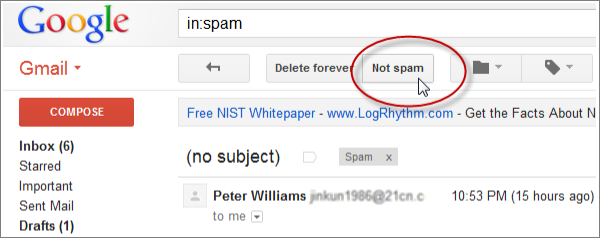
Step-by-Step: Desktop
- Step 1: Open the Spam folder in Gmail's left sidebar.
- Step 2: Find and open the email that doesn't belong there.
- Step 3: Click "Not spam" at the top of the message.
Gmail moves the email to your inbox and notes the sender for future reference.
Step-by-Step: iPhone (iOS)
- Step 1: Open the Gmail app and navigate to your Spam folder.
- Step 2: Open the misclassified email.
- Step 3: Tap the gray "Report as not spam" bar at the top of the message — or tap the three-dot menu in the upper right and select the same option.
Step-by-Step: Android
- Step 1: Open the Gmail app and go to the Spam folder.
- Step 2: Open the email.
- Step 3: Tap the three-dot menu in the upper right and select "Not spam."
Best practice: Make it a habit to check your spam folder at least once a week. Gmail permanently deletes spam after 30 days — by the time most people notice a missing email, it's already gone.
How to Whitelist an Entire Domain in Gmail
Sometimes you don't want to whitelist one person — you want to trust every email from an entire organization. That's where domain whitelisting comes in.
When to Use It
Domain whitelisting makes sense for organizations you fully trust and communicate with regularly:
- Your own company's domain
- Key vendors or agency partners
- CRM platforms and software tools
- Banking or financial institutions
How to Do It
The process is exactly the same as Method 1 (Gmail Filters) — with one difference in Step 5.
Instead of entering a full email address in the "From" field, enter @domain.com (e.g., @company.com). Every email from any address at that domain will now bypass spam.
The Risk You Need to Know
Domain whitelisting carries real risk. If a domain you've whitelisted gets compromised, or if a spammer spoofs that domain, every email from that address sails straight into your inbox unfiltered.
This isn't a reason to avoid domain whitelisting — it's a reason to be selective. Use it for fully verified, highly trusted organizations only. For everyone else, single-address whitelisting is safer.
How to Whitelist Emails in Gmail on Mobile (iPhone & Android)
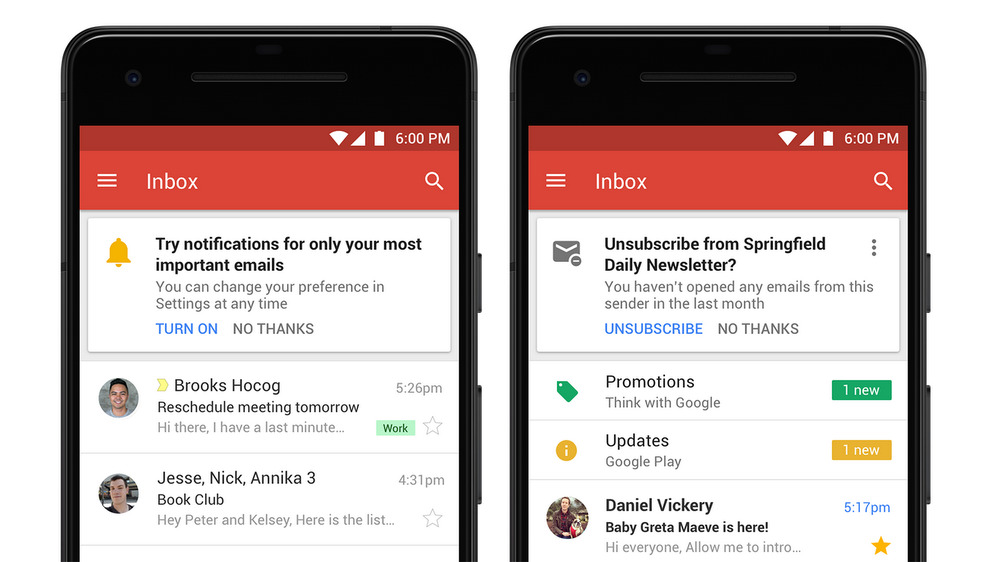
Here's the honest truth about how to whitelist an email on Gmail from your phone: the most reliable method isn't fully available on mobile.
Gmail's mobile app does not support creating or editing filters. You can't set "Never send it to Spam" from the app — only from Gmail on desktop.
The Best Workaround for Mobile
If you absolutely need to set up a whitelist filter from your phone, here's how:
- Step 1: Open your phone's browser (Safari or Chrome).
- Step 2: Go to gmail.com and log in.
- Step 3: Tap the browser menu and select "Request desktop site" (or "Desktop version").
- Step 4: Follow the same filter creation steps from Method 1.
It's a bit clunky, but it works and gives you the full filter functionality.
Mobile-Only Options (When Desktop Isn't Accessible)
iPhone:
- Add the sender to your iPhone Contacts app (syncs to Google Contacts if accounts are linked).
- Open the email in the Spam folder and tap "Report as not spam".
Android:
- Add the sender in the Contacts app (auto-syncs with Gmail).
- Open the email in Spam and tap the three-dot menu → "Not spam"
These options work as short-term measures. For any sender that genuinely matters — clients, vendors, key partners — set up a proper filter on the desktop as soon as you can.
Comparison — Which Gmail Whitelisting Method Is Most Reliable?
Not sure which method to use? Here's a quick decision table:
The single most important takeaway: layering methods is how you get reliable inbox delivery. A filter alone is strong. A filter combined with adding the sender to contacts and training Gmail with "Not spam" is bulletproof.
One method alone is rarely enough against Gmail's aggressive spam scoring.
Why Your Emails Still Land in Spam Even After Whitelisting
Here's something most guides won't tell you. Whitelisting fixes the recipient's filter — but if you're the sender, the problem goes a lot deeper than what recipients can control.
The Sender-Side Reality
Even when a recipient has whitelisted your address, if your sending infrastructure is weak, emails can still trigger warnings or soft-filter at the provider level before they even reach the individual's filter rules.
Common sender-side reasons emails land in spam even with a whitelist in place:
- Poor sender reputation from previous high-bounce campaigns.
- Missing authentication — no SPF, DKIM, or DMARC records configured.
- High bounce rates from unverified or outdated contact lists.
- Low engagement signals from past sends (nobody opening, nobody replying).
- Shared sending IPs flagged by other senders on the same infrastructure.
Gmail's spam filter weighs dozens of signals simultaneously. A recipient's filter rule runs after many of those checks have already happened. If your domain reputation is damaged enough, even a whitelisted address can trigger a spam warning banner — or get caught in provider-level filtering before Gmail's rules ever apply.
What Senders Actually Need to Fix
If you're running cold email outreach and relying on recipients to whitelist you as a primary deliverability strategy, that's the wrong lever to pull.
The real solution is building a sending infrastructure that establishes trust with inbox providers before a single email is sent. That means:
- Dedicated sending domains (never your primary domain)
- Properly configured SPF, DKIM, and DMARC records
- Inbox warmup before going live
- Verified, ICP-aligned lead lists with bounce rates under 2%
- Ongoing monitoring of domain reputation and spam complaint rates
How Cleverly Helps Cold Email Senders Land in the Inbox — Not Spam
Asking recipients to whitelist your emails is a band-aid. The real fix is building a cold email system where inbox placement is handled before outreach even begins.
At Cleverly, we manage the entire technical foundation of cold email — dedicated domain setup, full DNS authentication (SPF, DKIM, DMARC), inbox warmup, and ongoing deliverability monitoring. Before a single email goes out to a real prospect, the infrastructure is clean, verified, and tested.
Our multi-source verified lists mean lower bounce rates from day one. Our copy is tested against real ICP segments — not generic templates. And we monitor inbox health, complaint rates, and domain reputation on an ongoing basis so campaigns don't quietly degrade over time.
The result is what every cold email program should deliver: higher inbox placement, better reply rates, and qualified meetings with the right buyers. Not just emails sent — actual pipeline.
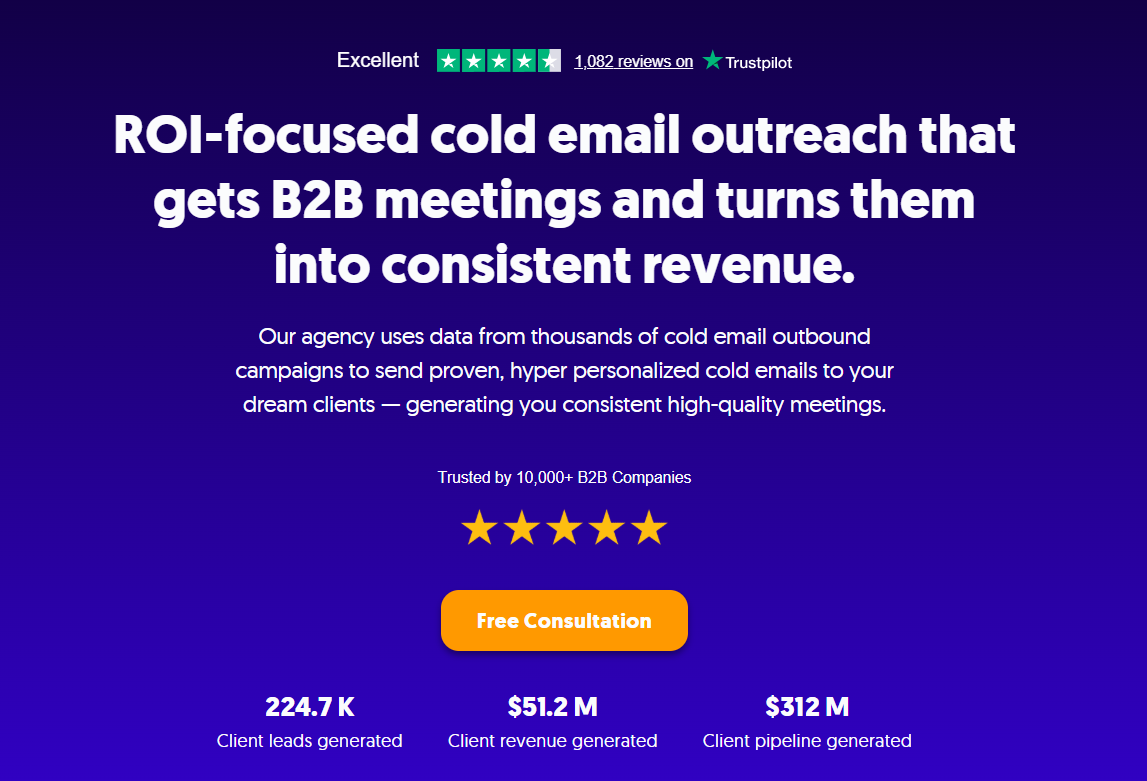
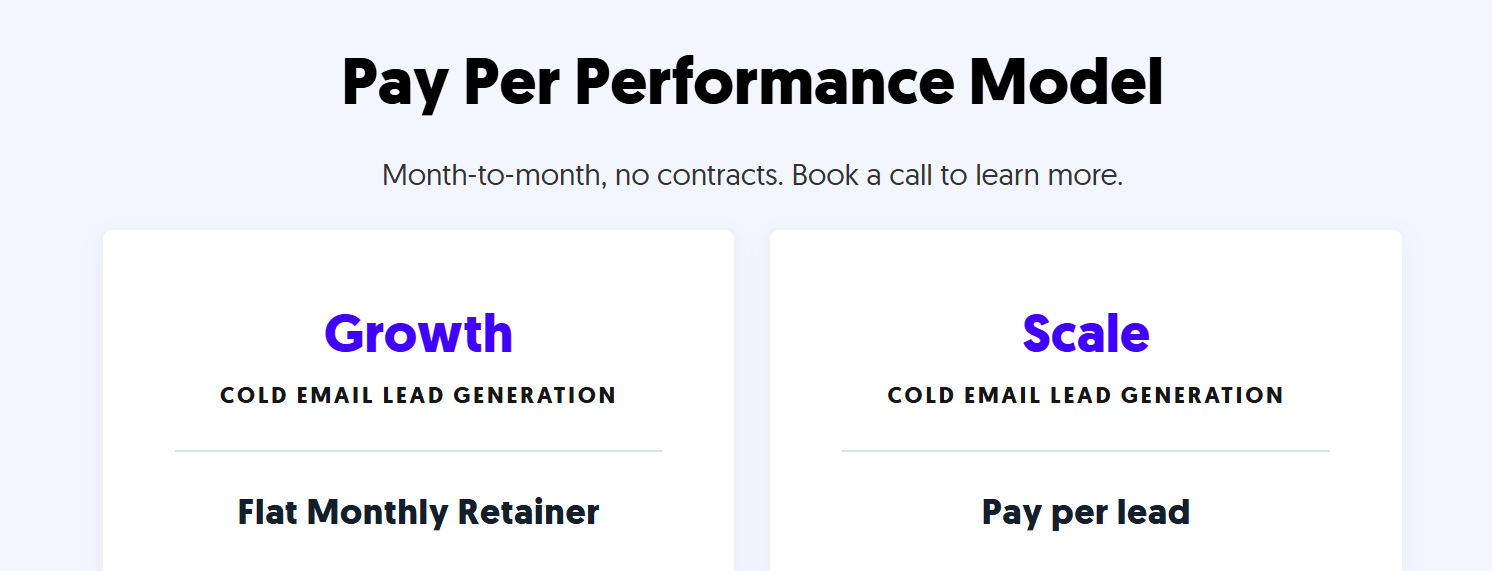
We've helped 10,000+ B2B companies generate $312M in pipeline and $51.2M in closed revenue through our cold email outreach services. Our pay-per-performance model means you only pay for meeting-ready leads we actually deliver.
📧 Want Cold Emails That Land Every Time — Without Managing the Infrastructure Yourself?
Cleverly runs done-for-you cold email outreach from technical setup to booked meetings. No contracts. No guesswork. Just qualified pipeline.
🔥 Book a free strategy call with Cleverly →
Conclusion
Gmail doesn't have a whitelist button — but it does have a system that works when you use it correctly.
The filter method is the only hard rule. Everything else — contacts, "Not spam" training — is a signal to Gmail's algorithm. Layer all three for maximum protection, and make it a habit to check your spam folder weekly before the 30-day deletion window closes on something important.
For senders: getting recipients to whitelist you helps, but it's a reactive fix. If your emails are consistently landing in spam, the problem is your sending infrastructure — not the recipient's settings. Build the foundation right, and inbox placement takes care of itself.
Frequently Asked Questions
Free Resource
How to Scale a Profitable Cold Call System
Get the complete guide — download it instantly now.

Free Ebook
Download the Free Guide
Enter your details to get instant access.
You're all set! 🎉
Your ebook is downloading now.
Click below if the download didn't start automatically.